Getting Started
About Chassis Controllers
12 | Getting Started with Spirent TestCenter
About Chassis Controllers
Note: Controller version 1 is no longer supported. Controller version 2 firmware
continues to be supported, but the chassis that support controller version 2 are obsolete,
and not are not included in this document.
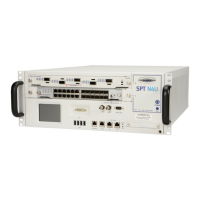
• SPT-N12U, SPT-N11U, and SPT-N4U chassis contain controller version 3..
All new chassis and test modules are shipped with current firmware installed.
• For complete installation and setup information for the Spirent C1 or the PX3/DX3-
QSFP-DD-8 appliances, refer to the installation documentation that is included in
your appliance shipment.
To Identify Chassis Controller Versions
If you are not certain which controller board is installed in your chassis you can easily
look up that information. You must be connected to one or more chassis to access the
Firmware Management window and perform this task.
To identify the chassis controller version:
1 Verify that the Spirent TestCenter Application is installed on your computer.
2 Launch the Spirent TestCenter Application.
3 Connect to one or more Spirent chassis.
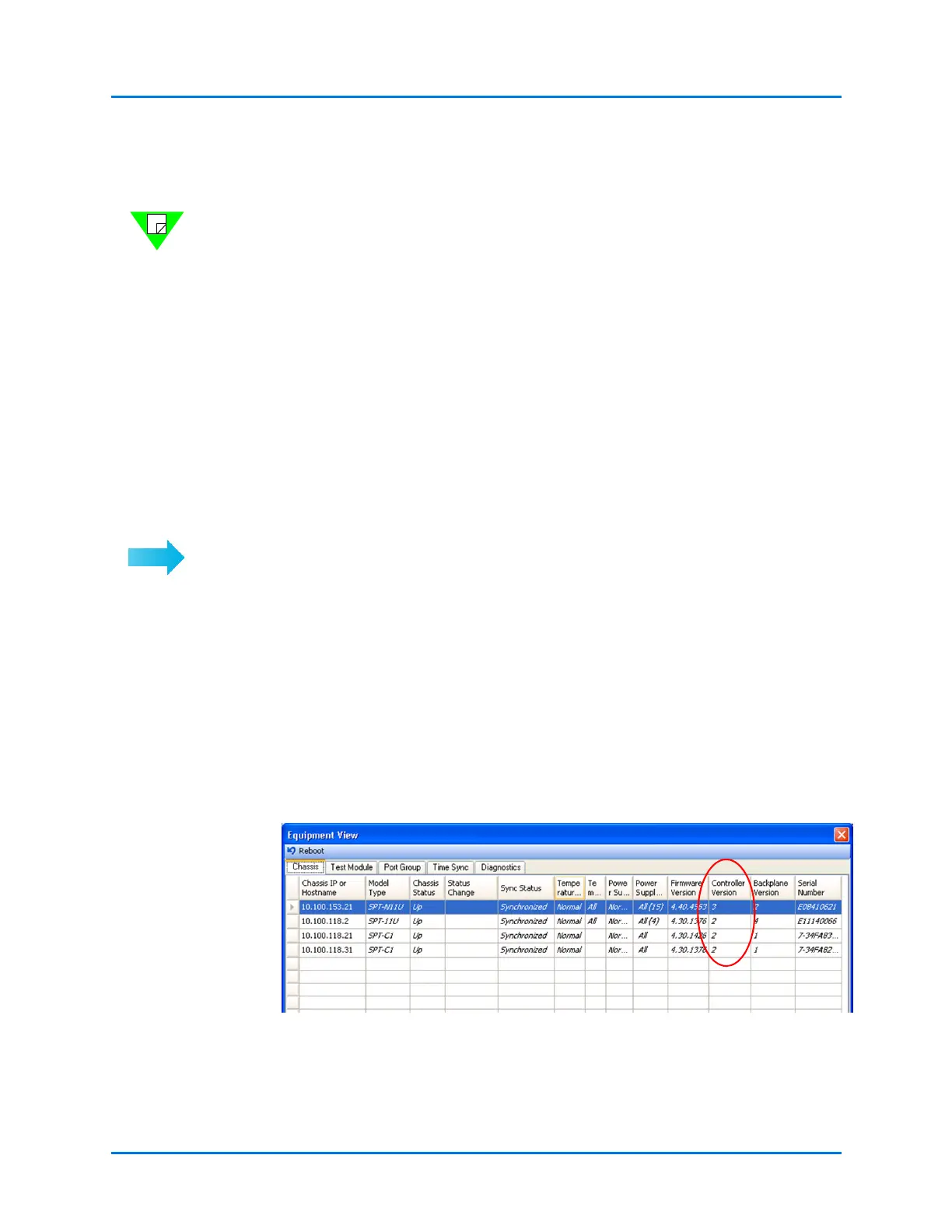
4 Select Tools > Equipment Information in the main window.
The Chassis tab in the Equipment View window displays information about each
chassis to which you are connected.
5 Scroll right (if necessary) until the Controller Version column is in view.
The version of the controller installed in each connected chassis is shown
(Figure 1-1). Your version of Spirent TestCenter may have a slightly different
interface.
Figure 1-1. Controller Version Column in Equipment View Window
6 Close the Equipment View window.


 To Next Page