Changing the Order number for a member of a Group
1 In Manager select Groups
2 A list of the current Groups will be displayed
3 Select the Group required
4 Select the Order number for the member to be amended
5 In Member Details form within the Order field enter the number required.
6 Select Update when ready and you will be returned to the Group.
7 Select Update or Apply when ready.
Delete a Member from a Group
1 In Manager select Groups
2 A list of the current Groups will be displayed
3 Select the Group required
4 Select the Order number for the member to be deleted
5 In the Member Details form select Delete and you will be returned to the Group
6 Select Update or Apply when ready.
Alternatively,
1 Open Manager Assist>Configuration Aids.
2 Under the Users section select Group Users – Add and Remove Users within Groups.
3 From the Select Group: list box select the Group you wish to amend.
4 The existing members of the group are highlighted in red within the list of Users of the system.
5 Tick the User(s) you wish to remove from the Group and click on the Remove Users button.
6 In the warning that is displayed select OK to accept this change.
7 This User will no longer be highlighted in red.
Adding a Group to a Group
Where the Users to be added to a Group are already contained in an existing Group, rather than entered
each User in separately the existing Group can be added instead.
1 In Manager select Groups
2 Select the Group required
3 Select Add Group Member
4 Select the Member field
5 From the Select Group list select the Group required.
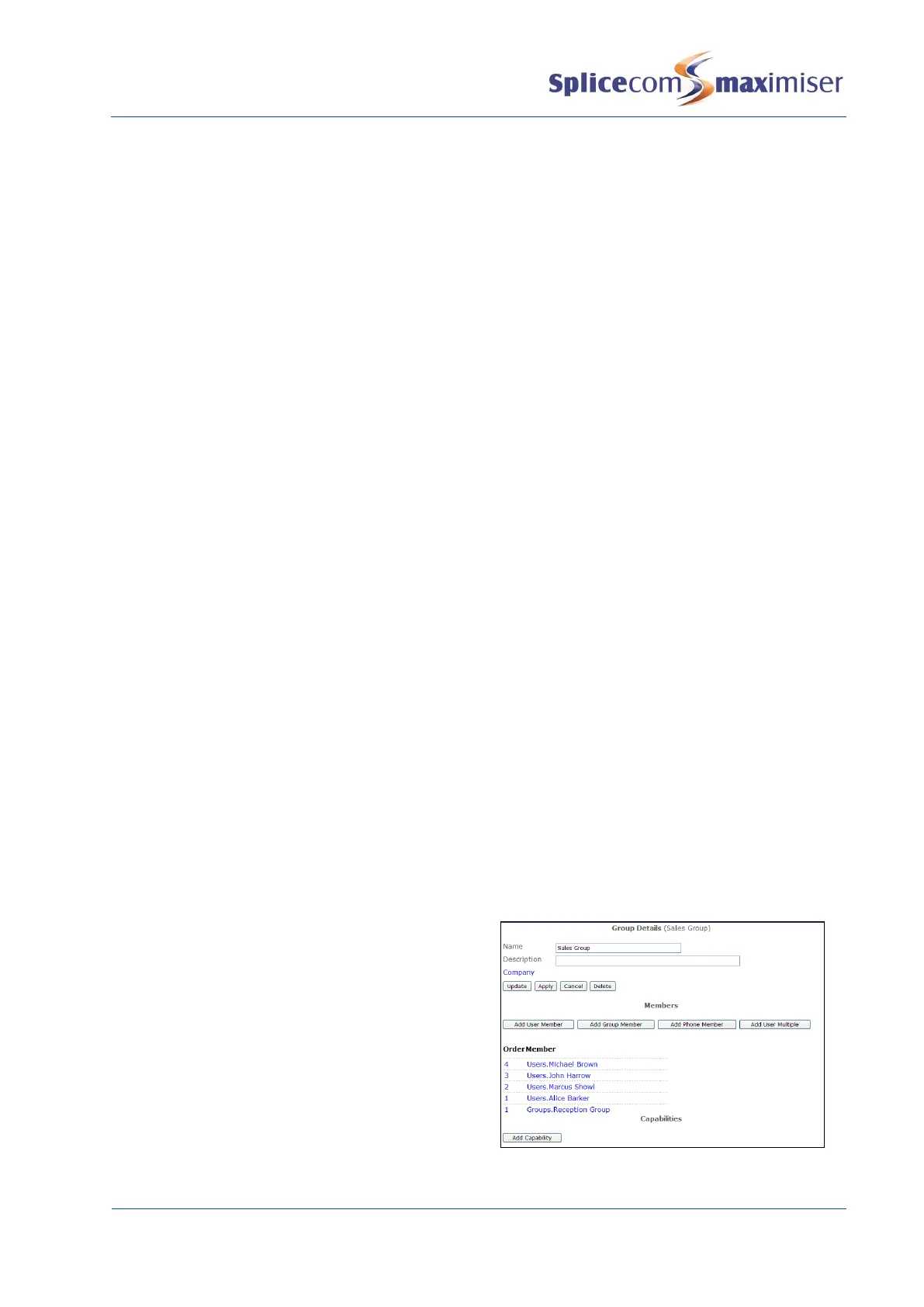
7 In the Order field enter the number required.
The Order number determines the priority of
the member within the Group. The higher the
number the higher the priority, for example, a
User with an Order number of 4 will have a
higher priority than a User with an Order
number of 1. The member with the higher
number will be presented with a call first, then
the next highest and so on.Select Update when
ready.
8 The Group will appear in the Members list


 To Next Page