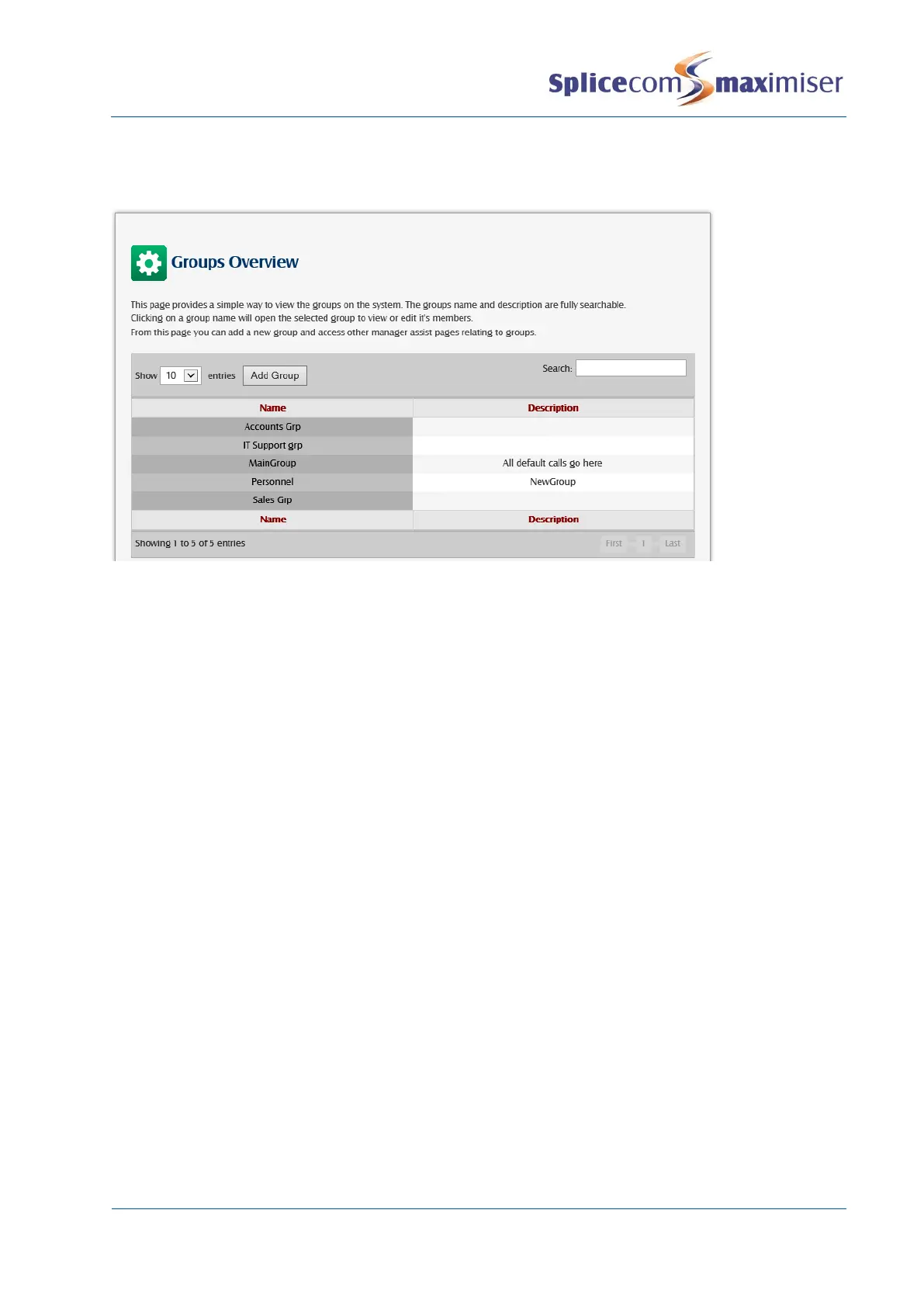
An overview of the Groups created on the system can be viewed via Manager Assist>Configuration
Aids>Groups - Groups Overview. Each Group Name gives a link to the Groups Users – Add and Remove
Users page.
For information on how a Group is used to present calls please refer to Routing Calls via a Department on
page 146.
Add a User to an existing Group
1 Open the Group required.
2 Click on Add User Member
3 Click on the Member field
4 From the Select User list select the User you wish to add and this name will appear in the Member
list.
Alternatively,
1 Open Manager Assist>Configuration Aids.
2 Under the Users section select Group Users – Add and Remove Users within Groups.
3 From the Select Group: list box select the Group you wish to amend.
4 The existing members of the group are highlighted in red within the list of Users of the system.
5 Tick the User(s) you wish to add to the Group and click on the Add Users button.
6 In the warning that is displayed select OK to accept this change.
7 The new Member will now be highlighted in red.
Please note that this member will be given the next Order Number within the Group.
Change a User member
1 In Manager select Groups
2 A list of the current Groups will be displayed
3 Select the Group required
4 Click on the member to be amended
5 From the Select User list select the User required and you will be returned to the Group
6 Select Update or Apply when ready.


 To Next Page