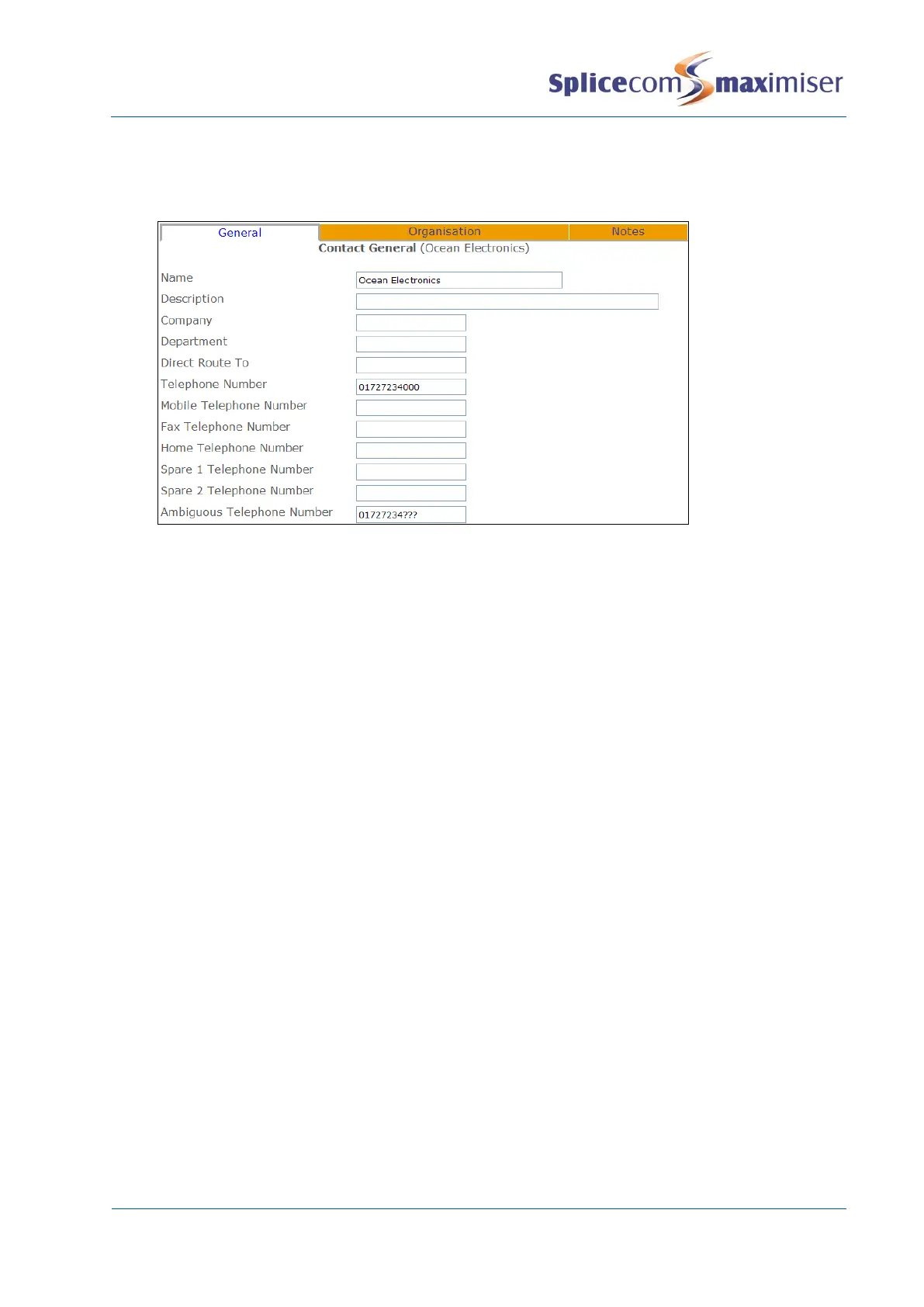
4 In the Ambiguous Number field enter the number to be matched against incoming CLI, using a ?
where a digit will be variable, eg 01923 287???
5 Select Update or Apply when ready.
Using an Auto URL
When a call is received from or made to a Contact it may be necessary to present the User with a specific
web page on their PCS 60, 50 or PCS 58x, 410/400 to help them deal with the call efficiently. This could be
a page stored on the internal web server (please refer to page 264 for further details), the customer’s
intranet or accessed externally if an Internet connection is available.
1 In Manager select Contacts
2 From the Contact list select the Contact required.
3 In the Auto URL field enter the path to the web page to be displayed, eg www.splicecom.com or
http://192.168.0.1/sales.php
4 From the Auto URL Mode list box select one of the following:
a NoAction – the web page specified in the Auto URL field is not automatically displayed on a
PCS when a call is made to and/or received from this Contact. However the web page can be
viewed via the Information icon on the PCS.
b On Ring – the web page will display on the PCS when a call from or to this Contact is ringing
(this is useful if a script should be read when answering a call).
c On Connect – the web page will display on the PCS once a call from or to this Contact is
answered.
5 From the AutoURL Direction list box select one of the following:
a Bothway – the web page will be displayed on a PCS when a call is made to this Contact and
on a PCS when a call is received from this Contact
b In – the web page will only be displayed on a PCS when a call is received from this Contact
c Out – the web page will only be displayed on a PCS when a call is made to this Contact
6 Select Update or Apply when ready.


 To Next Page