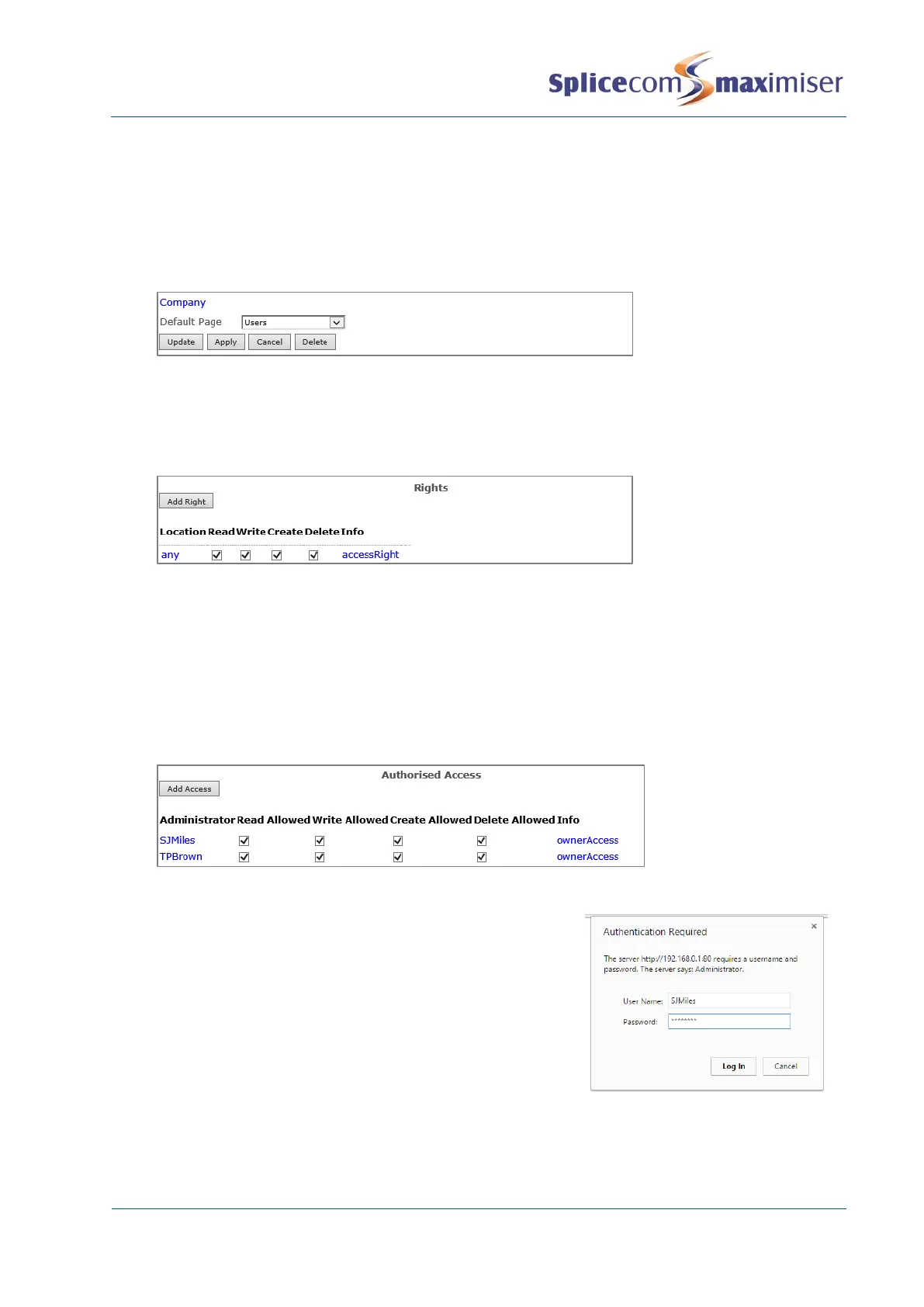
11 If the Companies feature is being used on this system select the company that this administrator
can have access to (otherwise the administrator will have access to all Users, Departments etc). For
further information on the Companies feature please refer to page 177.
12 If you wish the administrator to be shown a specific page of the database on opening Manager
from the Default Page list box select the page required, eg Contacts.
13 Select Apply
Assigning rights to the Administrator
14 Within the Rights section at the bottom of the page select the Add Right button. A new entry will
be displayed providing full rights to the database dependent on the options selected above.
15 Select Update when ready.
Authorising the Administrator
16 From the Administrator List select Manager
17 Within the Authorised Access section select the Add Access button
18 Select the Administrator field
19 From the Select Administrator list select the administrator created above. (This entry will provide
full rights to the database dependent on the options selected within the Administrators
configuration form.)
20 Select Update or Apply when ready.
View the configuration logged on as the new Administrator
2 In the User Name field enter the name of the new
Administrator and enter this Administrator’s password.
3 The Administrator logged in will only have access to the
sections of the database configured above.
Please note: as the default Administrator, Manager, gives Authorised Access to new Administrators it is
highly recommended that Manager is not deleted.



 To Next Page