55
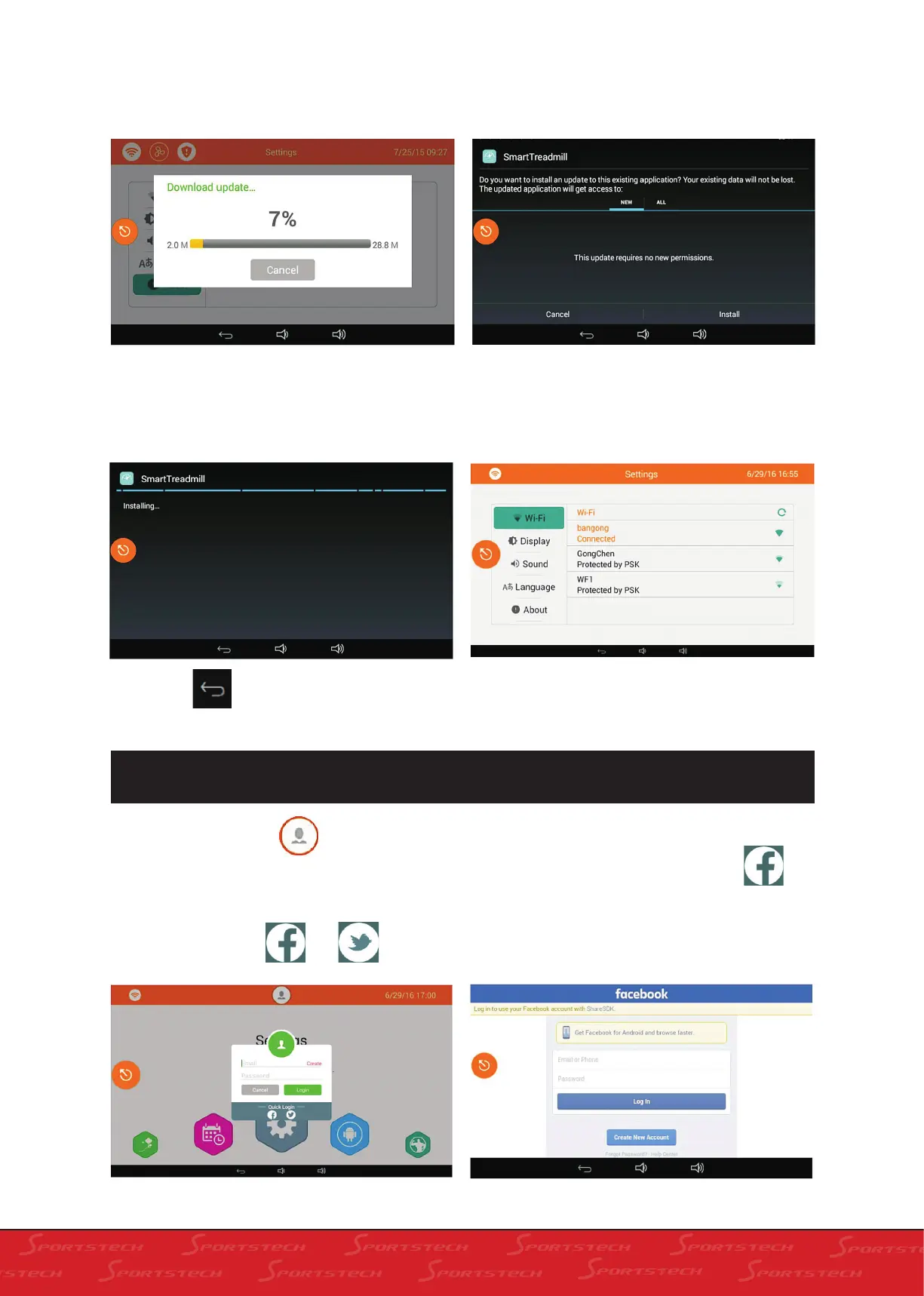
In this scree click „Cancel“ to cancel update. Click
„OK“ to enter into downloading screen as below.
Click „Cancel“ to cancel installation. Click „Install“
to enter into installation screen as below.
In this screen click „Install“ to automatically install.
The following dialog box pops up after finish
downloading.
After completing automatic installation the tread-
mill will turn back to the setting screen.
Click Back to exit settings and go back to home screen.
9.2 USER LOGIN
Press User information to enter into login
as below.
1. In this screen input the registered account
number (email) and password and click „Login“.
2. You also can click or under the
Quick Login and use a third party login account to
login. (e.g use facebook account) click the
following dialog window shows.
In the following screen input corresponding ac-
count and password and then click „Log In“.


 To Next Page