10
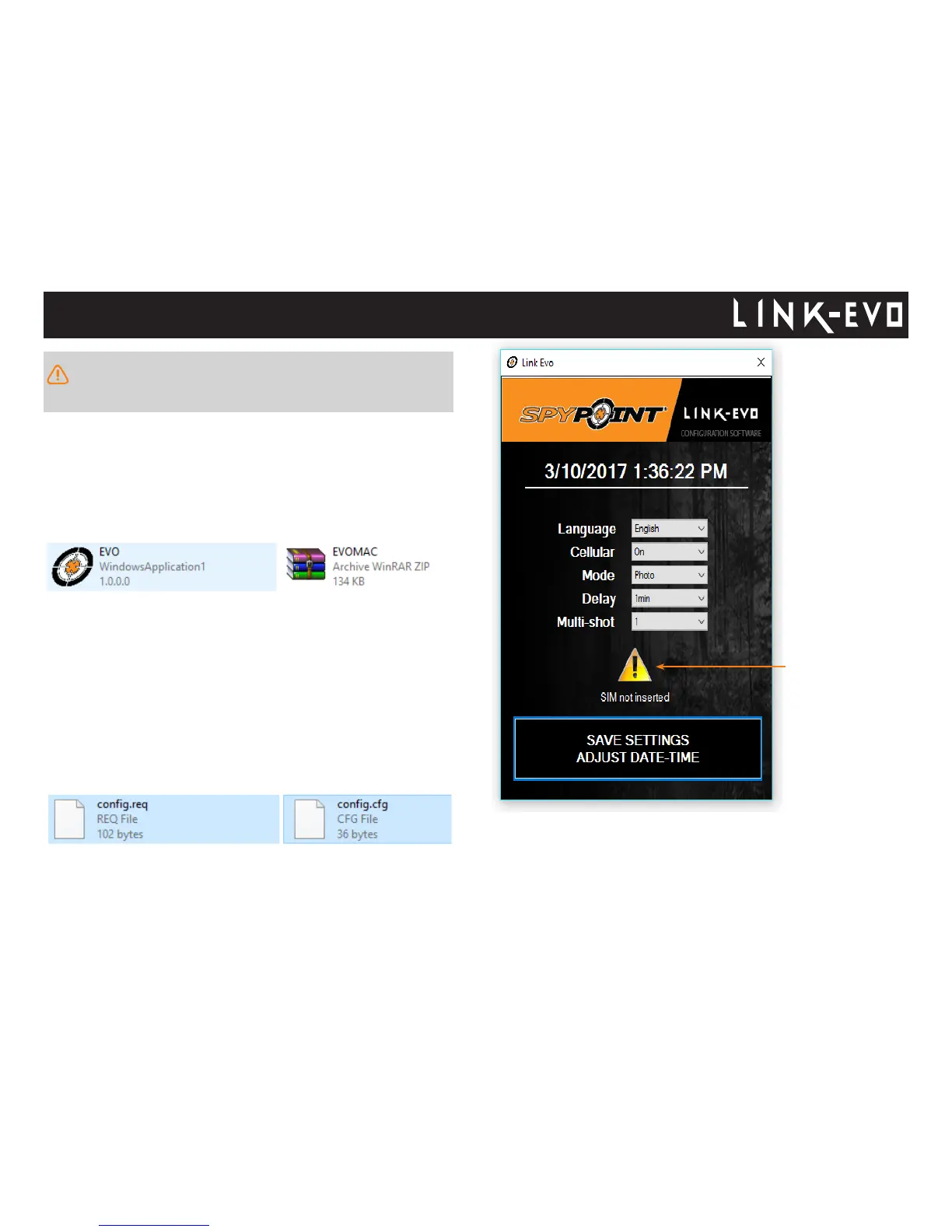
CONFIGURATION & DIAGNOSIS USING THE EVO SOFTWARE
1. Remove the memory card from the camera.
2. Insert the memory card into a computer.
3. Open the "EVO" software located on the memory card. If you use a
MAC computer, click on "EVOMAC" rst to create the program for MAC.
Then, open the new "EVO" software.
4. You can change the desired settings using the dierent tabs selection.
Note that all these settings can be set via the SPYPOINT LINK app. If
you'd like to use your camera in stand alone mode, just turn O the
cellular to use it as a regular trail cam.
To troubleshoot the camera, check the diagnosis message. It will give
you the reason why the camera is unable to connect to the LINK app. To
understand the diagnosis message, go to p.17 to see the list and what
you need to do to x it.
5. When completed, press "Save settings Adjust date-time" to Exit.
6. Make sure that the "cong.cfg" and "cong.req" les were created and
saved on the memory card before removing it from the computer.
7. Insert the memory card into the camera.
8. Turn on the camera and it will automatically record the new settings
you've saved.
Insert a new SD card into the camera. Then, turn the camera on
and a copy of the EVO software will be saved automaticly onto the
memory card.
A diagnosis message
will appear only if
there is an issue.
EVO software: Conguration & diagnosis tool


 To Next Page