9
START THE CAMERA
We suggest to format your SD card if it’s been in another electronic device to
make sure you will have the maximum capacity of your memory card.
1. Turn the camera ON
Use the ON/OFF switch to turn the camera ON.
2. All lights ashing - Searching for signal
The signal search can take a few minutes. If you only see 1 bar
ashing, the network test was unsuccessful. Move outside or get
near a window and re-start the camera a few times if needed, be
to connected to the cell network.
3. Number of lights - signal strength
Once the network test is completed, you will see the signal
strength in signal bars. Note that the signal bars on a LINK-EVO
might not be equal to your other cellular devices as there’s no
industry standard and practice to label dBm values to a specic
number of bars.
4. Red light ashing (30 s) - Installation delay
The test light in front of the camera will ash for 30 seconds to allow the
user to leave the area without being photographed or recorded.
5. All lights OFF - Camera ready
The camera has updated its status in the LINK app with the latest
informations. The camera is now ready to take pictures and transmit
them to your LINK app upon the next synch. Synchs are set by default
to every 4 hours starting at midnight.
INSTALL THE FREE SPYPOINT LINK APP
The SPYPOINT LINK App lets you connect and control your camera remotely
using a smartphone or tablet. Features include viewing your camera status,
pictures, full control of the camera settings and more.
Install the free App
1. Make sure you have a data package with either your smartphone
or tablet or a Wi connection.
2. To install the App, you can either:
● Get it on Google Play
TM
(Google Play is a trademark of Google Inc)
● Download on the App Store
TM
(App Store is a trademarks of Apple Inc.)
3. Search for the SPYPOINT LINK App from SPYPOINT.
4. Install the App on your smartphone or tablet.
Run the SPYPOINT LINK APP
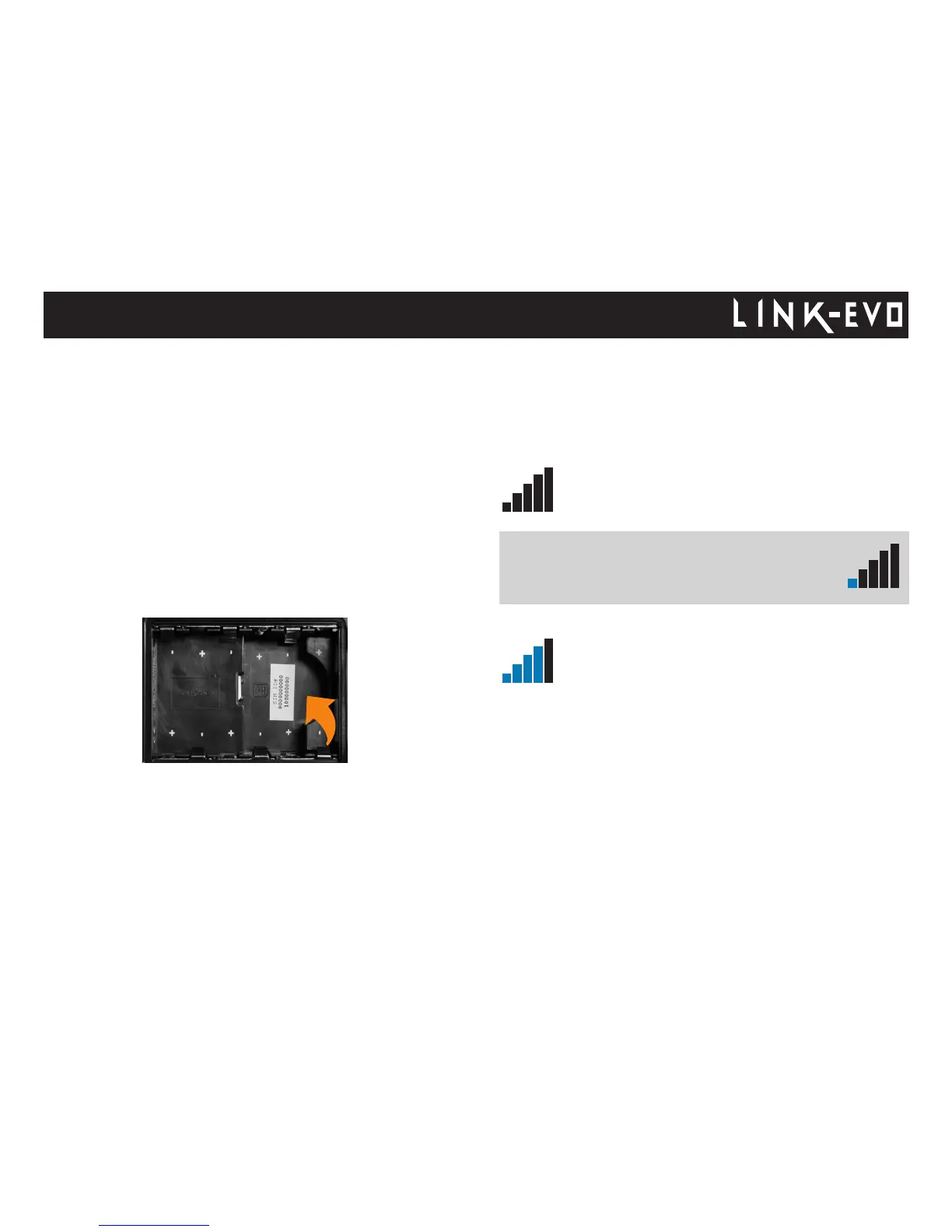
Start the app and it will walk you through a few questions. The SIM ID number
can be found in the battery case. You will need this number to complete the
registration of the LINK-EVO camera and connect to the application.
Press the button at the bottom of the screen once you have nished. You will
then receive an email conrming the activation.
SETTING THE APP
The SPYPOINT App lets you congure all your settings of the camera.
Theses new settings will take eect the next time the camera connects
to update its status.
Getting started
Note: If you still only see 1 bar ashing, you will need to
run the EVO software shown on p.10 to see the diagnosis
messages. You will only see a disagnosis message if the
camera was not able to connect to the LINK app.


 To Next Page