Instruction manual for the DMC-EZ (DICOM Media Creator) - Viewer
4
1.2 Quick Start
Insert the CD in the drive. If Autorun is enabled, EzDicom CD Viewer will start automatically.
If not, browse the CD folder and double click on Launcher.exe. Or if you are connected to the
DMC-EZ you can launch the Ez-Dicom Web Viewer by selecting studies.
and click
“Visualize” or double click study.
The first Study will be loaded when EzDicom CD Viewer starts.
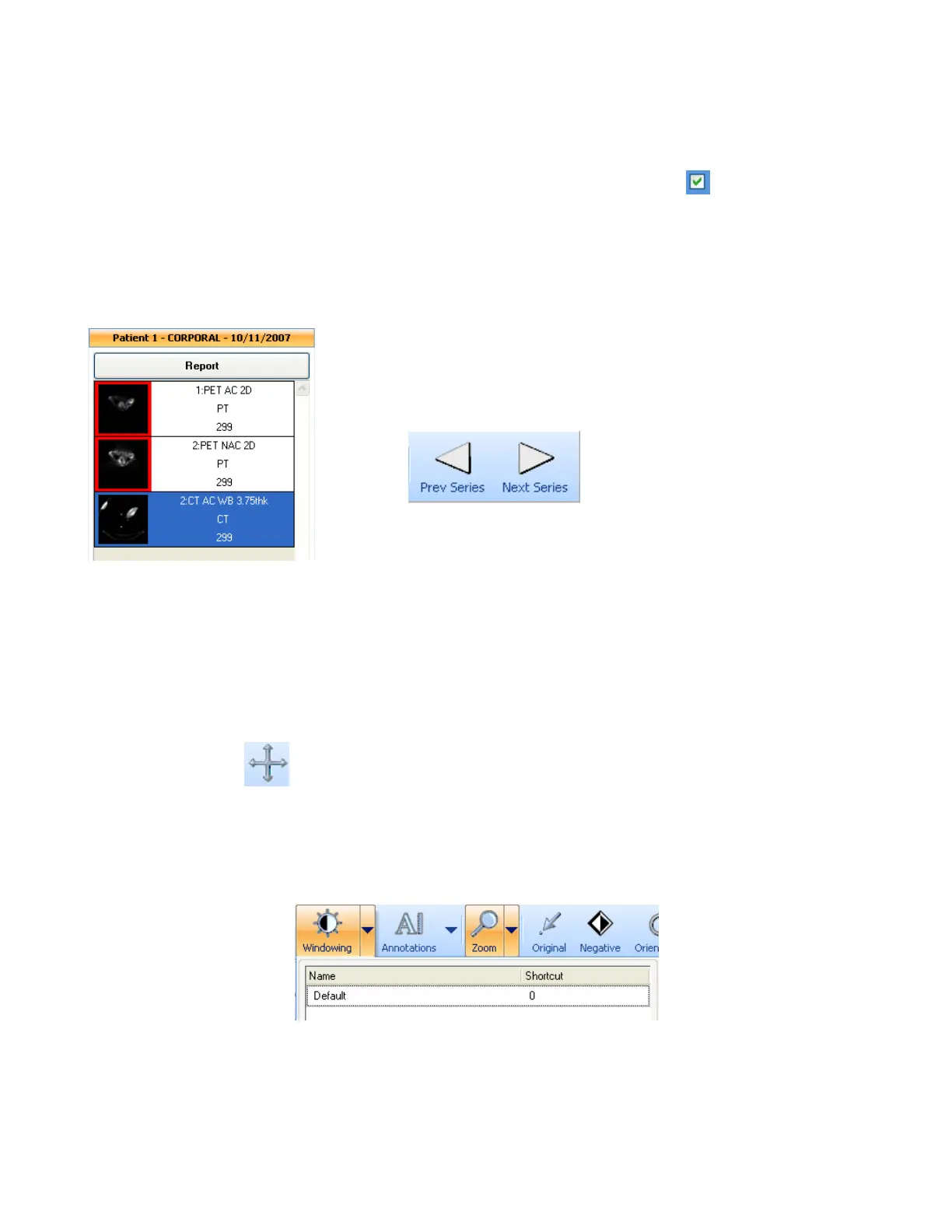
You can navigate through Studies and Series using the Series panel on the left:
You can also navigate using the navigation buttons in the toolbar:
1.3 Common Tools
1.3.1 Pan
The Pan tool allows you to move the Image in the viewer. Left click and drag on the Image to
Pan.
1.3.2 Windowing
The Windowing tool allows you to modify the Level and Width of the current Series.
Left click and drag on the Image to modify those values. You can also use a Predefined
Windowing. Click on the arrow on the right of the Windowing button and select a Preset.


 To Next Page