Using in-call features
Changing what you see in a video call
Note: For information about multiparty conference controls and layouts, refer to About
meetings (p16).
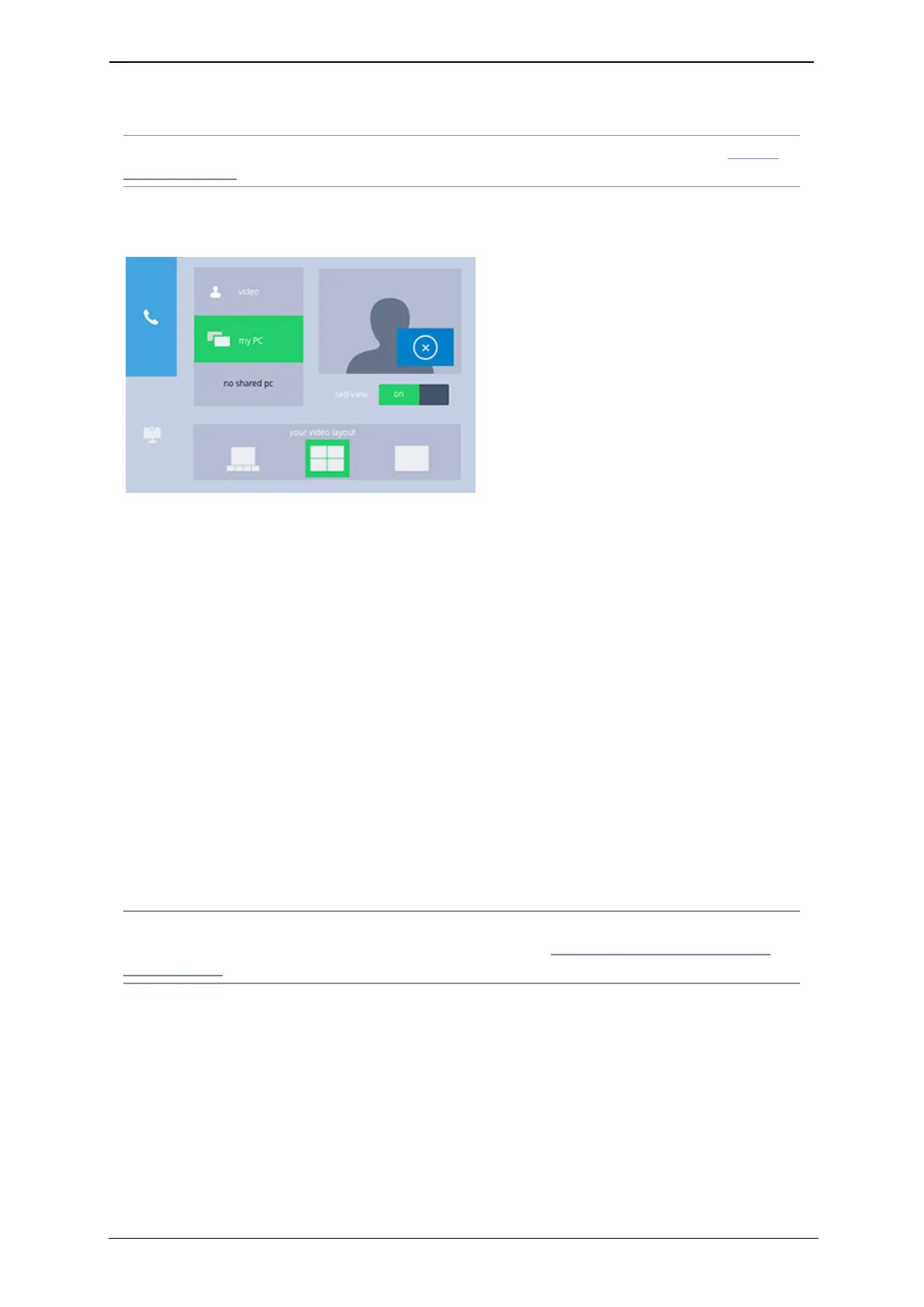
Press the Display tab to change what you can see in a video call. The Display tab looks like
this:
The Display tab gives you these options:
n
video: select to view the other people in your video call. This is the default setting for a
video call until someone shares a PC screen and then you see the shared PC screen, in
which case, you may prefer to press this button to return to the video view
n
my PC: press to view your own PC's display (if you have attached your computer to the
codec). Remember that other people in the video call may still be able to see you
n
no shared PC/shared PC: If someone is sharing content from their PC, you can press to
view that shared content
n
self-view: use the self-view slider to either see yourself or not. Self view allows you to see
the view of you that other people see when you are in a video call. Switching it off does
not prevent them from seeing you. To prevent people from seeing you in a video call,
press the Video mute button on the touchscreen controller
n
PiP: The PiP is the Picture-in-Picture view. For example, if you have self-view on, you see
yourself in a PiP view. Use the PiP control on the Display tab to move the PiP around the
screen. Note that if you are in a call where there is shared content (or you have pressed
my PC) then the PiP control allows you to remove the PiP view; to do so, use the cross in
the corner of the PiP control to close the PiP view. If you have closed the PiP view, you
can make it reappear by pressing the plus sign on the PiP control
Note: On a GT Mini or a Group Telepresence 3351, with two screens attached, the screen
layout behaves differently. For more information, refer to Layouts for dual screen room
systems (p15) below.
StarLeaf room system guide, 24 September 2019 Page 12 of 31



 To Next Page