Using in-call features
Depending on the other device in the video call, you might be able to remotely operate
the pan and zoom on the camera at the other end of the call. When you can remotely
control the camera at the other end of the call, this is called FECC (Far End Camera
Control). You can only use FECC in a point-to-point call (that is, FECC is not available in a
conference call).
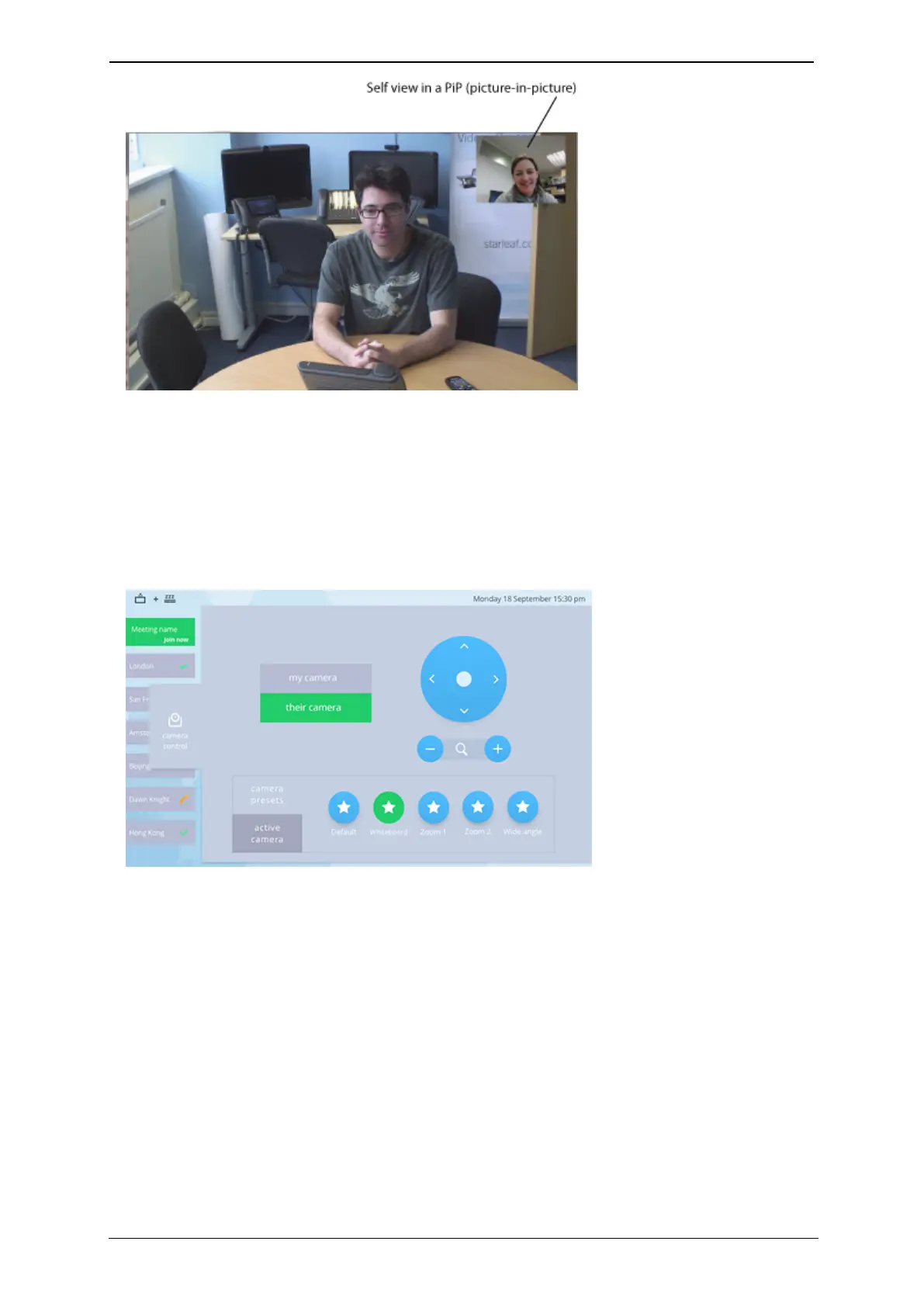
If FECCis allowed, you access it on the camera control tab.
The FECC control allows you to pan and zoom the camera at the far end of the call.
Changing what they see in a video call
Camera presets
Room systems can have up to five camera presets that allow you to adjust the camera
focus of your video. For example, you can set a camera to point towards one part of the
room and zoom in, when selected. To select a camera preset, open the camera control
tab and press the star button for the camera preset that you want. The video adjusts
automatically to the preset configuration. You can swap between presets at any time.
StarLeaf room system guide, 24 September 2019 Page 13 of 31



 To Next Page