Joining a meeting on the room system
Joining a meeting on the room system
You can join ad hoc, scheduled, and permanent meetings from the room system.
Joining a scheduled StarLeaf meeting
If you receive an invitation to a meeting, the details are shown on the Join button on the
day of the meeting. The behavior of the Join button is as follows:
n
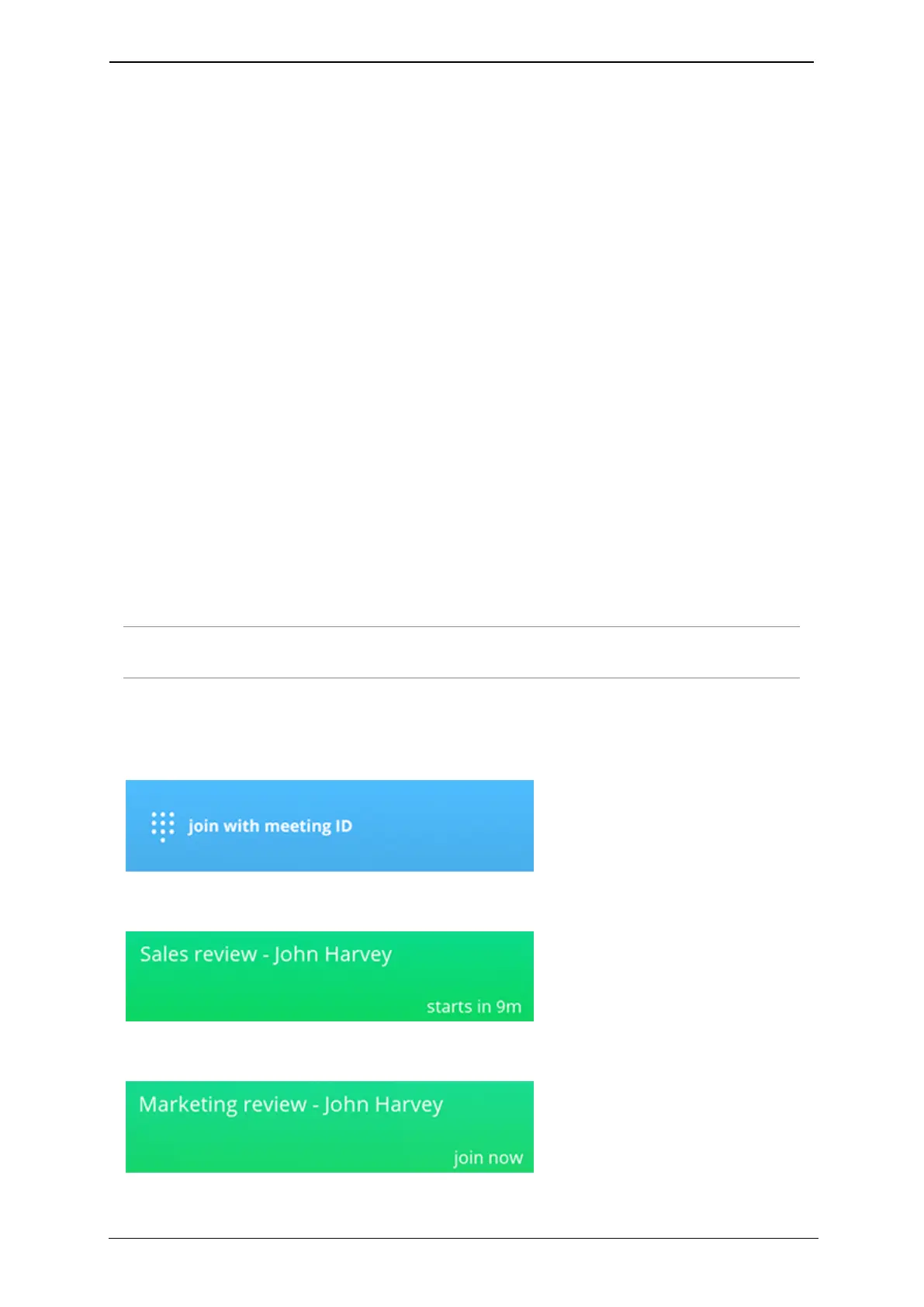
If there are no meetings in progress or due to start, the Join button displays the message
'join with meeting ID'
n
If there is a scheduled meeting due to start in ten minutes or less, the Join button lights
up green and displays the name of the meeting, the name of the meeting organizer
and the time remaining before it starts
n
When the meeting starts, the Join button flashes. Anytime after the Join button lights
green, you can use the button to join the conference
n If you receive invitations to two overlapping meetings, the details of the first
conference due to start display on the Join button. When the first meeting has ended,
the details of the second meeting display. To join the second meeting at any time, dial
the meeting ID which is in the meeting invite email
n
The Join button remains lit until the meeting end time or, if a meeting continues past its
end time, 5 minutes after the last person leaves the meeting
If a scheduled meeting is canceled, the meeting details are removed from the Join
button.
Note: Permanent meetings do not trigger the Join button, and do not appear on the
button display.
Join button behavior
The default message when there are no meetings in progress or due to start:
The message displayed when a scheduled meeting is due to start:
The message displayed when a scheduled meeting has started:
StarLeaf room system guide, 24 September 2019 Page 18 of 31



 To Next Page