®
®
stingersolutions.com
stingersolutions.com
12
13
SRK-JK11HX
VEHICLE SETTINGS
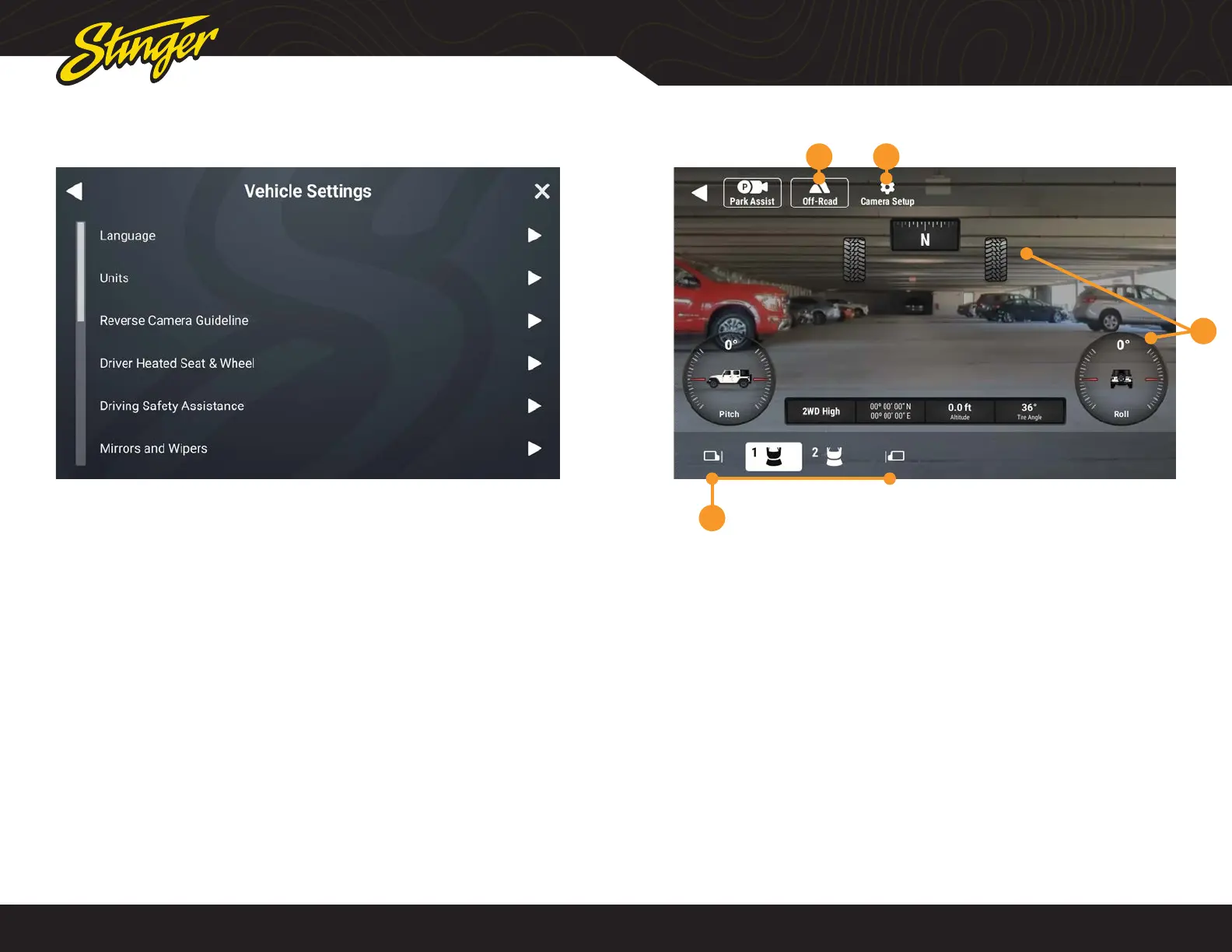
Press the HOME BUTTON > Vehicle Settings to access Vehicle Settings
The Vehicle Settings are all the factory
vehicle settings retained from the
factory radio.
Since these are factory settings, with the
exception of the PAC Enabled Settings,
these are all explained in detail in the
uConnect section of the Jeep Owner’s
Manual.
NOTE: The listed settings are based
on how the vehicle is equipped. For
example, Aux Switches will not be
present if the vehicle is not equippped
with Aux Switches.
NOTE: Auto Start / Stop Memory will
retain adjusted Start / Stop status when
the vehicle is turned off.
CAMERA OVERLAY
4
Press the HOME BUTTON > Camera to access Camera views.
The factory rear camera will continue to
automatically display when in reverse
and can also be activated at any time
by selecting Cameras from the HOME
Menu or Tabs.
When the camera is rst activated, there
will be menu bars at the top and bottom
of the display. These bars contents
will vary depending on your installed
equipment. These bars will auto-hide
after 5 seconds
1. Off-Road Mode
Activating Off-Road Mode will display
heading, tire angle, pitch, roll, and the
vehicle information toolbar.
2. Camera Setup
Access your camera setup from this
control. Turn triggers on, off, and adjust
advanced camera features
3. Off-Road Overlay Elements
4. Camera Selection
Tap a camera icon to change cameras.
Contents of this area will change based
on your installed equipment
1 2
3



 To Next Page