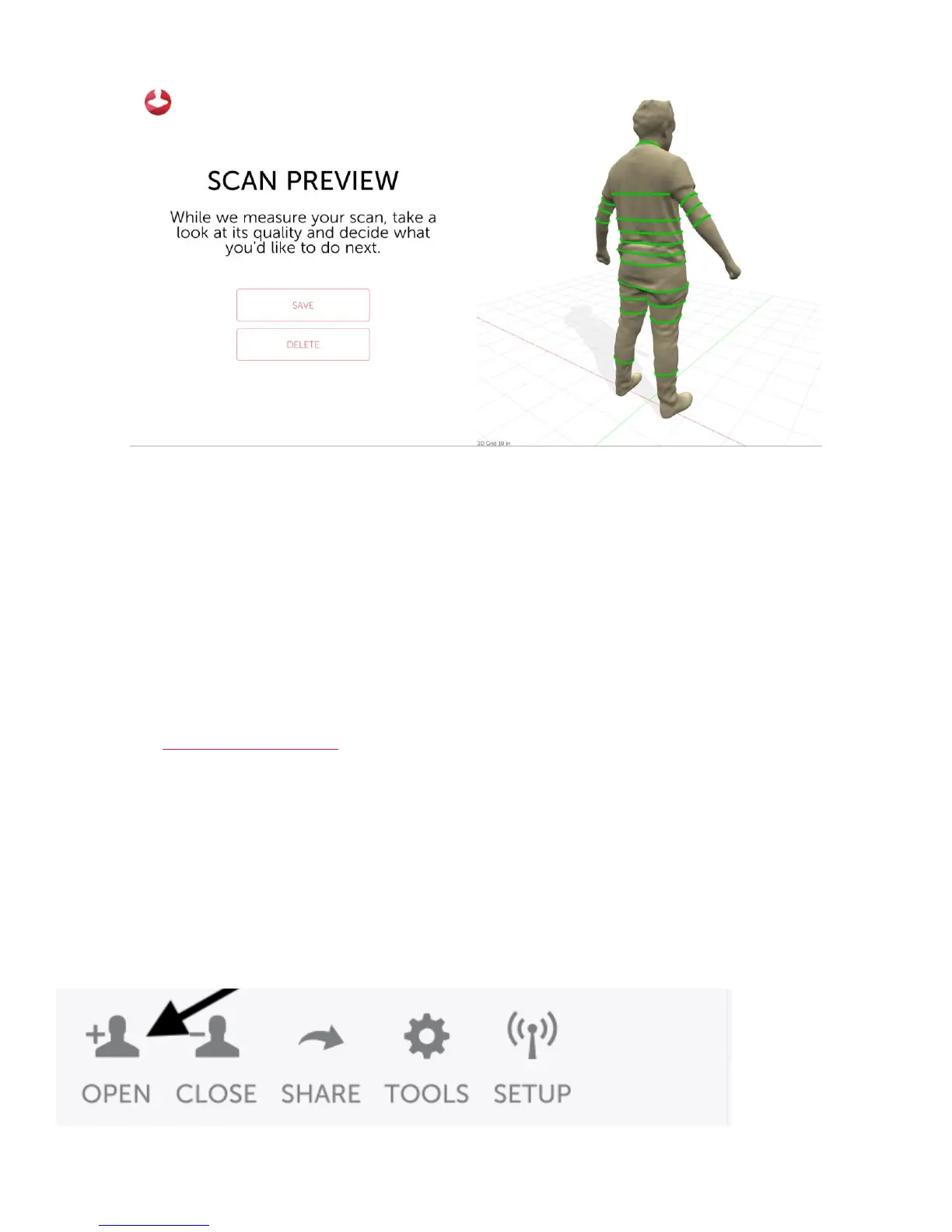
Scan again or exit scanning
Once Styku has finished measuring, you will have the option to ‘Scan Again’ which means scan using the same
profile information, perform a ‘New Scan’ which means scan using a new profile, or ‘View Details’, which
means close the scanning part of Styku and go back to the rest of the program.
Validate the Scanner Results
Note: You can view a video of the validation process by visiting the Styku Web Portal and choosing the
Setup link, at https://app.styku.com .
Scan your subject multiple times
To see that your Styku S100 scanner is set up properly and is generating precise measurements, scan a subject
in the proper clothing 3 times in a row. You can click the “Scan Again” button to use the same customer
profile for each scan.
Load all of the scans into Styku
Open up all of the scans into the 3D viewer by pressing the Open button in the bottom left hand corner, and
choosing the profile you created for the subject.



 To Next Page