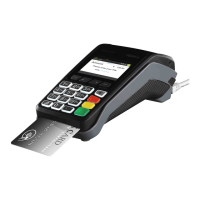
Debit Card Cash Out Only
— Press the MENU button the Home screen.
— Select 1 for Transaction.
— Select Cash out.
— Type in the Cash out amount.
— Press Enter.
— Prompt the customer to Insert or Swipe their card.*
— Select the account type – request the customer to make this selection.
— The terminal will ask the customer to type in their PIN and press Enter.
— If Approved, the terminal will print the merchant receipt.
— Remove the merchant receipt and press Enter or Yes to print the customer receipt (ifrequired).
— Ensure that the transaction receipt says ‘APPROVED’.
— Hand the Customer Copy receipt to the customer (if required).
Cash out cannot be performed on a Credit Card.
If User ID has been enabled on your terminal, the terminal will request a User ID to be entered after the cash amount has
been entered.
Remember to clearly display your Cash out Policy.
* Dependant on the functionality available on the customer’s card.
Credit Card/Charge Card Purchase
— Type in the Sale Amount.
— Press Enter.
— The terminal will ask if you would like to enter a Tip, press the Enter button for Yes or
Cancel button for No.
— Type in the Tip Amount.
— Press Enter.
— The terminal will ask you to confirm the Total.
— Press the Enter button for Yes or Cancel button for No.
— The screen will display PRESENT CARD - Prompt the customer to Tap, Insert or Swipe
theircard.*
— Select the account type – request the customer to make this selection.
— The terminal will ask the customer to type in their pin number and press Enter or press
Enter for the customer to sign the receipt (if prompted to do so).
— If Approved, the terminal will print the merchant receipt.
— Remove the merchant receipt, hand to the customer to sign the receipt (if prompted to
doso by the terminal).**
— Press Enter or Yes to print the customer receipt (if required).
— Ensure that the transaction receipt says ‘APPROVED’.
— Hand the Customer Copy receipt to the customer (if required).
If User ID has been enabled on your terminal, the terminal will request a User ID to be selected after the transaction
amount has been entered.
* Dependant on functionality available on the customer’s card.
**Always verify the customer’s signature if not a PIN transaction, press Enter to confirm the signature.



 To Next Page