SunFounder PiCrawler Kit
3.1.2 Installing the OS
Required Components
Any Raspberry Pi 1 * Personal Computer
1 * Micro SD card
Step 1
Raspberry Pi have developed a graphical SD card writing tool that works on Mac OS, Ubuntu 18.04 and Windows,
and is the easiest option for most users as it will download the image and install it automatically to the SD card.
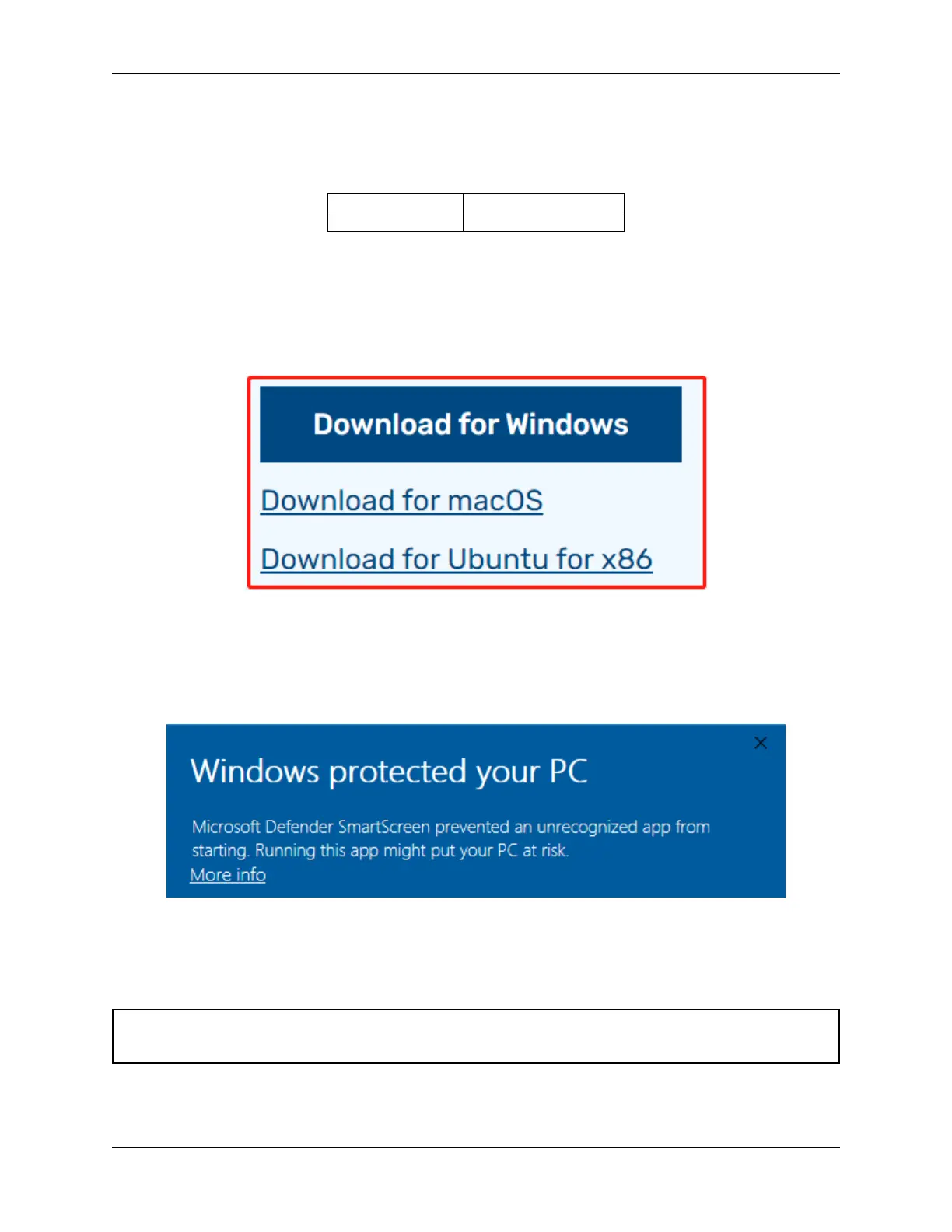
Visit the download page: https://www.raspberrypi.org/software/. Click on the link for the Raspberry Pi Imager that
matches your operating system, when the download finishes, click it to launch the installer.
Step 2
When you launch the installer, your operating system may try to block you from running it. For example, on Windows
I receive the following message:
If this pops up, click on More info and then Run anyway, then follow the instructions to install the Raspberry Pi
Imager.
Step 3
Insert your SD card into the computer or laptop SD card slot.
Step 4
Warning: Upgrading the Raspberry Pi OS to Debian Bullseye will cause some features to not work, so it is
recommended to continue using the Debian Buster version.
In the Raspberry Pi Imager, click CHOOSE OS -> Raspberry Pi OS(other).
3.1. Quick Guide on Python 9



 To Next Page