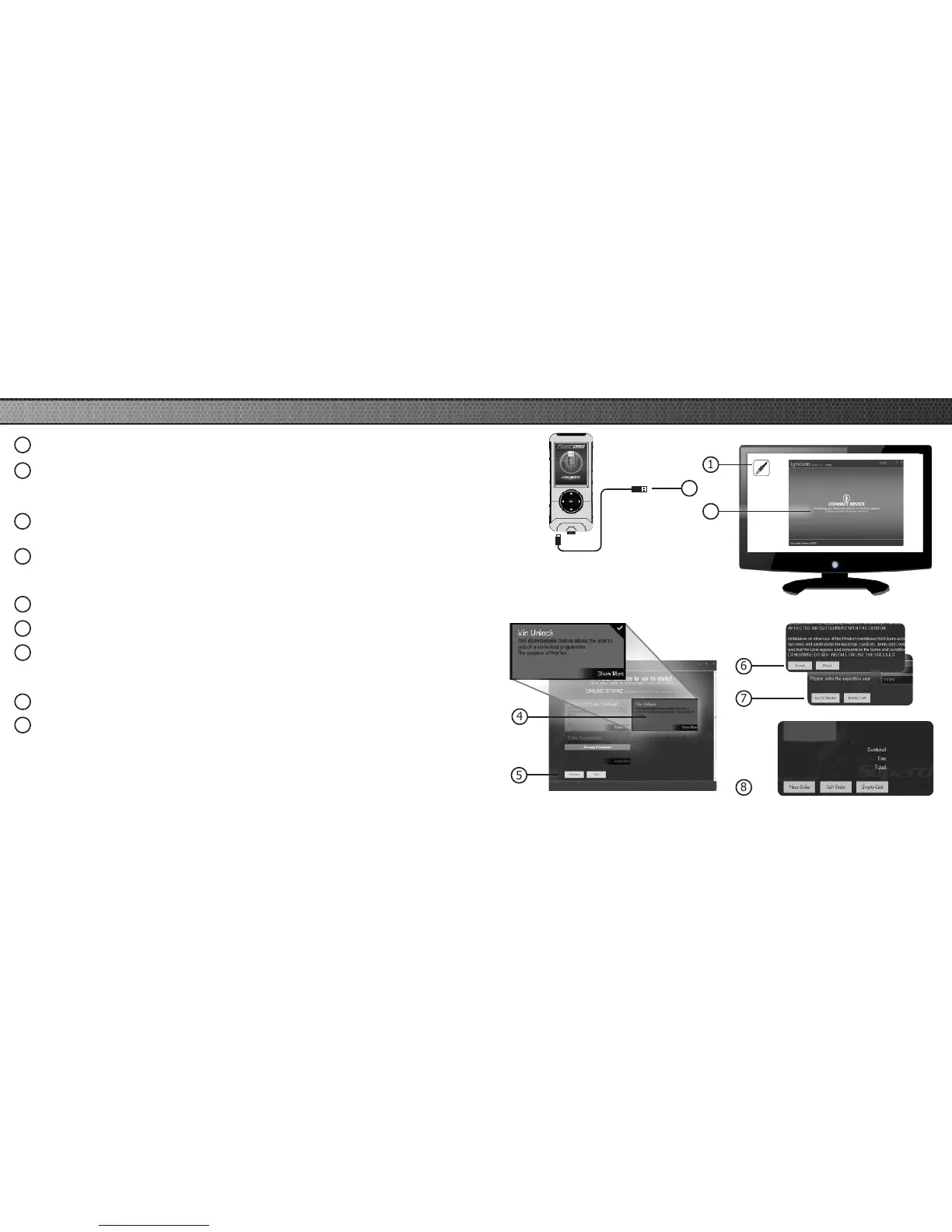
1 Double-click the Ignition Icon located on your computer’s desktop.
2 Connect your device to the computer using the supplied USB cable.
(Ignition will automatically search for updates related to your device.)
3 Click the Update button.
4 Click on any or all of the available options.
(A check mark will appear in the upper right corner.)
5 Click the Purchase button.
6 If required, read and Accept the disclaimer.
7 Fill in the required information and click Go to Review.
(Here you can check the information you lled in before submitting the order.)
8 Click the Place Order button to complete your order.
9 If a purchase was made, follow steps 1-3 above to complete the update.
1
2
4
5
3
6
7
8
NOTICE: Do not unplug the USB while
the device is being updated. Once the
update is complete, you will be informed
that it is safe to disconnect.
PRODUCT UPDATES USING IGNITION
Ignition


 To Next Page