ENJOYING YOUR HOT TUB OR SWIM SPA
| 33
Super Energy
The spa will always be in economy mode during peak
hours, every day of the week.
Weekender
The spa will be in economy mode from Monday to
Friday, and will run normally on the weekend.
Water Care
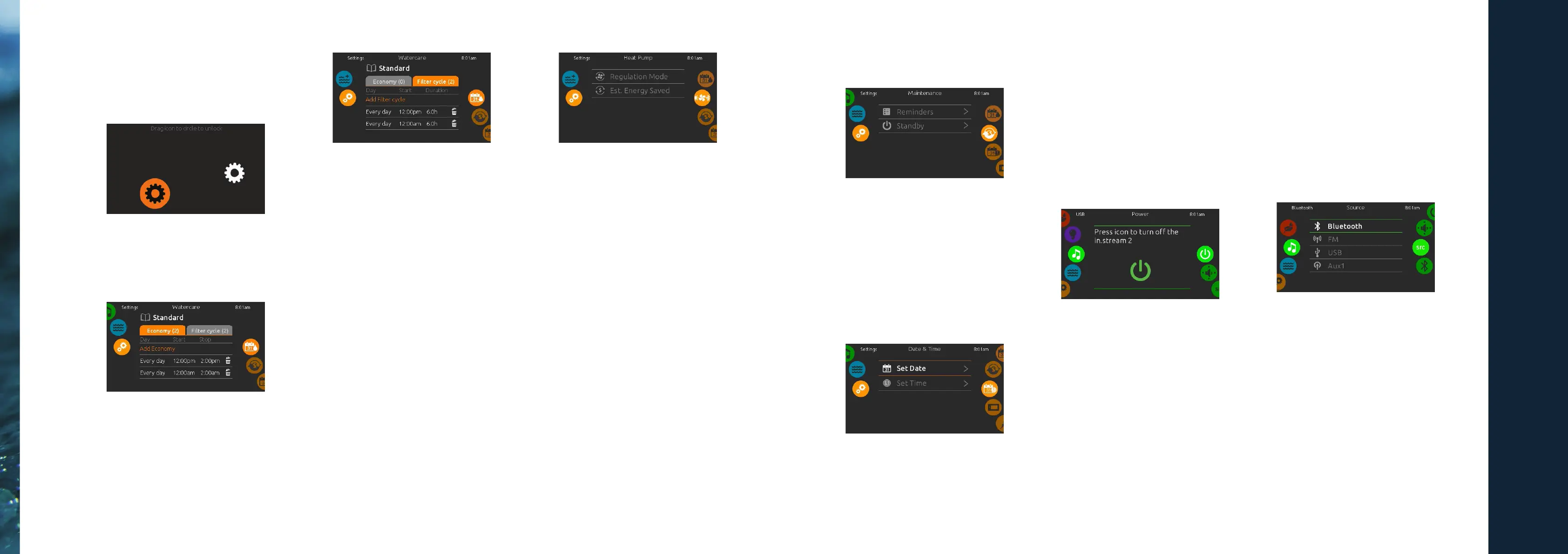
To modify a Water care category, touch the pencil icon
at the right end of the desired water care to open the
selected Water Care menu.
Economy
Touch the Economy tab to change the economy
schedule. You can add economy schedules by touching
the orange line labeled “Add Economy”.
To delete a schedule, touch the garbage can icon
at the right end of the desired line.
Filter Cycles
Touch the Filter cycle tab to change the lter cycle
schedules. You can add ltraon schedules by touching
the orange line labeled “Add lter cycle”.
To delete a schedule, touch the garbage can icon at the
right end of the desired line.
You can modify the programmed schedules by
selecng one and adjusng the schedule. You have
several possibilies for the schedule (Mon-Fri,
weekend, every day, or single days). The schedules will
be repeated every week. The me and duraon are
set in 30 minute increments.
Once you have set the schedule, press “Conrm”. If you
don’t want to keep any changes, press “Cancel” or use
the calendar icon to go back.
Purges
Touch the Purge tab to change the purge sengs. You
can add purges by touching the orange line labeled
“Add purge me”. To delete a schedule, touch the
garbage can icon at the right end of the desired line.
You can modify the programmed purges by selecng
one and adjusng the schedule.
You have several possibilies for the schedule (Mon-Fri,
weekend, every day, or single days). The schedules will
be repeated every week. The me and duraon are set
in 30 minute increments. Once you have set the purge,
press “Conrm”. If you don’t want to keep changes,
press “Cancel” or the calendar icon.
Heat Pump Modes
Eco Heat
In this mode, the heat pump is used as the unique
source of heang. The heang element is kept o and
the heat pump is not used to cool the water should its
temperature rise above the current set point.
Smart Heat
This mode uses the heat pump as the main heang
source. The heang element is turned on only if there is
a large temperature dierence between the water and
the set point. The heat pump is not used to cool the
water in this mode.
Eco Auto
This mode borrows funconality from both Eco Heat
and Cool modes and has the ability to select the
proper Heat or Cool mode automacally according to
the water temperature. The heang element is never
acvated in this mode.
Smart Auto
This mode borrows funconality from both Smart Heat
and Cool modes and has the ability to select the proper
Heat or Cool mode automacally according to the
water temperature. The heang element is acvated
only if there is a large temperature dierence between
the water and the set point.
Cool
This mode uses the heat pump in cooling mode only.
The heat pump is not used as a heang source and the
heang element is never acvated.
Electric
This mode keeps the heat pump o and uses only
the heang element to regulate water temperature.
Maintenance
To modify maintenance sengs, slide the right
wheel unl the maintenance icon is highlighted
in the middle.
From the Maintenance page you can access
the following:
• Reminders
• Standby
Simply touch the line of the item you want
to change.
Date and Time
To modify date and me sengs, slide the right
wheel unl the date and me icon is highlighted in
the middle. Simply touch the line of the item you
want to change.
Set Date
Here you can adjust the year, month and date.
Simply swipe up and down the column you want to
change, and select the desired value. When done,
touch the calendar icon at the right of the screen.
Set Time
Here you can change the hour, minute and me
format. Simply swipe up and down the column
you want to change, and select the desired value.
When done, touch the calendar icon at the right
of the screen
Audio
Turn in.stream 2 ON (icon red)
Slide the right wheel unl the power on/o icon
is highlighted in the middle. Press the icon at the
center of the screen to turn in.stream 2 on.
Turn in.stream 2 OFF (icon green)
Press the icon at the center of the screen to turn
in.stream 2 o.
Modify Your Speaker Sengs
Slide the right wheel unl the speaker calibraon
icon is highlighted in the middle.
You can adjust:
• Balance
• Fade
• Subwoofer
Use the sliders to change the speaker sengs at
the desired level. The fade and subwoofer sliders
will only appear on the screen if the corresponding
speakers are installed on the in.stream 2.
Select An Audio Source
Slide the right wheel unl the source icon is
highlighted in the middle. In the menu list, the
following sources are available:
• Bluetooth
• FM
• USB
• Aux. 1
Simply select the desired one to use. Note that
only the sources installed on the in.stream 2 will be
displayed in the source menu. Please note that the
Play/Pause and Change Track funcons apply to
devices using Bluetooth technology and USB, and
will not work when AUX is selected as the source.


 To Next Page
 Loading...