Sutron Corporation X-Link Operations & Maintenance Manual, Rev 1.63 5/24/2016 pg. 35
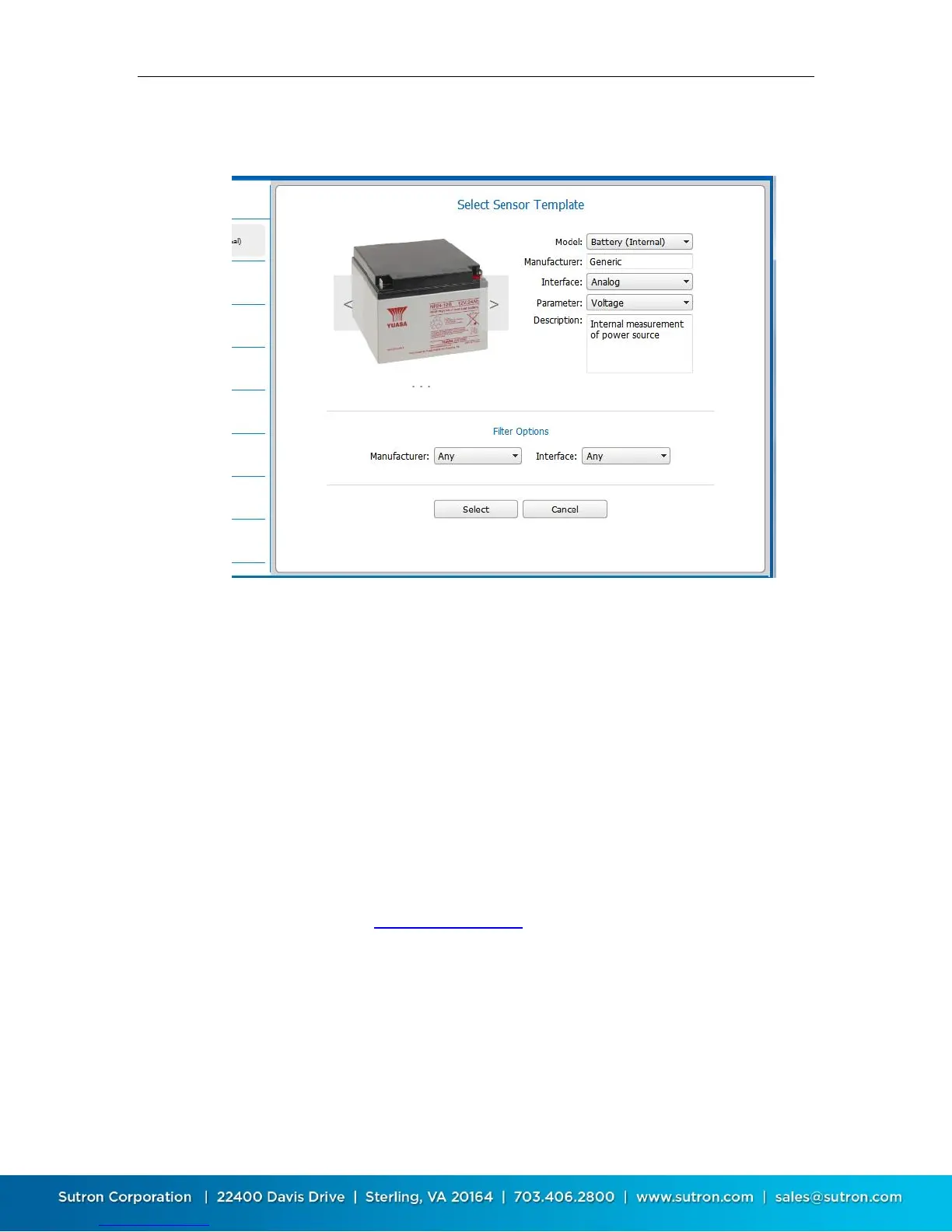
To set up a sensor using a sensor template, press the Sensor Template… button.
The following dialog is displayed.
You browse for different available templates by pressing the arrows displayed
over the sensor picture (which are only shown when the mouse hovers over
them), or by using the Model: drop-down control. On LinkComm for mobile
devices, you can swipe the sensor image with your finger to select different
templates.
Use Filter Options to show only a subset of sensor templates. For example, you
can show only those sensor templates for a particular Manufacturer, or only
those sensor templates for a particular sensor Interface (SDI-12, Analog, Digital,
etc.).
To use the selected template for configuring the measurement, press the Select
button. The settings from the template are then applied to the measurement
setup. As always, the changes must be sent to X-Link in order to take effect. Do
this either by using the setup status button, or by selecting the Send Setup to X-
Link item on the main menu.
To cancel and close the template dialog without using the template to configure
the current measurement, press the Cancel button. Note that selecting another
measurement in the measurement list on the left side of the Measurements tab
automatically cancels and closes the dialog.


 To Next Page