Sutron Corporation X-Link Operations & Maintenance Manual, Rev 1.63 5/24/2016 pg. 46
4.8.8. Setting to Factory Defaults
Setting the station to factory defaults will permanently erase all setup and
status. The setup will be set to defaults. To set X-Link to factory defaults, press
the Factory Defaults button on the Diagnostics tab and answer “Yes” to the
prompt for confirmation.
4.8.9. Rebooting X-Link
Clicking the Reboot button on the Diagnostics tab will have LinkComm issue the
reboot command to X-Link. X-Link will perform a software reset. LinkComm will
then disconnect from X-Link.
If you are issuing the command remotely, please note that X-Link will need a
minute to get back on the internet before it is ready to talk again.
4.9. LinkComm for Phones and Tablets
LinkComm is available not only for PC and Mac, but also for iOS and Android
phones and tablets. On smaller screens, LinkComm is not able to show as much
information at one time.
4.9.1. Stations List
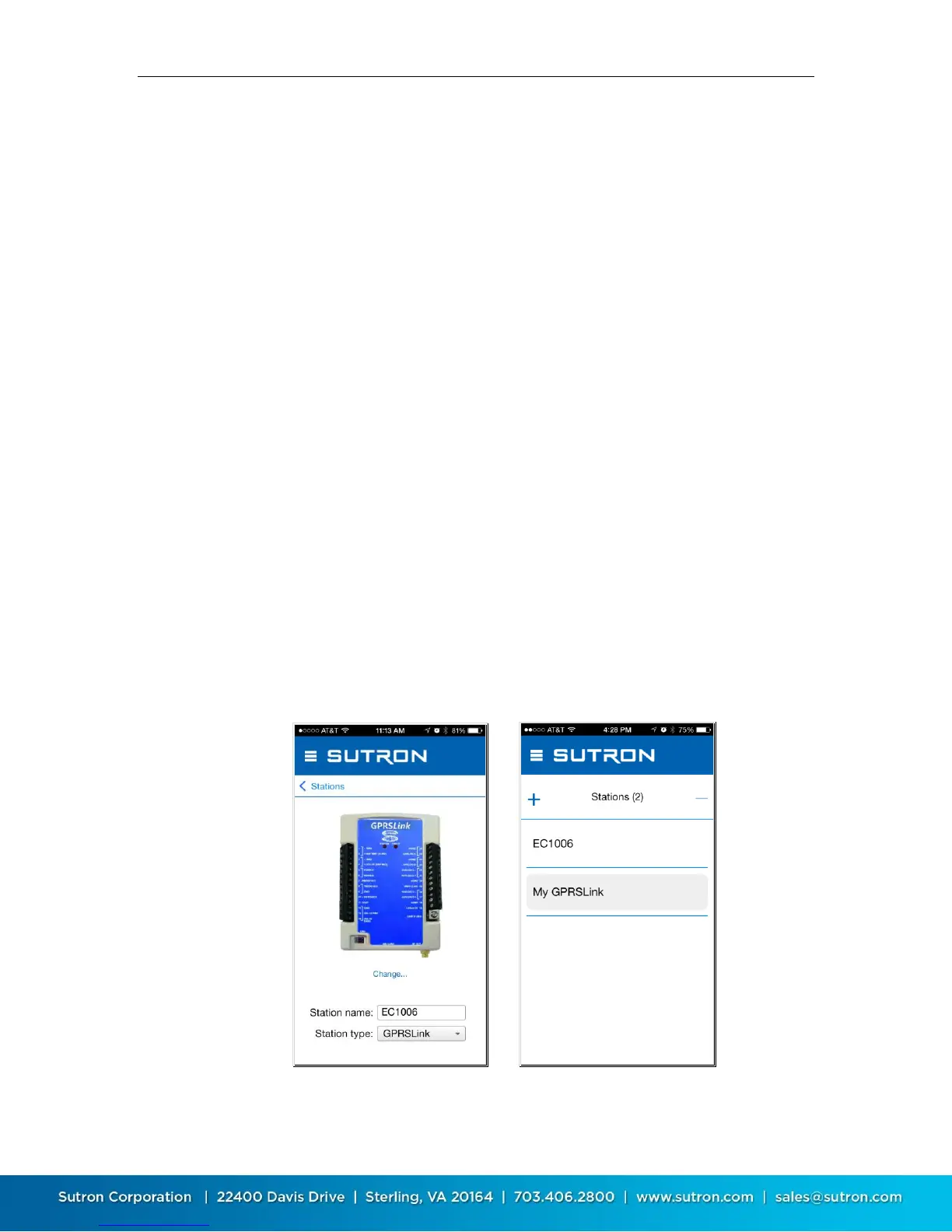
On phones and tablets, the station list is normally hidden, and must be accessed
by selecting a link.
To access the stations list in the stations list view, press the Stations link just
below the main menu icon.


 To Next Page