Sutron Corporation X-Link Operations & Maintenance Manual, Rev 1.63 5/24/2016 pg. 45
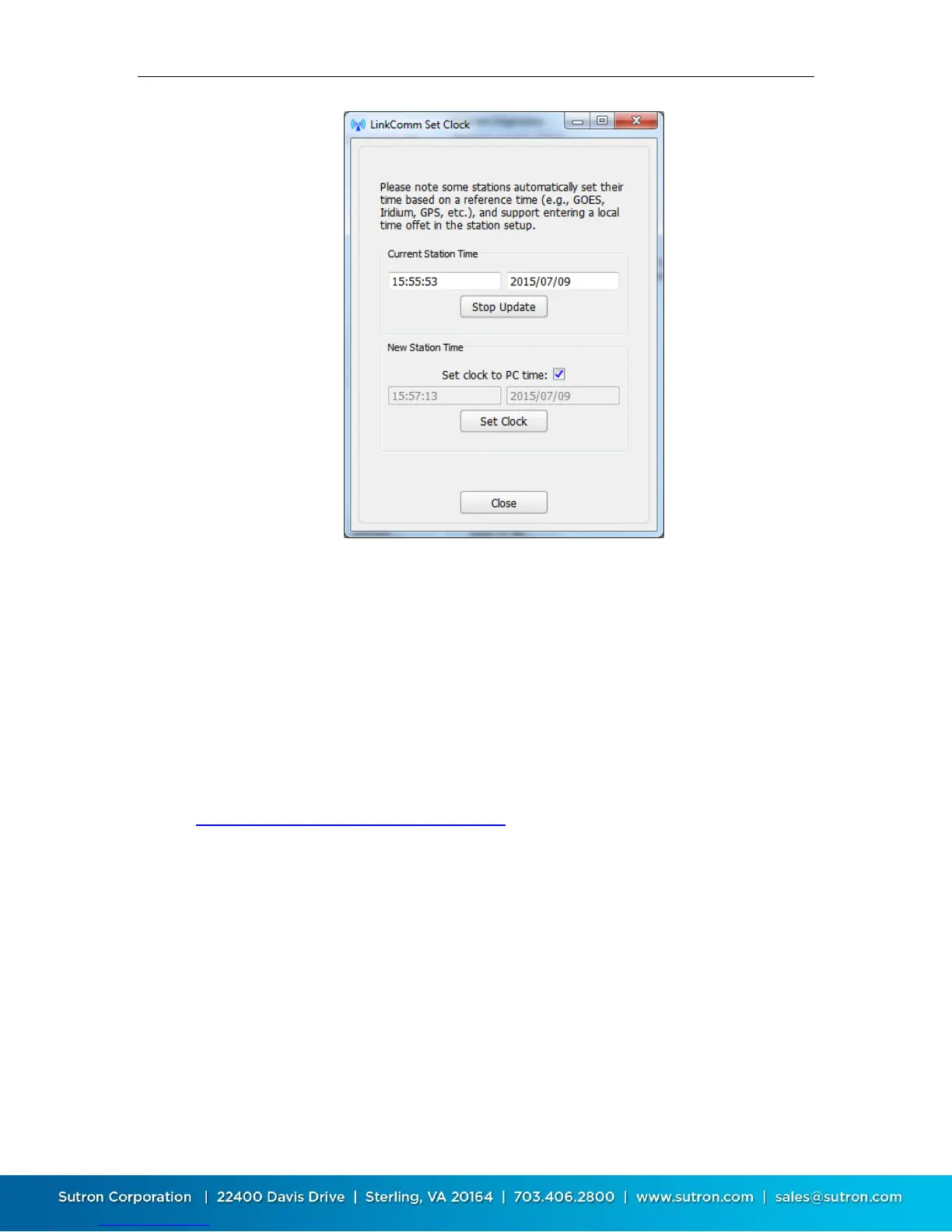
The top Start/Stop Update button is used to either start or stop polling X-
Link for its current time. The current time is displayed above the button
Check the Set Clock to PC time have the time set to match that of the PC,
once Set Clock is pressed
To set the time to a specific value, uncheck Set Clock to PC, enter the desired
time and date, and press the Set Clock button
4.8.7. Firmware Upgrade
The software running in X-Link can be upgraded. The latest version of X-Link
firmware is delivered as part of the LinkComm download package obtained from
the Sutron web site. LinkComm may be downloaded from
http://www.sutron.com/downloads.htm (search on “LinkComm”).
Upgrades may only be done via a direct USB cable.
Upgrade files are packaged into the same download with the LinkComm
program. Upgrade files will have names such as v1_05mainXLINK1298.upg and
v1_01bootOMEGA1298.upg.
To initiate an upgrade of your X-Link, select the Upgrade button on the
Diagnostics tab. If LinkComm detects a newer version of firmware on your PC,
LinkComm will suggest that an upgrade be made using it. If you select “No”, then
use the file-open dialog that follows to browse for, and select, the upgrade file to
use.


 To Next Page