12
Viewing Events
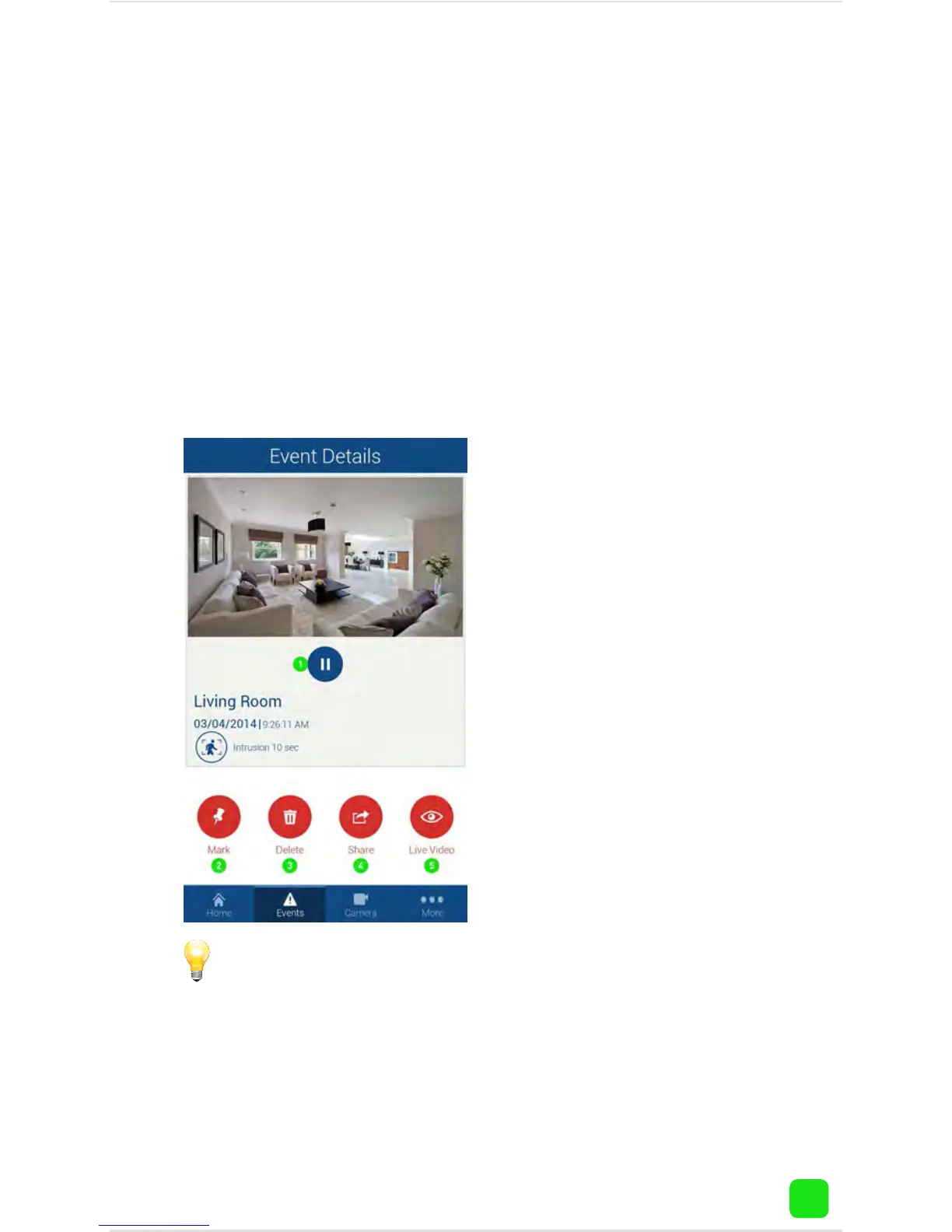
To view an event that has occurred, tap the “Event”
button. All events that have occurred to date will
appear. Scroll up or down to find the event that you
would like to play. When you have selected an event, it
will automatically play. To select a different event tap
the “Home” button then tap the “Event” button again.
1. Tap this to pause
playback. Tap again to
resume playback.
2. Tap to mark this par-
ticular event. Marking
an event will prevent
it from being deleted
when it is older than five
days. A red pin icon will
appear on events that
are marked.
3. Tap this to delete the
event.
4. Tap this to share the
event with other apps on
your device, e.g. email
or saving to a new loca-
tion.
5. Tap this to view a live
stream from the cam-
era.
The maximum length
for each event is 10 sec-
onds. Events that hav-
en’t been played will be
displayed in bold on the
events list.






 To Next Page