Document Number: MKT-70-1096 Revision 1 Page 8
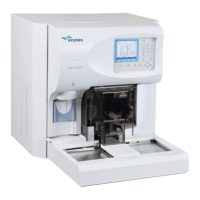
SYSMEX XE-5000
TM
Finding A Sample
1. Click [Sample Explorer]. Verify “Last 20” icon is de-selected (top blue
line displays “Filter All”).
2. Click sample number at top of list.
3. From Tool Bar, click [Edit] and [Find].
4. Find dialog box is displayed. Enter Sample number or Patient ID.
(If you are using leading zeros, zeros have to be entered.)
“*” or “?” can be used as a wildcard for following situations:
? Use in place of a single digit for an unknown number or letter.
* Use for multiple unknown letters or numbers and placed at the end
of a string.
6. Click [NEXT] to search below sample number in list or [PREV] to search
above the sample number in list. The selected sample will display with
cursor on it.
Edit Sample ID# or Patient ID#
1. Click [Sample Explorer] icon. Verify “Last 20” icon is de-selected (top
blue line displays “Filter All”). Click sample number to be changed.
2. Click [validate] icon to un-validate sample. (“V” disappears in first
column of Sample Information Tab).
4. Click [property] icon from Tool Bar. Sample Property box displays with
selected Sample ID.
5. Click Sample ID or Patient ID to select number to edit. Delete old num-
ber and input new ID number.
6. Click [OK] and new sample information will be stored. Screen displays
Stored Data with cursor on edited sample.
7. Click [validate] box and corrected ID number is reprinted to GP and
retransmitted to HOST.
Reprint to Graphic Printer
or Retransmit Data To Host
Note: Un-validated data may not be reprinted or retransmitted.
1. Click [Sample Explorer].
2. Verify “Last 20” icon is de-selected (top blue line displays “Filter All”).
Click on sample(s) by ID number to reprint or retransmit.
• To select any single sample, click on sample ID.
• To select multiple samples (not necessarily in order), press and hold
[Ctrl] on keyboard and click each sample.
• To highlight a block of samples, click on first sample to output. Then
press and hold [Shift] and click on last sample to output.
3. To reprint to GP, click [Report] and [Report(GP)].
4. To retransmit to LIS or HOST, click [Report] and [Host (HC)].
Sample Explorer
/Data Browser
Edit Menu
FIND Dialog Box
property validate
Property Screen
Report Menu


 To Next Page