TO GET STARTED
•
Turn
ON
the Disk Drives. (The
power
buttons are on the rear.)
Have you turned ON all the buttons? This
message
should
appear on your screen:
DISK
EXTENDED
COLOR
BASIC
v.r,
COPYRIGHT
(C) 1981 BY TANDY
UNDER
LICENSE FROM
MICROSOFT
(v.r, is two numbers specifying which version
and release you have.)
If not, turn off the Computer, check your con-
nections, and power it up again.
C. INSERT A
DISK
After powering the system up,
you
can insert
a
disk. If you plan to go through
Section
I,
use
the
blank,
unformatted disk
which
comes
with your disk system. Otherwise,
you can
insert your "application program"
disk,
(If
you
have more than one
drive,
insert,
the disk
in drive
0).
^
•
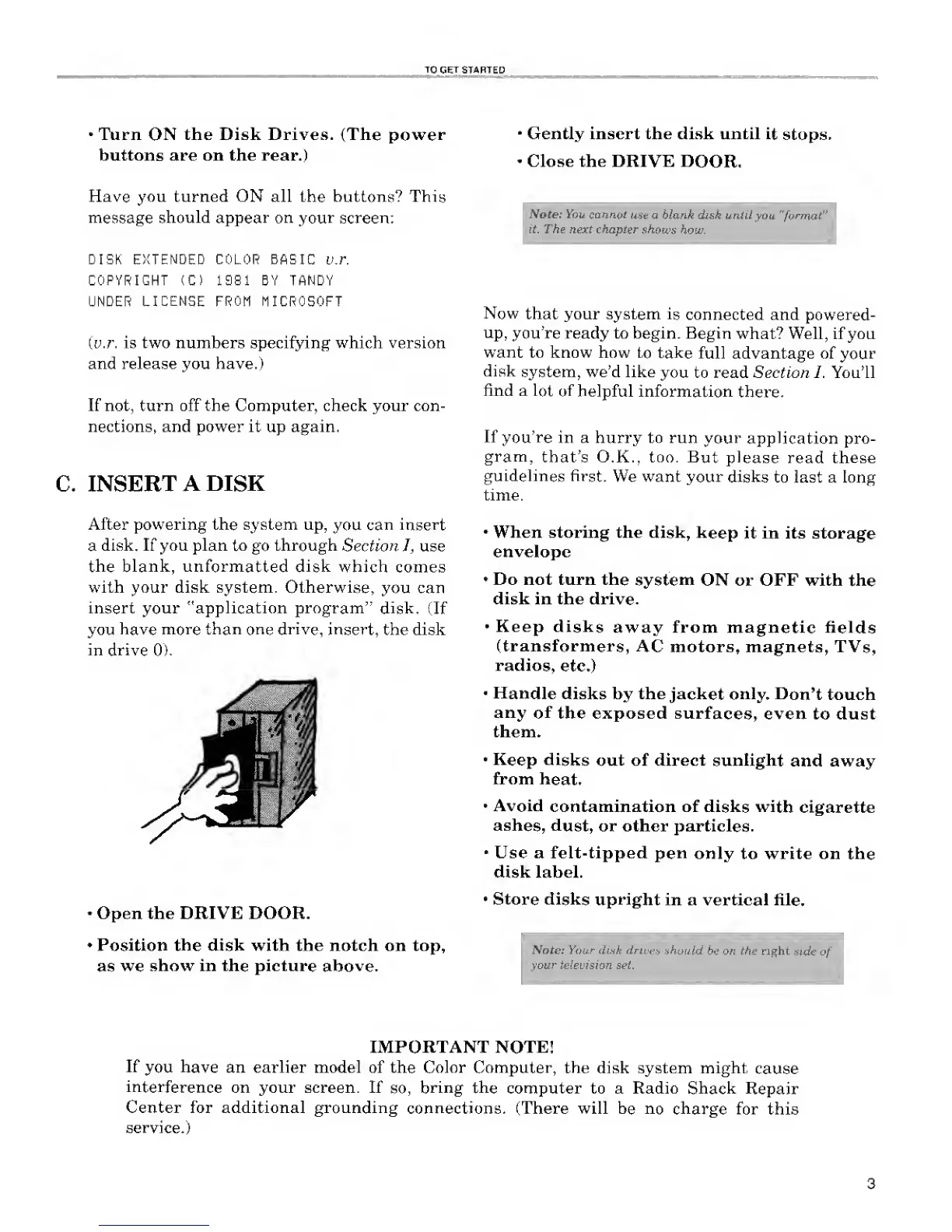
Open the DRIVE DOOR.
•
Position the disk with the notch on top,
as
we
show in the picture
above.
Gently insert the disk until
it
stops-
Close the DRIVE
DOOR.
Note: You
cannot
use a blank disk until
you "format"
it. The next chapter
shows
how.
Now
that your system
is
connected and
powered-
up,
you're ready to begin. Begin
what? Well, if you
want to know how
to take
full advantage of
your
disk
system, we'd like
you to read Section I. You'll
find a
lot of helpful
information
there.
If
you're
in a hurry to run
your application
pro-
gram,
that's O.K., too.
But please
read these
guidelines first.
We want
your disks
to last a long
time.
•
When storing the disk,
keep
it in its storage
envelope
•
Do not turn the
system
ON or OFF with
the
disk in the drive.
•
Keep disks
away from magnetic
fields
(transformers,
AC motors, magnets, TVs,
radios,
etc.)
Handle
disks by the
jacket
only.
Don't
touch
any
of
the exposed
surfaces,
even to dust
them.
•
Keep disks
out of direct sunlight
and away
from
heat.
Avoid
contamination of disks
with
cigarette
ashes,
dust,
or other particles.
Use a felt-tipped
pen
only to write on
the
disk label.
•
Store disks
upright
in a vertical file.
Note: Your disk drives
should
be on the right
side
of
your television set.
IMPORTANT NOTE!
If
you
have
an earlier model of the Color
Computer, the
disk system might
cause
interference
on your screen. If
so,
bring
the
computer to a Radio
Shack
Repair
Center for additional grounding
connections.
(There will
be no charge
for this
service.)





 To Next Page