26
Table 4.1 Configuration instructions
Screen
Buttons
Screen Description
Button effects
One press saves the displayed value and activates the next configuration-mode screen.
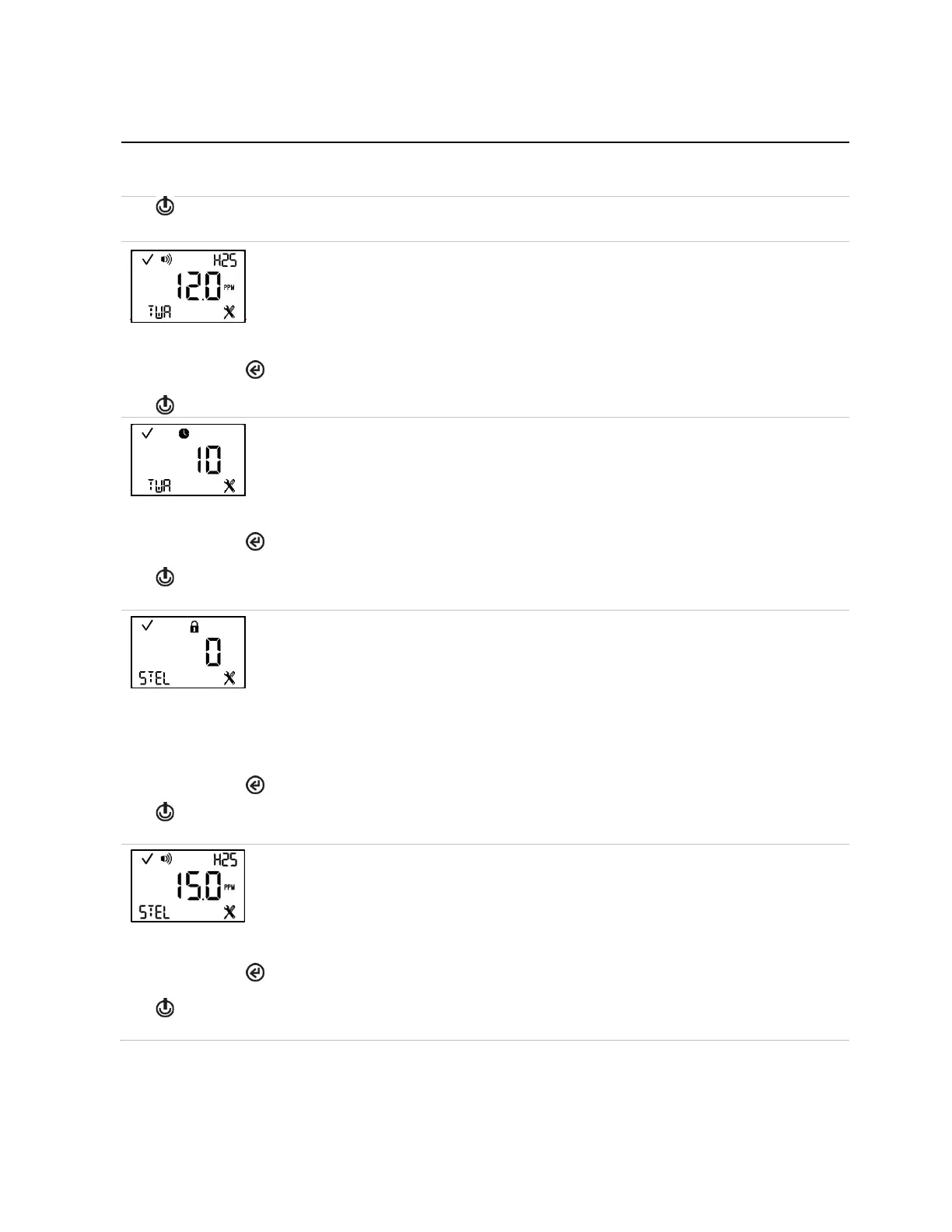
TWA alarm setpoint
This screen features the status, alarm, sensor-type, configuration, and TWA icons, with the
alarm's current setpoint and unit of measure. The alarm setpoint can be edited.
Value increment = within the sensor measurement resolution
See Table 1.5 for more information about the installed sensor type.
The first press activates the value. Continued presses increment the value; hold to speed the
increment pace.
One press saves the displayed value; a second activates the next configuration-mode screen.
TWA time-base
This screen features the status, clock, configuration, and TWA icons, with the current TWA
time-base. The setpoint value can be edited based on the following:
Value range: 01 to 40 hours
Value increment: 1 hour
The first press activates the value. Continued presses increment the value; hold to speed the
increment pace.
One press saves the displayed value; a second activates the next configuration-mode screen.
This screen features the status, lock, configuration, and STEL icons. The technician can
enable or disable the option for operation-mode access.
When enabled, the instrument operator can view and clear the unit's STEL reading while the
unit is in operation mode.
Values:
0 = disabled
1 = enabled
One press saves the displayed value and activates the next configuration-mode screen.
This screen features the status, alarm, sensor type, configuration, and STEL icons, with the
current setpoint. The alarm setpoint can be edited.
Value increment: sensor measurement resolution
See Table 1.5 for more information about the installed sensor type.
The first press activates the value. Continued presses increment the value; hold to speed the
increment pace.
One press saves the displayed value; a second activates the next configuration-mode screen.



 To Next Page