EasyManua.ls Logo

Teac V-8030S - Page 9

Teac V-8030S
45 pages
Print Icon
To Next Page IconTo Next Page
To Previous Page IconTo Previous Page
Loading...
RTZ
(Return
To
Zero)
Function
To
locate
the
position
on
tape
correspond-
ing
to
the
linear
counter
reading
of
OOMOOS,
press
the
RTZ
button.
The
fast
forward
or
rewind
of
the
tape
starts.
The
moment
a
counter
reading
of
Q0MOOS
is
found,
the
deck
stops.
Note:
This
function
does
not
work
when
the
deck
is
in
the
record,
rec/pause
or
rec/mute
mode.
To
start
playback
from
OOMOOS
While
the
tape
is
running
after
the
RTZ
button
is
pressed,
press
the
>
button.
The
deck
temporarily
stops
at
the
OOMOOS
counter
reading,
then
playback
starts.
*If
the
button
is
pressed
instead
of
the
»
button,
the
deck
enters
the
pause
mode
at
the
OOMOOS
counter
reading.
To
start
playback,
press
the
»
or
&
button,
*When
the
deck
is
in
the
recording
mode,
the
RTZ
button
is
disabled.
CD
Synchro Dubbing
By
combining
the
deck
with
a
TEAC
CD
synchro
compatible
CD
player
which
has
a
CD/DECK
SYNC
terminal
on
the
rear
panel,
dubbing
(recording)
interlocked
with
the
CD
player
is
possible.
Preparation
1.
Connect
the
deck’s
CD/DECK
SYNC
terminal
to
the
CD
player's
CD/DECK
SYNC
terminal
using
an
optional
cable
(WR-7000).
(See
Fig.2
on
page
4.)
2.
Perform
programming
of
“time
edit’,
etc.
of
the
CD
player
beforehand
(refer
to
the
instructions
of
the
CD
player).
3.
Either
press
the
CD
direct
button
or
set
the
source
to
CD
using
the
ampli-
fier's
source
select
buttons.
4.
Set
the
recording
level.
(See
page
7.)
1,
Set
the
deck
and
the
CD
player
to
the
stop
mode.
2.
Press
the
CD
sync
button
on
the
deck.
The
CD
player
will
automatically
start
in
approx.
1
sec
following
the
start
of
re-
cording
and
dubbing
is
performed.
(The
CD
SYNC
indicator
lights.)
(See
the
top
chart
below.)
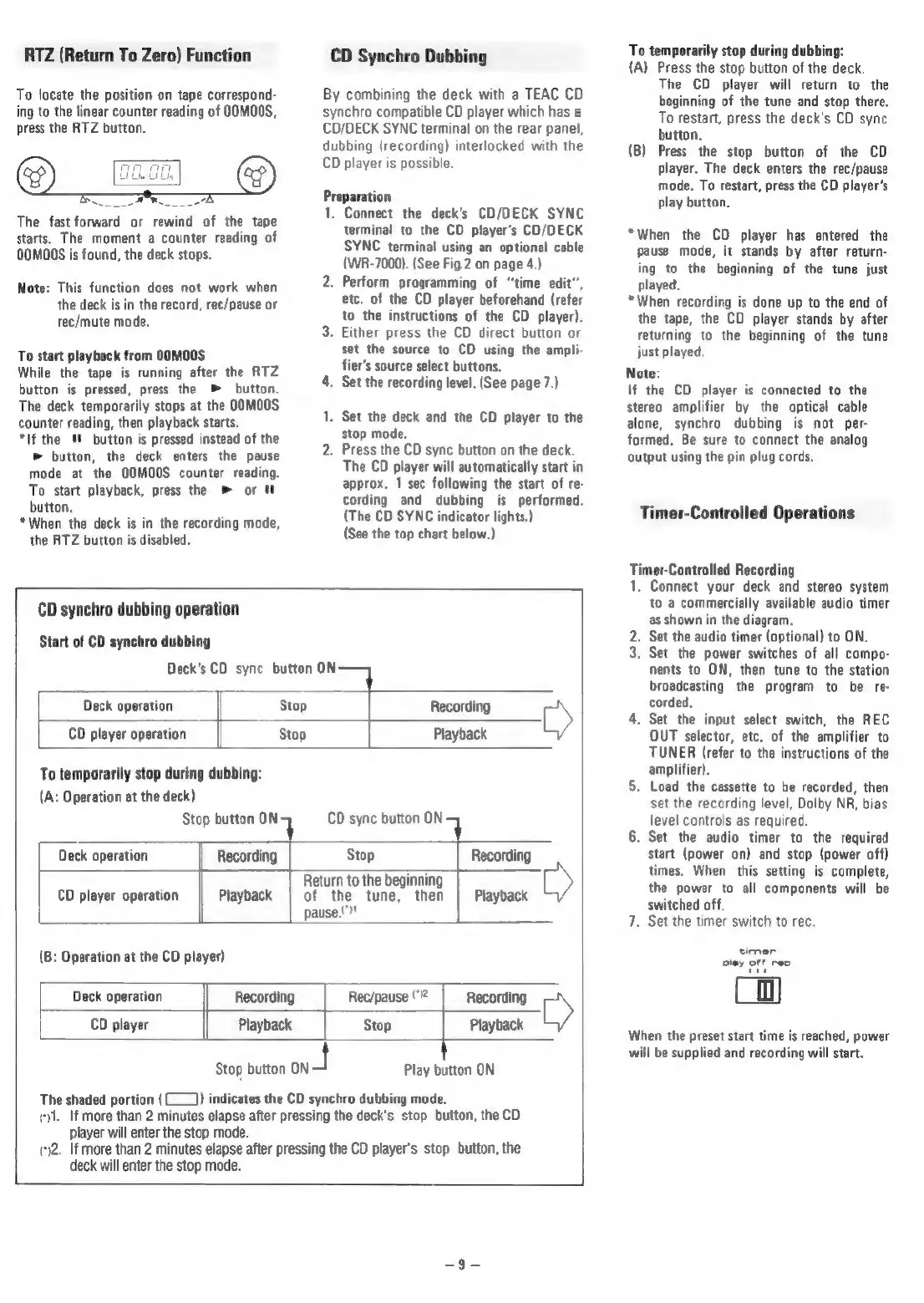
CD
synchro
dubbing
operation
Start
of
CD
synchro
dubbing
Deck
operation
CD
player
operation
Deck’s
CD
sync
button
ON
Stop
Recording
»
Stop
|
Playback
To
temporarily
stop
during
dubbing:
(A:
Operation
at
the
deck)
Stop
button
ont
Deck
operation
Recording
CD
sync
button
ON
Stop
:
Recording
CD
player
operation
Playback
T
Return
to
the
beginning
Roe
of
the
tune,
then
Playback
pause.(")"
(B:
Operation
at
the
CD
player)
Deck
operation
Recording
CD
player
Playback
:
~
Rec/pause
me
Recording
»
Stop
Playback
player
will
enter
the
stop
mode.
deck
will
enter
the
stop
mode.
Stop
button
hel
Play
button
ON
The
shaded
portion
(1)
indicates
the
CD
synchro
dubbing
mode.
(1.
If
more
than
2
minutes
elapse
after
pressing
the
deck’s
stop
button,
the
CD
()2.
If
more
than
2
minutes
elapse
after
pressing
the
CD
player's
stop
button,
the
To
temporarily
stop
during
dubbing:
(A)
Press
the
stop
button
of
the
deck.
The
CD
player
will
return
to
the
beginning
of
the
tune
and
stop
there.
To
restart,
press
the
deck's
CD
sync
button.
(B)
Press
the
stop
button
of
the
CD
player.
The
deck
enters
the
rec/pause
mode.
To
restart,
press
the
CD
player's
play
button.
*When
the
CD
player
has
entered
the
pause
mode,
it
stands
by
after
return-
ing
to
the
beginning
of
the
tune
just
played.
*When
recording
is
done
up
to
the
end
of
the
tape,
the
CD
player
stands
by
after
returning
to
the
beginning
of
the
tune
just
played,
Note:
If
the
CD
player
is
connected
to
the
stereo
amplifier
by
the
optical
cable
alone,
synchro
dubbing
is
not
per-
formed.
Be
sure
to
connect
the
analog
output
using
the
pin
plug
cords,
Timer-Controlled
Operations
a
Controlled
Recording
.
Connect
your
deck
and
stereo
system
to
a
commercially
available
audio
timer
as
shown
in
the
diagram,
.
Set the
audio
timer
(optional)
to
ON.
.
Set
the
power
switches
of
all
compo-
nents
to
ON,
then
tune
to
the
station
broadcasting
the
program
to
be
re-
corded.
4.
Set
the
input
select
switch,
the
REC
OUT
selector,
etc.
of
the
amplifier
to
TUNER
(refer
to
the
instructions
of
the
amplifier).
5.
Load
the
cassette
to
be
recorded,
then
set
the
recording
level,
Dolby
NR,
bias
level
controls
as
required.
6.
Set
the
audio
timer
to
the
required
start
(power
on)
and
stop
(power
off)
times.
When
this
setting
is
complete,
the
power
to
all
components
will
be
switched
off.
7.
Set
the
timer
switch
to
rec.
en
When
the
preset
start
time
is
reached,
power
will
be
supplied
and
recording
will
start.

Related product manuals