Appendix A Quick Guides for Using the DG-700 with Energy Conservatory Test Devices
• To check if the USB communication drivers have been properly installed on your computer, or to see if your
computer has an available serial communication port for a 9 pin serial cable, you will need to access the Device
Manager in your Windows operating system.
– To access the Device Manager in Windows XP or 2000, click on Start, then right-click on the My Computer
shortcut and select Properties. This will cause the System Properties window to appear. To open the Device
Manager, click on Hardware and then Device Manager.
– To access the Device Manager in Windows Vista, click on Start, then right-click on the Computer shortcut
and select Properties. This will cause the System window to appear. To open the Device Manager, click on
Device Manager.
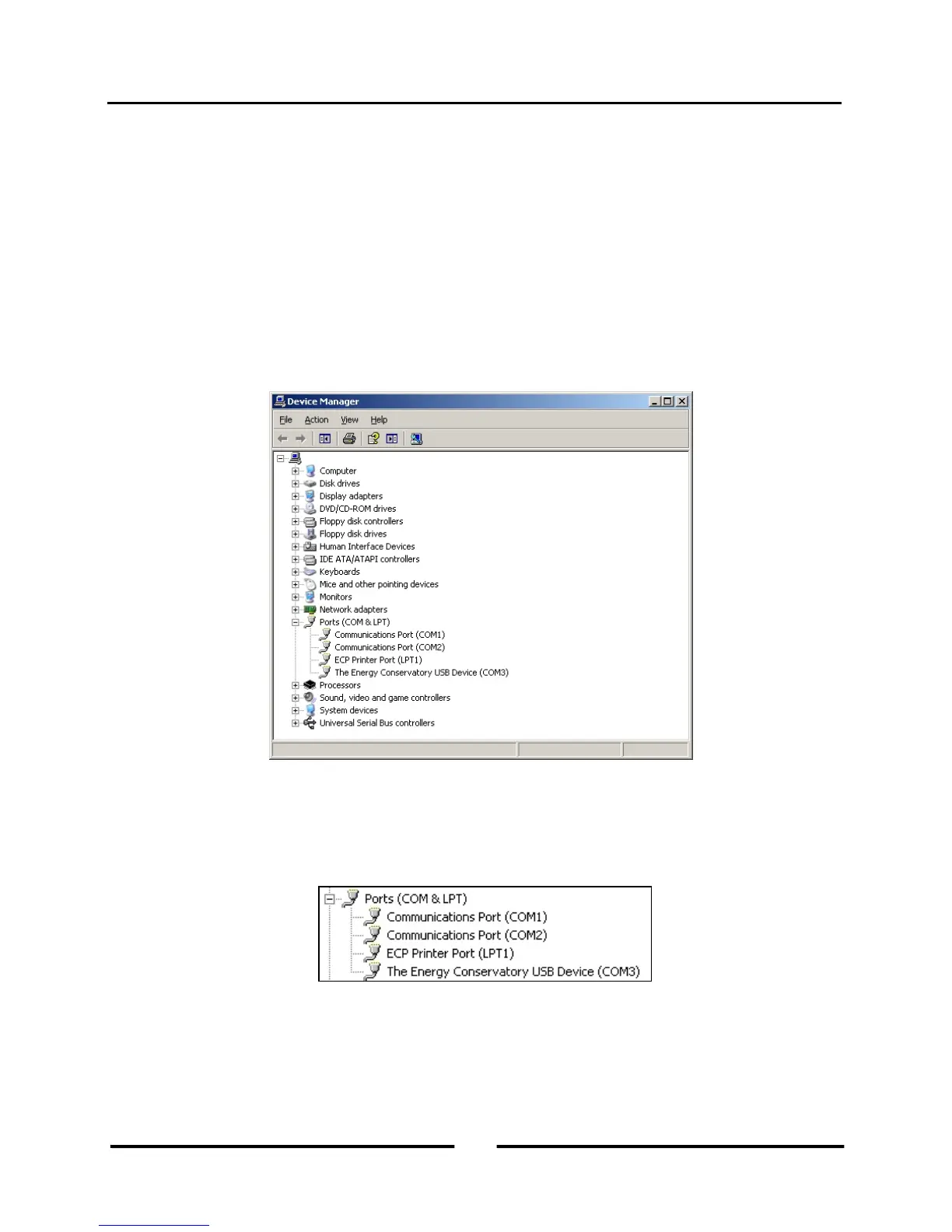
From the Device Manager window, open the Ports icon to show which communication ports are currently installed
on your computer. In the case illustrated below, the computer has 3 installed communication ports which can be used
to interface with a TEC digital gauge.
– COM1 and COM2 are existing serial communication ports which can be used to communicate with a DG-700
gauge using a standard 9 pin serial cable.
– COM3 is a custom communication port created by successfully installing the USB drivers for the DG-700
gauge. (Note: In order for a custom device communication port to be listed under the Ports icon, the DG-700
gauge must be connected to your computer.)
If no COM ports are listed (or a Ports icon does not exist), then either the computer does not have installed serial
communication ports, you have not properly installed the USB drivers to create a custom USB Device
communication port, or a DG-700 gauge is not connected to the computer.
33
Operating Instructions
for the DG700



 To Next Page