1. General
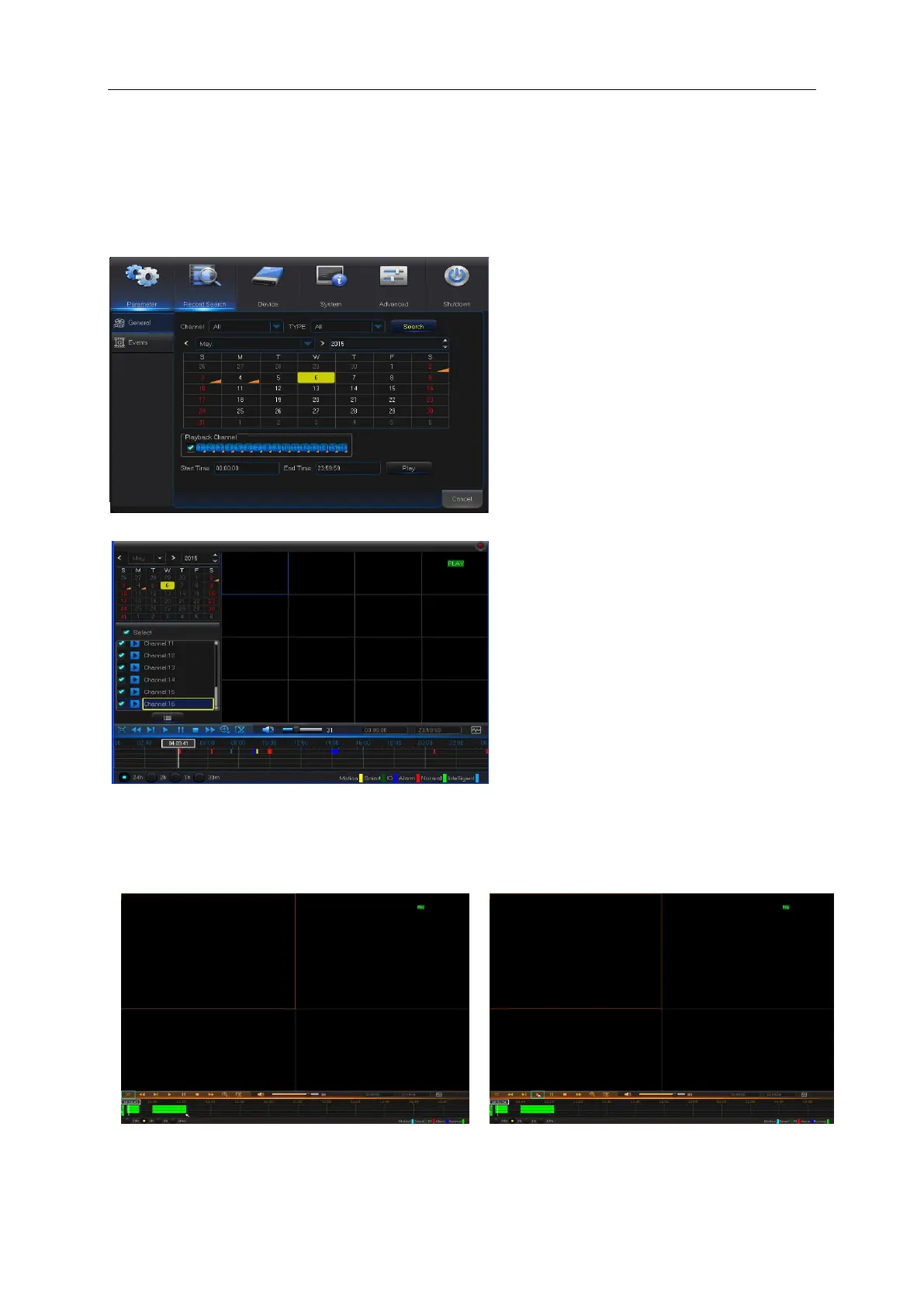
Channel: Select the channel you want to
search.
Type: Select the type the playback record.
There are two options, i.e. Normal and Alarm.
Start Time/End Time: Select the specific
period of time. The default setting is from
0:00 to 24:00.
Playback Channel: Click a date and select
corresponding channel in Playback Channel.
The selected channels shall not be more
than 16, as shown in Picture 5-24.
Playback: Select the desired year and
month and click “Search”. If there are any
records, a yellow corner mark which shows
the recording at specific date will appear at
the down-right corner of the date sheet.
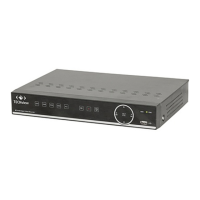
Select the date checkbox and select
playback channel and click Playback to
enter into the interface.
Playback interface: You can use the
Playback Control bar to operate the Fast
Forward (X2, X4, X8 and X16), Rewind (X2,
X4, X8 and X16), Slow play (1/2, 1/4 and
1/8 speed), Play, Pause/Frame. You can
click or drag the volume control bar to
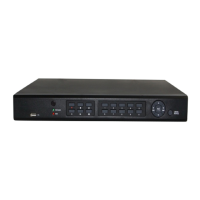
adjust volume. When playback ends, DVR
will remain in the playback interface, as
shown in Picture 5-25.


 To Next Page