EasyManua.ls Logo

Tecnoware ERA PLUS 750 - User Manual

Tecnoware ERA PLUS 750
19 pages
Print Icon
To Next Page IconTo Next Page
Loading...
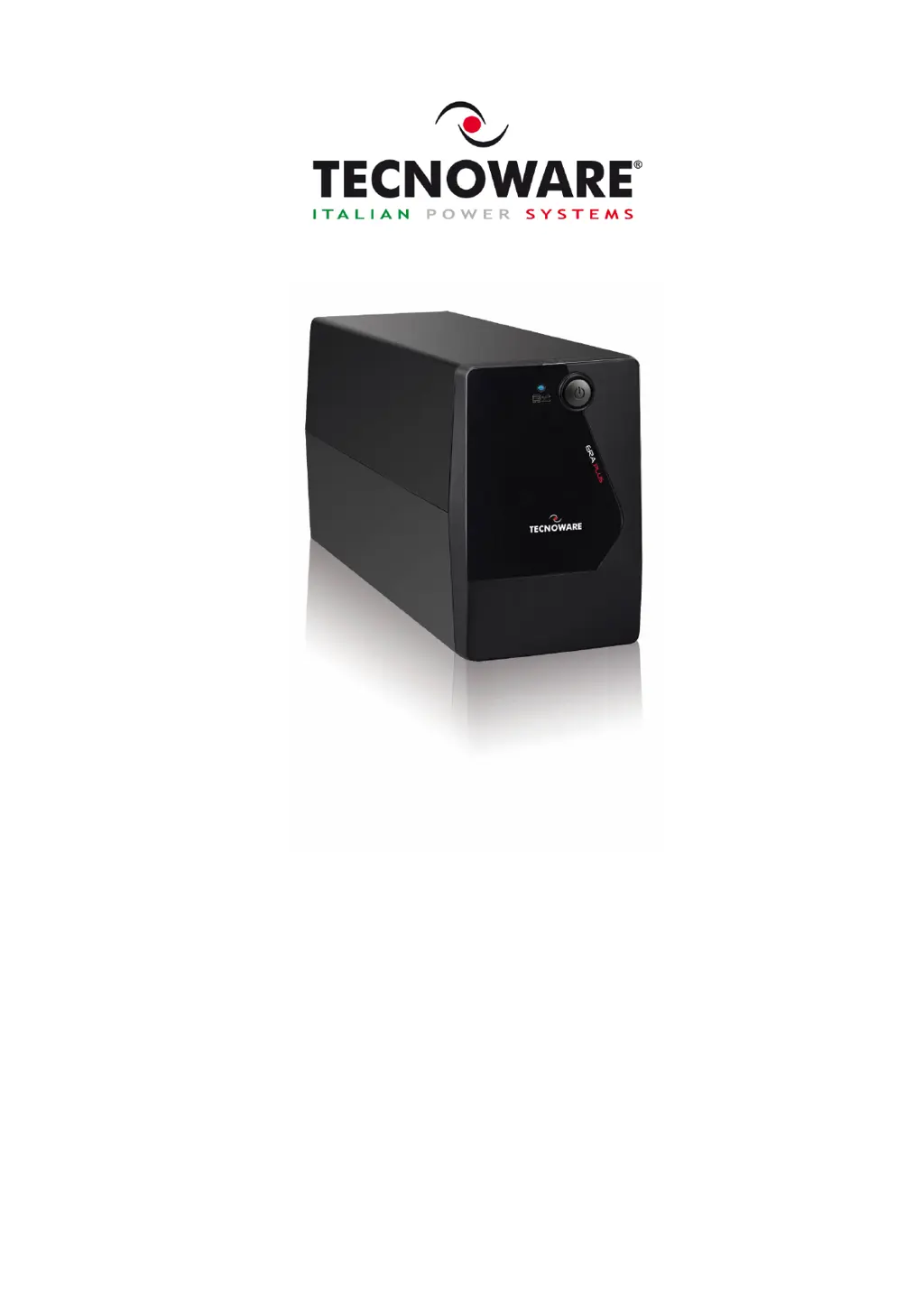
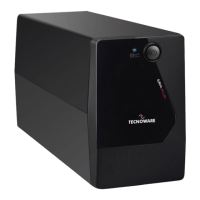
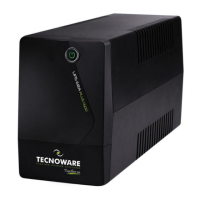
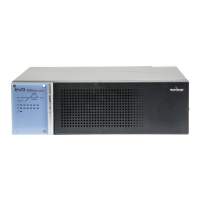
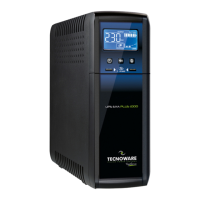
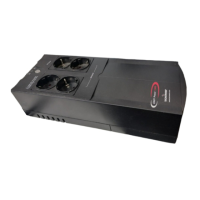
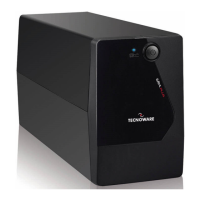
Uninterruptible Power Supply
ERA PLUS 750
ERA PLUS 900
ERA PLUS 1.100
ERA PLUS 1.500
User’s manual

Questions and Answers

  • T
    Travis LawrenceJul 29, 2025
    How to fix a Tecnoware ERA PLUS 750 UPS that does not turn on?
    • T
      tharrisJul 30, 2025
      If your Tecnoware UPS doesn't turn on, first, ensure the ON/OFF button is fully pressed. If it still fails to power up, the batteries might be flat. Recharge them for at least 4 hours. If neither of these steps works, the electronic board may have failed.
  • N
    natalie54Aug 4, 2025
    Why is my Tecnoware UPS always on battery mode?
    • T
      tiffany80Aug 4, 2025
      If your Tecnoware UPS is always functioning on battery mode, check that the input mains power cable is correctly connected and that there is electrical power. Also, inspect the input mains fuse; if it's burnt, replace it with one of the same type. The UPS may be running on battery due to black-out conditions, surge, over-voltage, or low-voltage; in this case, wait until the AC input line returns to normal. If none of these are the cause, the electronic board may have failed.
  • J
    Johnny PetersonAug 11, 2025
    What to do if Tecnoware ERA PLUS 750 UPS battery life is too short?
    • S
      Sean WilsonAug 11, 2025
      If the battery autonomy of your Tecnoware UPS is too short, the battery may not be fully charged. Recharge it for at least 6 hours. If the problem persists, the electronic board may have failed.
  • J
    Jason CraigAug 16, 2025
    How to clear the OVERLOAD alarm on a Tecnoware ERA PLUS 750?
    • R
      Robert HicksAug 16, 2025
      If your Tecnoware UPS is showing an “OVERLOAD” alarm, it means the UPS is overloaded. Disconnect some of the connected devices to reduce the load and clear the alarm.
  • P
    Patricia HurleyAug 22, 2025
    Why my Tecnoware UPS does not communicate with the computer?
    • T
      Tina GoodwinAug 22, 2025
      If your Tecnoware UPS is not communicating with the computer, first, check that the USB (or RS232) cable is correctly connected between the UPS and the computer. If the connections are fine, ensure that the UPS management software is correctly installed for your computer’s operating system.

Summary

Safety Warnings

1 Introduction

2 General Characteristics

3 Receipt and site selection

4 EXTERNAL DESCRIPTION

4.1 Front Panel

Details on the front panel controls and indicators of the UPS.

4.2 Rear Side

Information about the rear panel ports and connections of the UPS.

5 Electrical Installation and First Start Up

6 Functioning

6.1 Normal Mode

UPS operation when mains power is stable and within specifications.

6.2 Battery Mode

UPS operation during AC power failure, utilizing battery power.

6.3 Low Battery and Automatic Restart

UPS behavior and alerts during low battery conditions and automatic restart process.

6.4 Load Control

How the UPS manages and responds to output load conditions, including overloads.

6.5 Fault Condition

UPS response and indication of internal faults or errors.

7 Communication Interface

8 Technical Characteristics

9 Maintenance

9.1 UPS Cleaning

Instructions and precautions for cleaning the UPS unit.

9.2 Battery

Guidelines for battery charging, maintenance, and factors affecting battery life.

9.3 Battery Replacement

Detailed steps and safety advice for replacing the UPS battery.

9.4 Operator Safety

10 Troubleshooting

CE Conformity to the European Directives

Product Disposal

Lead Batteries

Tecnoware ERA PLUS 750 Specifications

General IconGeneral
Apparent Power750 VA
Active Power450 W
Input Voltage220/230/240 VAC
Output Voltage220/230/240 VAC
Frequency50/60 Hz
Battery Capacity7 Ah
Communication InterfaceUSB
Operating Temperature0°C to 40°C
Outlets4
Transfer Time6 ms
Battery Recharge Time4-6 hours
Operating Humidity20% to 90% (non-condensing)
Battery TypeSealed Lead Acid (SLA)

Related product manuals