© 2008 Energy, Inc. www.theenergydetective.com
Page 14
Use the ▲ key to select the rate type as described above that best matches your bill, then
press the MODE Key. This section of the instructions assume you have chosen “1.” If you
select “2” or “3” you will follow a different screen routine...skip to the appropriate section
entitled “TIERED RATES” or “TIME OF USE.”
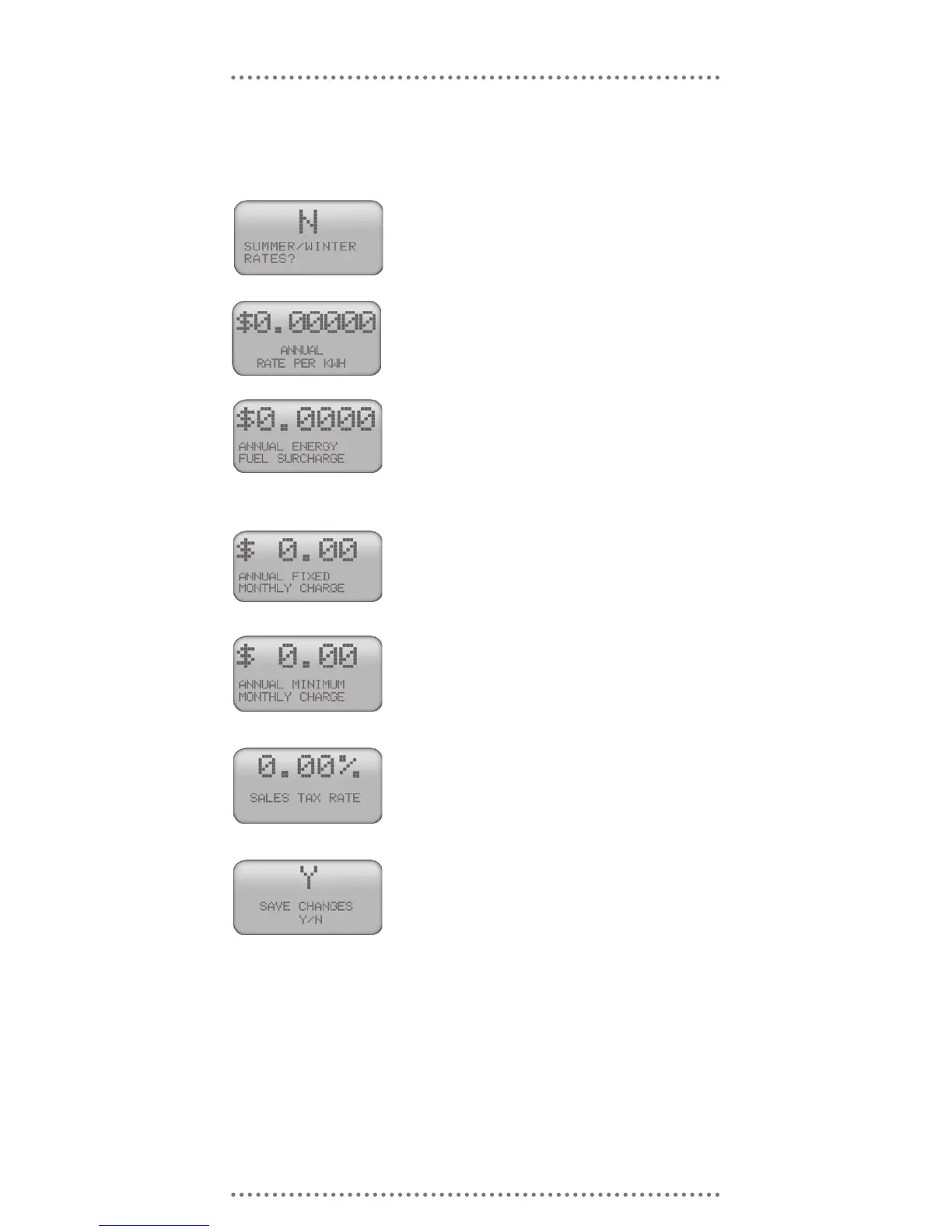
If your Utility charges different rates for Summer and Win-
ter, use the ▲key to change the ’N’ to a ’Y’ then press the
MODE Key. See separate section on Summer/Winter rates
for detailed explanation.
Use the ► and ▲keys to match the rate charge shown
on your utility bill, then press the MODE Key. “Annual” indi-
cates that the rate is not seasonal and is applied throughout
the year.
This is a charge billed by some, but not all utilities from time
to time to recover their costs for extraordinary fuel prices.
This amount is added to energy charges only and is not
added to all items of the bill. Use the ►and ▲keys to set
the rate, then press the MODE Key.
For example, neighborhood street lighting costs, or any
other recurring costs the Utility may pass on to the con-
sumer. If more than one xed fee applies, enter the sum
of all fees. Use the ► and ▲keys to set the rate, then
press the MODE Key
Some utilities, in addition to a charge per kWh, have a mini-
mum charge for electricity. This is typically a at-fee. Use the
►and ▲ keys to set the rate, then press the MODE Key.
Charged as a percentage calculation of the entire bill. Stan-
dard with most utilities. Use the ►and ▲ keys to set the
rate, then press the MODE Key
If you have successfully changed/ entered your rates, press
the MODE Key. You may change your rates at any time by
going through the Setup Routine again. If you want to go
back to a eld already entered, you will need to go through
the Setup Routine again by holding the $ and ▲ key simul-
taneously and pressing MODE until you reach the eld you
wish to modify.
Once the MODE key is pressed, Setup will be complete and TED will automatically return to
the Primary Display screen.
SUMMER/WINTER RATES
Some Utilities have Summer/Winter rate programs. Any of the 3 rate categories above
(Flat, Tiered, Time of Use) may have a Summer/Winter schedule. If you chose “N” to the
question of Summer/Winter rates, you will see the word “Annual” throughout your program-
ming of rates. If you select ‘Y’ to Summer/Winter rates, you will basically be entering your
rate plan twice – once for Summer and once for Winter. Following is an explanation on
setting the Summer/Winter seasons.



 To Next Page