Energy, Inc. • 3297 Pacific Street • Charleston, South Carolina 29407 • (843) 766-9800
Page 15
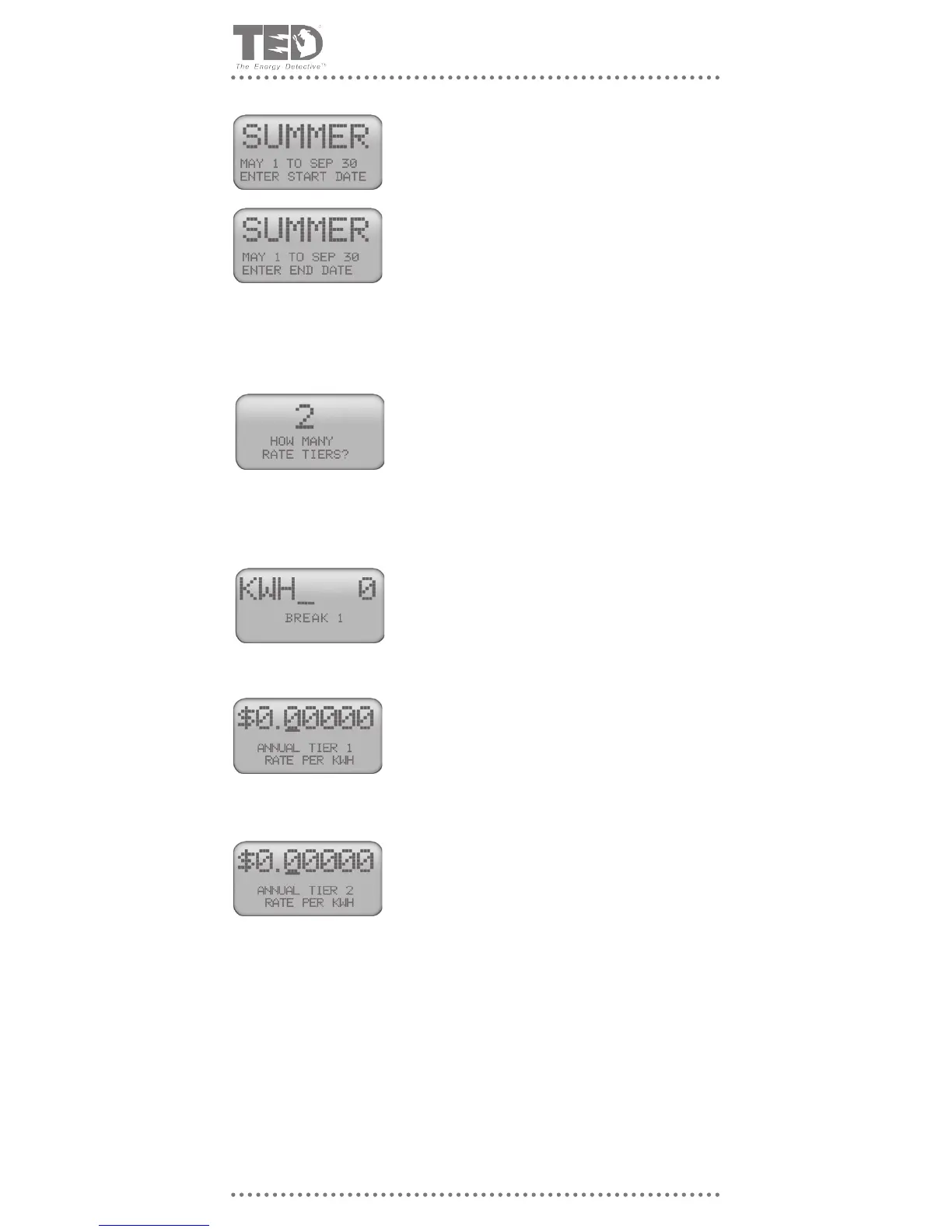
Using the ► and ▲ keys, select the beginning month
and date of Summer as dened by your Utility. Press
MODE to move to the End of Summer. Use the ►and ▲
keys to change the End date of Summer.
TED views the dates outside of the Summer dates you
have entered to be Winter.
Summer/Winter rates will appear differently in the Tiered
Rates as well as the Time of Use rates. See specic detail
in the respective rates
TIERED RATES
Using the ▲ key, indicate how many rate tiers your utility
charges. You may have up to 5 tiers. Press MODE key
when nished. The number of screens following will depend
on the number of Tiers you input on this screen.
The next set of screens are where you input the kWh tiers.
After you have input the KWH tiers, you will then input the
corresponding rates for the KWH tiers.
The kWh tiers are shown as “breaks.” This is where you put
in the upper-value of each tier. Ex: If tier 1 on your bill is
from 0 to 150kWh, you would input “150” as Break 1. Use
the ► and ▲ keys to input the upper value. Press MODE
Key when nished.
The rate screens shown will correspond to the number of
Rate Tiers on your bill. Each screen will allow you to enter
the rate for the specied Tier.
Use the ►and ▲keys to enter the rate for that particular
Tier, then press the MODE Key.
Note the word ‘Annual’ to the left. This signies that the
rate you are entering is for the entire year, and not a season
(Summer/Winter).
If you selected Summer/Winter rates, the word “Annual” will
be replaced by both “Summer” and “Winter”, allowing you to
enter rates for both seasons for each Tier. Pay particular
attention to this, as it can get quite confusing.
NOTE: If you do make a mistake or wish to go back to
a prior screen, you must complete the Setup process by
continuing on, save your changes at the last screen, then
enter the Setup Routine by holding down the $ and MODE
Keys simultaneously. Press MODE until you have reached
the screen you wish to change.
Upon pressing the MODE Key at the completion of your last Rate Tier screen, the next
screen to appear is “Energy/Fuel Surcharge”, beginning the sequence of closing screens
found on Page 14.



 To Next Page