Energy, Inc. • 3297 Pacific Street • Charleston, South Carolina 29407 • (843) 766-9800
Page 16
TIME OF USE RATES
Time-of-Use rates (TOU) are designed to help both customers and utilities. The goal is to
encourage customers to shift certain loads from peak periods into periods of lower cost and
demand. TED will allow up to 5 TOU rates, with 2 time-periods per rate. “Off-Peak” rate does
NOT count as a “rate peak.” If, on your bill for example, you have 3 TOU rates, the lowest is
usually termed ”Off Peak.” Other rates may be termed “Peak”, “Super Peak” or “Critical Peak.”
TED simply refers to them as P1 and P2.
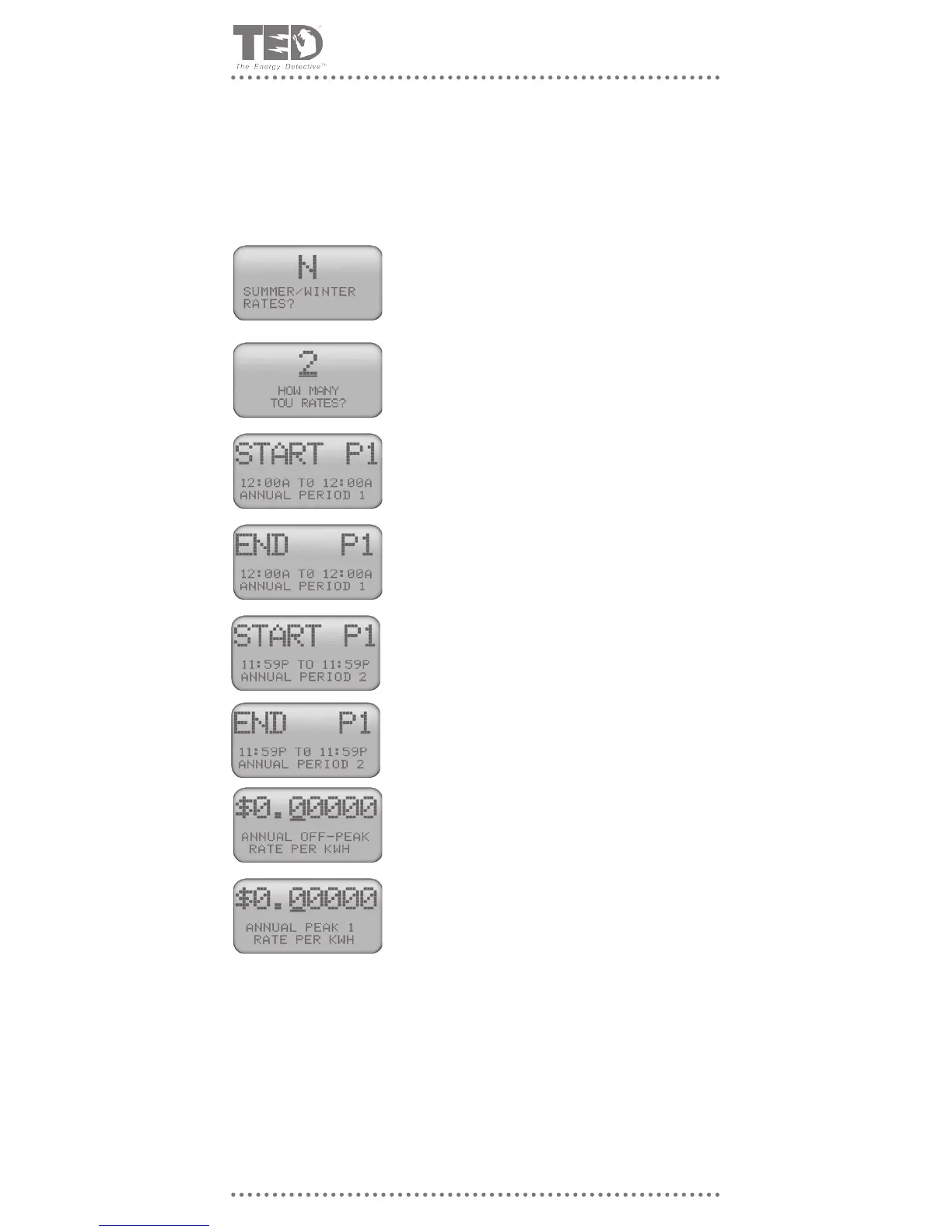
Once you have selected Time-of-Use rates as the tariff struc-
ture you are billed under, the rst screen you will see is Sum-
mer/Winter rates. If you select ‘Y’, turn to the section titled
“Summer/Winter Rate Explanation” on Page 5 to see how to
program the 2 seasons. After you have reviewed that sec-
tion, turn back to this point. Press MODE Key to continue.
Using the ▲ key, select how many peak rates you have
throughout the day. NOTE: If you have a rate of $.10 from 9-
10am and $.10 again from 3-5pm, this is one (1) rate peak, be-
cause it is the same rate even though it is at different times.
There are 2 steps to follow. During the 1st step, you will input
the time period(s) for all the rate peaks corresponding with
the number you entered above. Look closely at the images to
the left. There are subtle, but important differences. Let’s as-
sume you said there were 2 Rate Peaks. The word “Annual”
means that you did not choose Summer/Winter rates, and that
this is an annual rate. If you said “Y” to Summer/Winter rates,
you would follow these screens for each season.
In most cases, Period 1 will be an “a.m.” period, and Period
2 will be “p.m.” Make sure you change ‘a.m.’ and ‘p.m.’ ap-
propriately.
NOTE: For each Rate Peak (“P”), there are 2 “Periods” - in
case the rate occurs twice per day. Let’s assume Peak Rate 1
is $.10/kWh and occurs from 9-10am, and again from 4-6pm.
The “9-10am” would be considered Period 1, and “4-6pm”
would be considered Period 2. In the event P1 occurs only in
the a.m., or only in the p.m., you only need to set one of the
Periods correctly. The other Period needs to remain at the
default values of 12:00a to 12:00a.
NOTE: Any times not included in one of the peak periods will
be considered “Off-Peak” and charged at the Off-Peak rate.
If you make a mistake during this process (or anytime during
the Setup Routine), hold the MODE Key down for 3 seconds.
It will save all your entries up to this point. To get back into
the Setup Mode again to complete your programming, simply
hold the $ and ► keys simultaneously for 3 seconds; press
MODE to advance to the area you were wanting to correct or
complete. You can override any prior entries at any time.
If you had entered “3” (or more) TOU rates, P2 (P3, P4) rep-
resent the subsequent Rate Peaks that will be entered. As
you did for P1, you enter the Start and End for Period 1. Be
certain to get ‘a.m. and p.m.’ correct. In the event P2 occurs
only in the a.m., or only in the p.m., you only need to set one
of the Periods correctly. The other Period needs to remain at
the default values of 12:00a to 12:00a.
P3 represents the 3rd Rate Peak that you will enter. For this
example, you had entered several screens ago that you had
“2 Rate Peaks.”
Upon pressing the MODE Key at the completion of your last Rate Tier screen, the next
screen to appear is “Energy/Fuel Surcharge”, beginning the sequence of closing screens
found on Page 14. Turn to Page 14 to complete the Setup Routine.


 To Next Page
 Loading...