© 2007 U 541 - 08/07 8 of 12
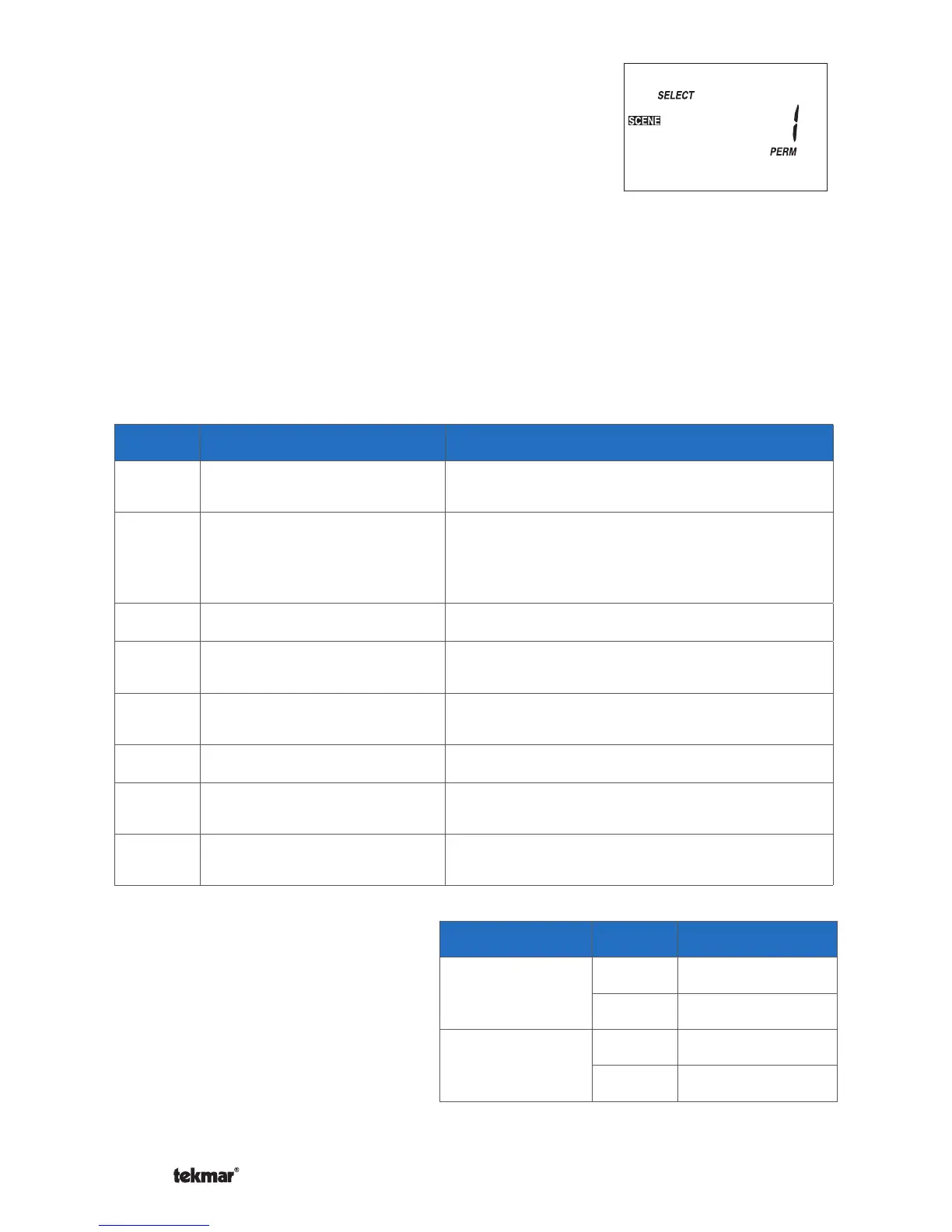
To select a scene:
1.
Use the Menu button to select the Scene menu.
2.
Use the Item button to select the Select item.
3. Use the Up or Down button to select the desired
scene.
• Default Scene: The default scene is Permanent 1.
In a typical installation, the thermostat follows the
schedule.
• Factory set scene: When you select a factory set scene (2, 3, and 6), all of
the thermostats using the scene feature use the temperature specified by the
scene.
• Custom scenes: When you select a custom scene, your installer will have preset
each thermostat using the scene feature to either follow its regular schedule, or
go to the set wake, occupied, unoccupied, sleep or away temperature.
Example:
A house is normally in scene
Permanent 1. There is a master
bedroom that operates on a
schedule and there is a guest
bedroom that is normally set
to Unoccupied. When a guest
arrives, the scene is to change to
Permanent 4. Scene 4 changes
the guest room to operate on the
setback schedule.
Location Scene Temperature
Master
Bedroom
1 Schedule
4 Schedule
Guest
Bedroom
1 UnOccupied
4 Schedule
Scene Description Thermostat Operation
1 Permanent 1
Scheduled event, Wake, Unoccupied,
Occupied, Sleep, Away
2 Permanent Away 2
Away
DHW demands are ignored (applies
to reset modules) Setpoint demands
operate (applies to reset modules)
3 Permanent Unoccupied 3 Unoccupied
4 Permanent 4
Scheduled event, Wake, Unoccupied,
Occupied, Sleep, Away
5 Permanent 5
Scheduled event, Wake, Unoccupied,
Occupied, Sleep, Away
6 Temporary Occupied 6 Occupied for 3 hours
7 Temporary 7
Scheduled event, Wake, Unoccupied,
Occupied, Sleep, Away for 4 hours
8 Temporary 8
Scheduled event, Wake, Unoccupied,
Occupied, Sleep, Away for 8 hours


 To Next Page