Edition 1.2 (0608) Page 11 of 16
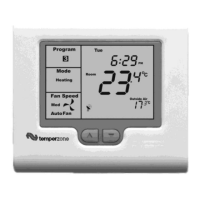
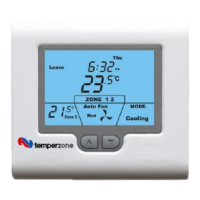
Programming your TZT-701 thermostat or setting these daily events is no more complicated than setting the clock as described
previously. The same buttons are used in the same sequence. Use the Clock button to advance to the next step, and the up (p) or
down (q) buttons to make changes.
To enter the program mode, press and hold the Clock button for 5 seconds. The display will change and the Day “Monday” will
flash. Using the up (p) or down (q) buttons adjust the day to the day you wish to start programming or to the day you wish to
edit an existing program.
Tap the clock button to advance to the next step, The LCD will show the word “Start” with the hour’s digit flashing. Use the up
(p) or down (q) buttons to adjust the hours to the time you wish the “Start” event to occur for the day selected. Tap the Clock
button again. Now the minute’s digits flashes. Use the up (p) or down (q) buttons to set the minutes to the time you wish the
“Start” event to commence.
Tap the Clock button again. If the option to program the zones has been enabled by the installer, you now have the ability to set
which zones you require ON during the “Start” event. Using the up (p) or down (q) buttons, set the desired zones.
If the installer has set to the Program Zone option “OFF” this step is skipped by the TZT-701 thermostat during the
programming sequence.
Tap the Clock button again, now the word “Heat” (if heating was enabled by the installer) and a temperature value is shown in
the LCD. Use the up (p) or down (q) buttons to set the Heating temperature for the “Start” event. Tap the Clock button again.
Now the word “Cool” (if cooling was enabled by the installer) and a temperature value is shown in the LCD. Use the up (p) or
down (q) buttons to set the desired Cooling temperature for the “Start” event.
NOTE: there must be a minimum of 1 deg C difference between heating and cooling set points. The heating temperature must be
at least 1 deg C lower than the cooling set temperature. If you set the heating or cooling set point closer than this minimum
value, the TZT-701 thermostat will automatically “push” the other set point away to maintain this minimum value.
Tap the Clock button again and the day previously selected will be shown along with the word “Stop”. The Hour digit will flash
indicating that this value can now be adjusted with the up (p) or down (q) buttons. Set the hour to the time you wish the
“STOP” event to occur. Continue to tap the Clock button to advance through the “Stop” “Minute”, then “Stop” Zone (if enabled)
“Stop” Heating (if enabled) and “Stop” cooling (if enabled) temperatures.
Tap the Clock button again, and the LCD will show the word “COPY”.
You now have TWO options
Option 1 - Continue Programming as above.
Simply continue to tap the Clock Button as you have been to advance to the next day, “Tuesday” in this example “Start” &
“Stop”, then Wednesday, Thursday etc, following the same simple steps previously explained…. OR
Option 2 - Copy Program – To copy the values you have just set to other days of the week.
Rather than taping the Clock button now, tap the up (p) or down (q) buttons to “TAG” each additional day you wish to copy
the currently set “day-long” program to. When you have finished “Tagging” the days you desire, press the Clock button to
initiate the copy process. The word “Copy” will flash briefly to confirm the copy process and your current day’s values will be
copied to the days selected. Normal programming will resume at the next day to be programmed.
E Tip.
On days when the office will be unoccupied, set the “START” and “STOP” programs to occur at the same time of day, say
8:00am for example. This way, if “FAN ON” mode has been selected, the fan will not start.
After-Hours Run Timer
Note - If zoning has been used in your office, the after hours run timer function is automatically disabled.
A useful feature of your thermostat is it’s “After-Hours” run timer. Use this timer when you find yourself working outside of the
normal office hours. Tapping the On/Off button will initiate the after hours run timer function. The TZT-701 thermostat will then
temporarily substitute that day’s “Stop” program temperatures with that day’s “Start” program temperatures but only for a timed
two-hour period. While the after-hours run timer is operating the word “Timer” will flash on the LCD.
This function makes it simple to return the office temperature to a comfortable working level without the fear of forgetting to
turn the air conditioning system off when you leave.
E Tip.
To take advantage of the after hour timer function on days when the office is normally not open, program the “Start” event (at
8:00am for example) with your normal “ occupied” heating and cooling set temperatures. Set the “Stop” event for the exact
same time. Set temperatures to your normal “Stop” values, “Off” for example. The TZT-701 will move straight to the “Stop”
event and not run the air conditioer, but it will have a temperature in memory ready for use by the after hours run timer.


 To Next Page