EasyManua.ls Logo

Tenda 3G611R+ - User Manual

Tenda 3G611R+
114 pages
Print Icon
To Next Page IconTo Next Page
Loading...

Table of Contents

Other manuals for Tenda 3G611R+

Questions and Answers

  • Q
    qcarterAug 6, 2025
    How to fix Tenda 3G611R+ Wireless Router when I can’t log in to the web interface?
    • H
      Heather ClarkAug 6, 2025
      If you can't log in to the web interface of your Tenda Wireless Router, first check if the router is working correctly. Then, ensure the network cables are in good condition and the corresponding indicator light is always on. You can also run the 'Ping' command to check if you can ping the router's LAN IP address (192.168.0.1). If all else fails, press the 'RESET' button for 7 seconds to restore the router to its default settings.
  • S
    Savannah ValdezAug 10, 2025
    How do I configure my Tenda 3G611R+ Wireless Router for Dynamic IP?
    • M
      Michael MooreAug 10, 2025
      To configure your Tenda Wireless Router for Dynamic IP, go to the Setup Wizard in the web interface, select 'Dynamic IP' as the connection type, and click 'Save'. If your ISP binds the user computer’s MAC address, you may also need to clone the router’s WAN MAC address to the binding PC’s MAC address.
  • M
    Michael ValdezAug 14, 2025
    What to do if my Tenda Wireless Router shows an IP address conflict?
    • G
      Gregory SmithAug 15, 2025
      If your computer shows an IP address conflict when connected to the Tenda Wireless Router: * Check if there are other DHCP servers in the LAN and disable them. * Ensure the router's default IP address (192.168.0.1) is not occupied by other devices. * If there are two computers with the same IP addresses, modify one of them.
  • G
    George KramerAug 19, 2025
    What to do if I forget the login password for my Tenda Wireless Router?
    • C
      Christina GonzalezAug 19, 2025
      If you forget your login password and can't access the settings page of your Tenda Wireless Router, press the 'RESET' button for 7 seconds. This will restore the router to its default settings.
  • R
    Rachel BrownAug 23, 2025
    Why can't I use wireless WAN function on my Tenda Wireless Router?
    • W
      William JonesAug 23, 2025
      If you can't use the wireless WAN function on your Tenda Wireless Router, ensure that the wireless adapter can access the internet when connected to the computer. Also, verify that the necessary parameters such as SSID and MAC address are correct. If the IP address range obtained at the WAN port is the same as the one obtained at the LAN port, modify the LAN IP address. Finally, ensure that you do not detach any antenna of the wireless router while using it.
  • D
    Dr. Kathleen GreerAug 27, 2025
    Why is my 3G modem card not working with my Tenda Wireless Router?
    • B
      brian22Aug 27, 2025
      If you can't use your 3G Modem Card to connect to the Internet with your Tenda Wireless Router: * Ensure that you have inserted a SIM card into your 3G Modem Card. * Make sure your 3G Modem Card is properly connected to the router’s USB port. * Verify that your 3G Modem Card Model is compatible with the router. * Confirm that the 3G modem card model selected in the 3G Web interface matches the actual product. * Download the latest upgrading firmware.
  • T
    Tiffany DukeAug 31, 2025
    Why are the charges increasing after using a 3G modem card with my Tenda 3G611R+ Wireless Router?
    • T
      Tiffany HunterAug 31, 2025
      If you notice increased charges after using a 3G Modem Card with your Tenda Wireless Router, it's because 3G Modem Cards charge based on traffic or time. It's recommended to remove your 3G Modem Card or turn off the router when not in use. Also, note that traffic is more intensive when multiple computers share one Internet access line compared to when only one computer is using the Internet.

Summary

Chapter 1 Introduction

1.1 Product Features

Details the router's capabilities, compliance, and supported standards.

1.3 LED Indicator and Port Description

Explains the function of front and rear panel LEDs and ports for hardware identification.

Chapter 2 Hardware Installation

2.1 How to Install the Router

Step-by-step guide for physically connecting the router and its power supply.

Chapter 3 How to Login to the Router

3.1 How to Set Network Configurations

Guides users on configuring their computer's network settings for router access.

3.2 Login to the Router

Instructions for accessing the router's web interface using default credentials.

Chapter 4 WAN Medium Type

4.1 WAN Medium Type

Explains the different connection types for internet access (3G, Wired, Wireless WAN).

Chapter 5 Quick Setup Guide

5.1 Setup Wizard

A guided process to quickly configure internet connection types.

Chapter 6 Advanced Settings

6.1 LAN Settings

Configuration of basic TCP/IP parameters for the router's local area network.

6.2 WAN Settings

Detailed configuration for WAN connection types like PPPoE, Static IP, and 3G WAN.

Chapter 7 Wireless Setting

7.1 Basic Settings

Configuration of essential wireless network parameters: SSID, mode, broadcast.

7.2 Wireless Security Setting

Setup of wireless encryption methods like WPA2, WPA-Enterprise, and WEP.

Chapter 8 DHCP Server

8.1 DHCP Settings

Configuration of the DHCP server for automatic IP address assignment.

Chapter 9 Virtual Server

9.1 Single Port Forwarding

Configures port forwarding for external access to local network services.

Chapter 10 Traffic Control

Chapter 13 Security Settings

13.4 Prevent Network Attack

Protects the network from common internet attacks like SYN flooding.

Chapter 15 System Tools

15.4 Restore to Factory Default Setting

Resets all router settings to their original factory defaults.

15.5 Upgrade Firmware

Updates the router's firmware to the latest version.

15.7 Password Change

Allows changing the router's login username and password for security.

Appendix II: Troubleshooting

Cannot Login to Web Interface

Resolves issues preventing access to the router's web interface.

Forgot Login Password

Resets the router to default settings when the login password is forgotten.

3 G Modem Card Connection Issues

Troubleshooting steps for connecting a 3G modem card to the router.

Tenda 3G611R+ Specifications

General IconGeneral
Wireless StandardIEEE 802.11b/g/n
Frequency Band2.4 GHz
Wireless Speedup to 150 Mbps
WAN Interface1 x 10/100Mbps
SecurityWEP, WPA, WPA2
USB Port1 x USB 2.0
Weight180g
LAN Interfaces4 x 10/100Mbps
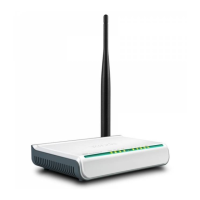
Antenna1 x 5dBi external antenna
Power Supply9V DC, 0.6A
FirewallSPI firewall
3G CompatibilitySupports 3G USB modems

Related product manuals