EasyManua.ls Logo

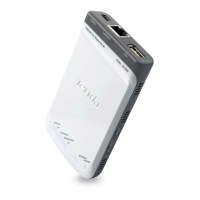
Tenda Portable 3G Wireless Router - User Manual

Tenda Portable 3G Wireless Router
105 pages
Print Icon
To Next Page IconTo Next Page
Loading...
150Mbps Portable 3G Wireless Router User Guide

Table of Contents

Other manuals for Tenda Portable 3G Wireless Router

Questions and Answers

  • H
    hallenAug 10, 2025
    How to configure Dynamic IP to access the Internet via Tenda Network Router?
    • C
      connie14Aug 10, 2025
      If your ISP binds the user computer’s MAC address, select 'Dynamic IP' connection type in the Web utility interface Setup Wizard, and click 'Save' to activate it. You may also need to clone the Router’s WAN MAC address to the binding PC’s MAC address. To do this, select 'MAC Address Clone' in 'Advanced Setting', input your computer’s MAC address, and click 'Apply' to activate it.
  • J
    jdrakeAug 15, 2025
    What to do if I forget my Tenda Network Router login password?
    • E
      Eric BlackAug 15, 2025
      To restore your Tenda Network Router to its default settings, press the 'RESET' button for 7 seconds.
  • R
    Ryan AustinAug 19, 2025
    Why can't I use the wireless WAN function on my Tenda Network Router to access the internet?
    • P
      Patricia MaloneAug 20, 2025
      Ensure that the wireless adapter can access the Internet when connected to the computer, that the wireless signals scanned by the adapter are strong, and that the signal quality is good. Also, verify that parameters like SSID and MAC address are correct. Make sure that the IP address range obtained at the WAN port is different from the one obtained at the LAN port. Avoid detaching any antenna of the wireless Router while in use.
  • D
    Dillon WoodardAug 26, 2025
    Why can't my computer connect to the internet with my Tenda Network Router and shows a yellow triangle?
    • A
      Alyssa BishopAug 26, 2025
      This may be due to your network card not being assigned an IP address. If your computer is set to automatically obtain an IP, ensure that the DHCP source on your Tenda Network Router is enabled. If there is no DHCP, configure a static IP address, filling in the necessary gateway and DNS information; otherwise, internet access will be unavailable.
  • D
    Dwayne GillespieAug 30, 2025
    What to do if I can't access the Tenda Network Router WEB management interface after entering the IP address?
    • S
      Sara PerezAug 30, 2025
      First, ensure the cable is properly connected and the corresponding indicator light is on. If using wireless, confirm the device isn't in Wireless Router mode, as the WEB interface is only accessible via wireless network in that mode. In wireless access point (AP) mode, your computer must have a specified IP (192.168.0.2 ~ 192.168.0.254) to access the device. You can also diagnose the connection by clicking 'Start' - 'Run' and entering 'ping 192.168.0.1'. If the ping is successful, check if your browser has a proxy server enabled and disable it. If the ping fails, hold the 'RESET' button for 7 seconds to restore factory settings and try 'ping 192.168.0.1' again.
  • S
    Sandra StricklandSep 4, 2025
    What to do if my Tenda Network Router has an IP address conflict?
    • M
      Michael MuellerSep 4, 2025
      If there are other DHCP servers in your LAN, disable them. Also, ensure that the default IP address of the Router (192.168.0.1) is not occupied by another device. If two computers have the same IP addresses, change the address of one of them.

Tenda Portable 3G Wireless Router Specifications

General IconGeneral
Wireless StandardsIEEE 802.11b/g/n
Frequency Band2.4 GHz
Maximum Wireless Speed150 Mbps
SecurityWPA, WPA2
AntennaInternal
Power SupplyDC 5V 1A
InterfaceUSB 2.0

Related product manuals