+P
L1
L2
L3
kWh
kWh
kWh
Figure-28
Figure-16
L1
L2
L3
P
kW
kW
kW
-6-
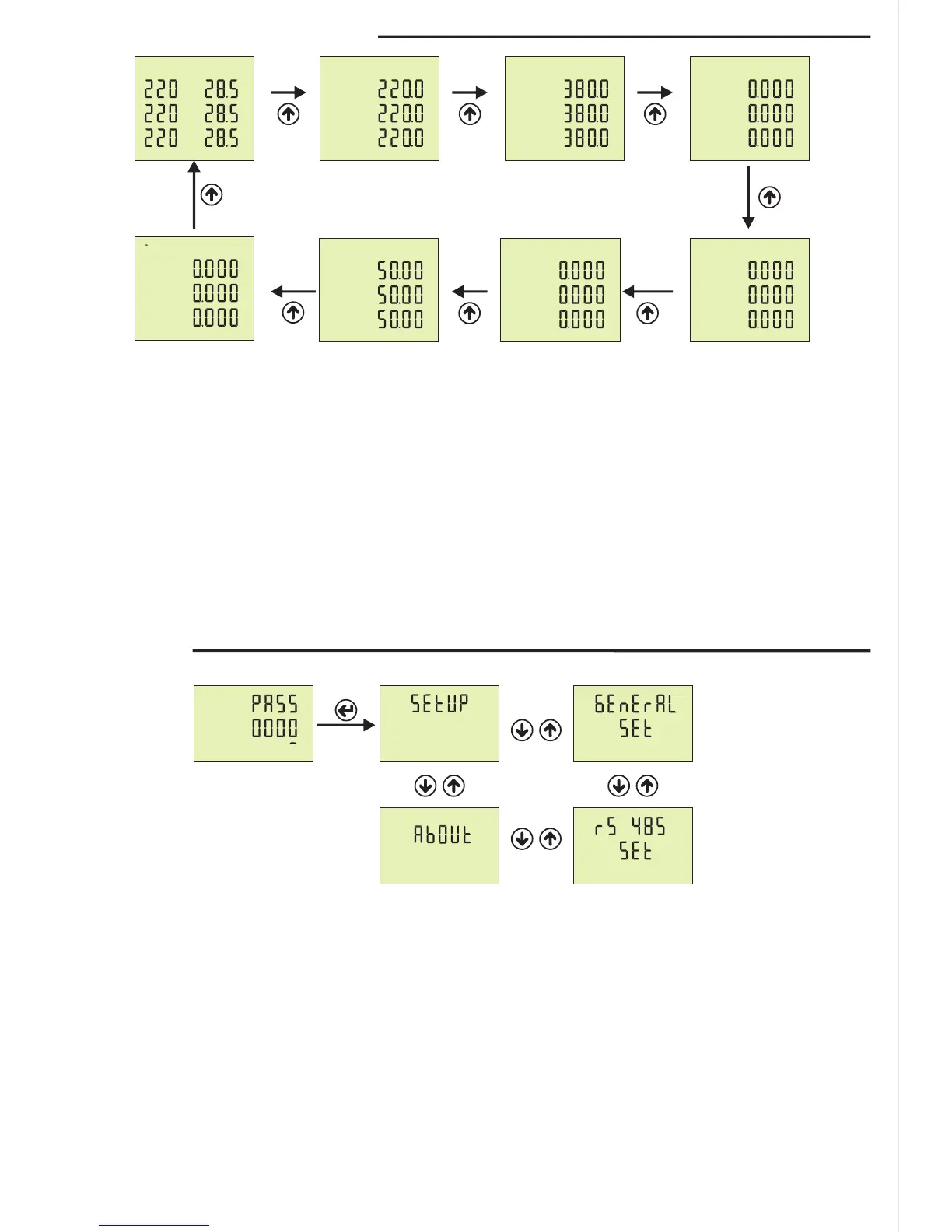
Figure-30: Press Menu button to enter password section. The figure-31 is displayed when you enter
password and press the Menu button.
Figure-31: It uses for setup. The figure-32 is displayed when you press the UP button.
Figure-32: It uses for general settings. The figure-33 is displayed when you press the UP button.
Figure-33: It uses for RS-485 settings. The figure-34 is displayed when you press the UP button.
Figure-34: It uses for about the device. This section give a information about device serial number and
version number. You can use ESC button for exit menu.
11 - Settings:
The Home screen is displayed, when the device is energized. When you press the up button to see the
other data on the display, the next data is displayed (Figure-3). The figure-7 is displayed when you press the
Up button. The figure-11 is displayed when you press the Up button. The figure-16 is displayed when you
press the Up button. The figure-20 is displayed when you press the Up button. The figure-24 is displayed
when you press the Up button. The figure-28 is displayed when you press the Up button. The screen back
to Home Screen when you press the Up button.
If you want to see values of min, max, mean and demand you can use down button. If you back to home
screen in anywhere, you can use ESC button.
10 - To advance in Display Inventory:
L1
L2
L3
V
A
A
A
Home
Screen
Figure-3
L12
L23
L31
V
V
V
V
Figure-7
L1
L2
L3
I
A
A
A
Figure-11
L1
L2
L3
F
Hz
Hz
Hz
Figure-24
L1
L2
L3
S
Var
Var
Var
Figure-20
I
L1
L2
L3
V
V
V
V
Figure-34
Figure-30
Set
Figure-31 Figure-32
Figure-33


 To Next Page