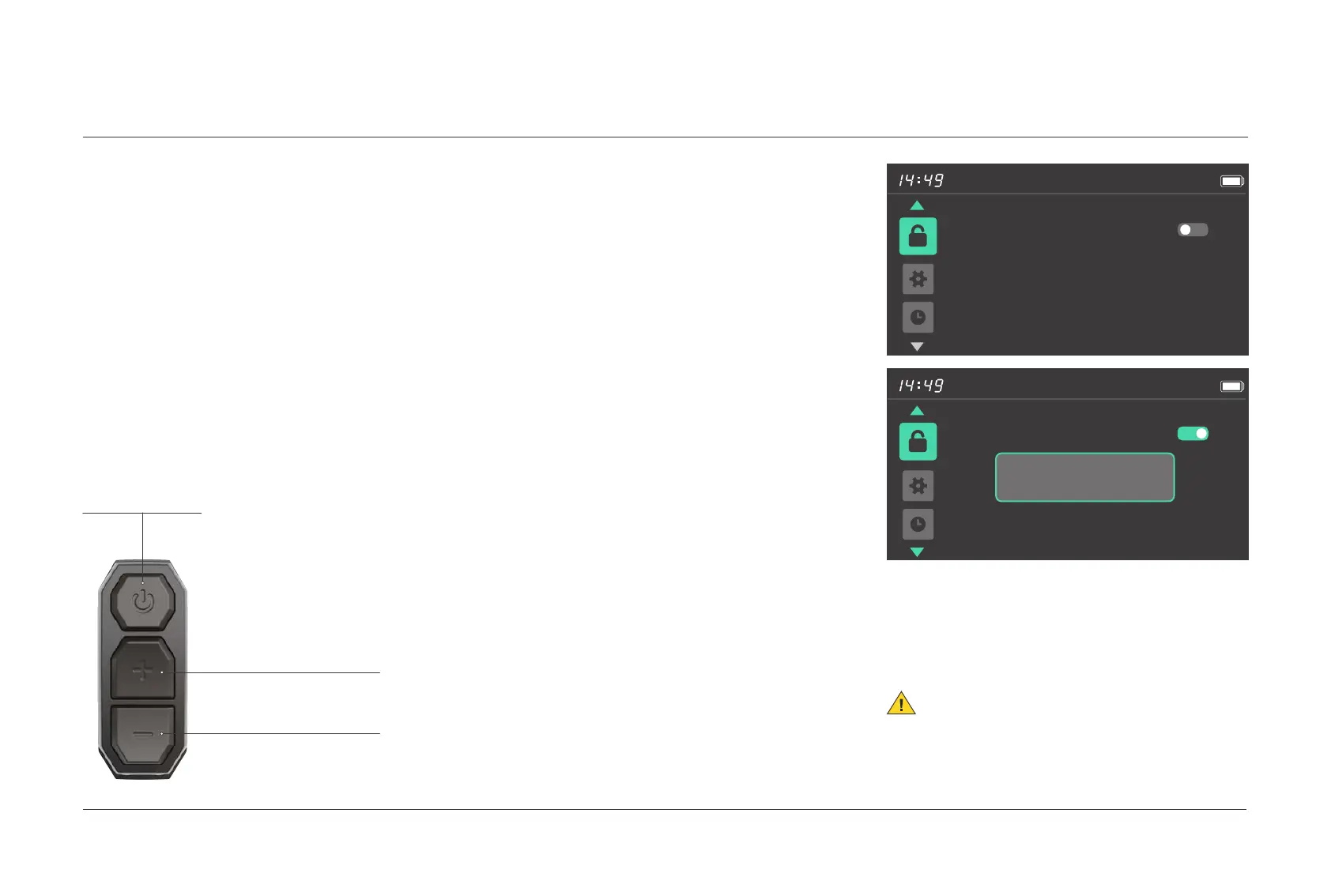
[
Power
]
button
[
+
]
button
[
-
]
button
100%
Password
Back
0000
100%
Password
Back
Change Password
After entering the menu preview interface, press the [Power] button to enter
this menu item, click the
[
+
]
or
[
-
]
button to select the Password option,
and press the
[
Power
]
button to enter the Password item and select ON or
OFF. Press the
[
Power
]
button to confirm the adjustment and exit.
When the Password option is ON, press the
[
Power
]
button to
enter
the Change Password item and change the current password
by starting
from the first digit. When the first digit "1" starts to flash, click the
[
+
]
or
[
-
]
button to select a number from 0 to 9. Press the
[
Power
]
button to
confirm the setting and go to the second digit. Repeat the operation to
change the entire password.
Select Exit to exit the user password setting interface.
Note:
The Password option is displayed on the
user menu interface
only when the password is
configured in the advanced menu.
05.
USER MENU
5.6.User password settings (configurable)
028 Display operations



 To Next Page