◼ Demonstration Batch File
⚫ Demo batch file folder: demonstrations\ DE1_SOC_D8M_LB_RTL\demo_batch
◼ Demonstration Setup
⚫ Connect the DE1-SoC board (J13) to the host PC with a USB cable and install the
USB-Blaster II driver if necessary.
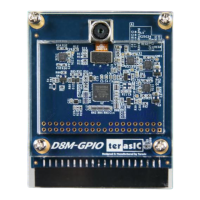
⚫ Plug D8M onto DE1-SoC JP2(GPIO 1), connect VGA monitor to J9 see Figure
4-2.
⚫ Plug the 12V adapter to DE1-SoC Board.
⚫ Power on the DE1-SOC board.
⚫ Execute the demo batch file “test.bat” from the directory\
DE1_SOC_D8M_LB_RTL\demo_batch.
⚫ LED0~1 light up, stand the settings of D8M MIPI decoder IC and Camera Sensor
I2C are completed.
⚫ LED7~9 blink in 1Hz, stand VGA_CLK, MIPI_REFCLK and MIPI_PIXEL_CLK are
generated correctly.
⚫ HEX1~0 decimal number “60” stands D8M camera sensor capturing frame rate is
60Hz.
⚫ D8M capturing image displays on VGA monitor, if the VGA monitor image is fuzzy,
please press Key3 one time again (will perform the focus operation again). Users
can switch SW3 to “1” (there will be a yellow box on image), then, press KEY3 one
time again, the middle area focus operation will be performed.
Table 4-1 summarizes the functional keys and details of each LED status.
Table 4-1 The functional keys of the digital camera demonstration


 To Next Page