-18-
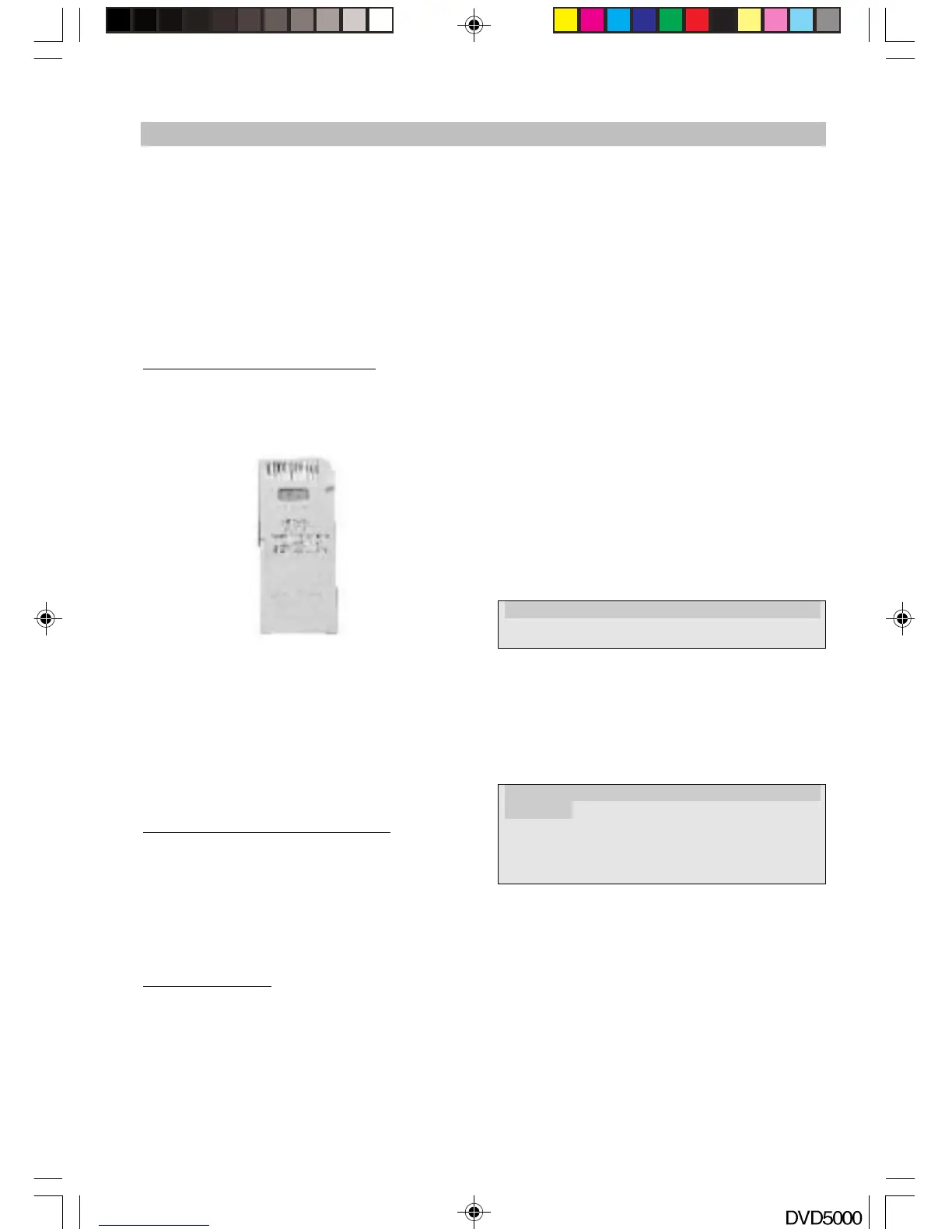
2. Insert the card into the slot gold contacts first
and the recessed notch on the left. Gently
push the card in all the way until the card is
fixed in place.
IMPORTANT: Notice the notched corner of the
MultiMediaCard or Secure Digital card and be
careful not to insert the MultiMediaCard or Secure
Digital card in the wrong direction. To insert
properly, be sure that the card is positioned so
that the recessed notch is facing left and the
media’s label is on the bottom. The media is to be
inserted gold contacts first.
Inserting a Memory Stick card
Position the Memory Stick on its side with the
media’s label on the bottom and the gold contacts
on the top. Position the media so that the gold
contacts are farthest from you. Please refer to
below image for proper media insertion.
2. Insert the Memory Stick into the slot gold
contacts first and the recessed notch on the
right. Gently push the Memory Stick in all the
way until the card is fixed in place.
IMPORTANT: Notice the rounded corner of the
Memory Stick card and be careful not to insert the
Memory Stick in the wrong direction. To insert
properly, be sure that the card is positioned so
that the rounded corner is facing right with the
gold contacts upwards.
Reading Cards & Playing control
After switching to card reader working status,
the card reader will read cards as per following
sequence: CF I/II —> SD/SM/MMC/MS. If there is a
CF card in CF slot, it won’t read SD/SM/MMC/MS.
If there are no cards, it will show NO CARD.
For playing control, pleases refer to the
JPEG Photo CD/MPEG4/MP3 playing section
Removing Cards
The cards can only be removed when the card
reader is at non-working status and the cards’
indicator must be off, otherwise the reader or the
cards may be damaged, or data on the cards may
be lost or corrupted.
To remove cards, you should pull the card gently
and horizontally out of the slot by your hand
directly.
Remark: The supported range & capacity for the
folders & files in the card
1. This card reader can support 2 levels of folders
in the card.
2. The total folders number can be supported in
the card is no more than 10. (Max 5 folders
can be supported under directory)
3. Only support 100 files for each folder or
support 100 files for each card with no folder
in it.
4. A folder including different format files will not
be supported.
5. JPEG file larger than 1 MB may not be displayed
normally.
SETUP
Once the initial settings have been completed, the
player can be operated under the same conditions.
These settings will be retained in the memory even
after turning off the power until the settings are
changed. The initial language is set to English.
Operation:
1. Press STOP button first then press SETUP
button to enter setup interface as followed
during the stop status. You can setup
Language, Video, Audio, More Audio and
Parental.
2. Press direction up and down button to choose
the desired section and OK button to enter
submenu or press SETUP to quit the setup
screen. Followed is the language setup screen
for your reference where you can set OSD
menu, Subtitle Language, Audio Language, DVD
Menu.
Please refer to SHEET 1 for the detailed items and
parameters in all setup interfaces.
LANGUAGE VIDEO AUDIO MORE AUD PARENTAL
LANGUAGE VIDEO AUDIO MORE AUD PARENTAL
OSD MENU >> ENGLISH
SUBTITLE
Audio
DVD MENU
OPERATION
DVD5000_IB.p65 05-10-22, 23:1718



 To Next Page