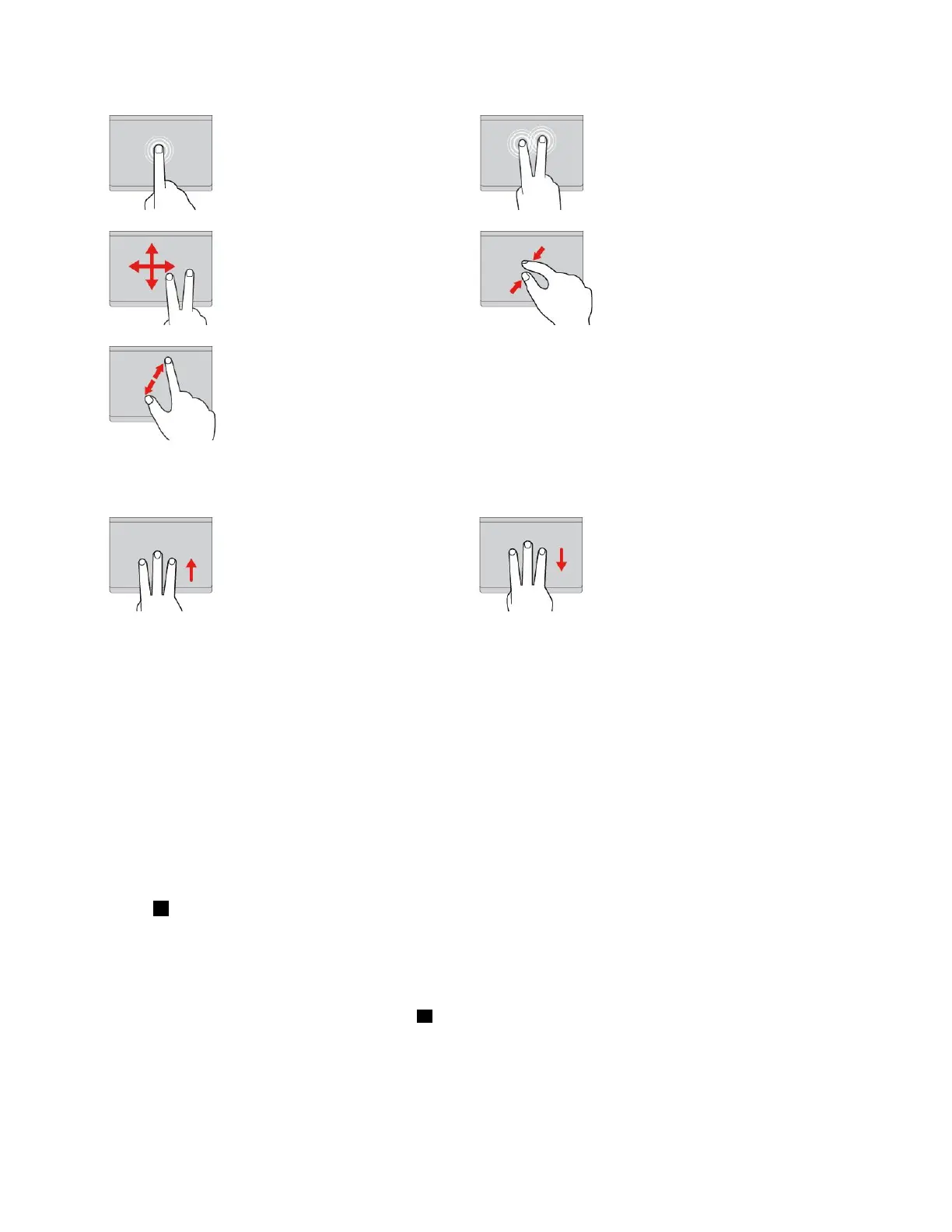
Tap
Tapanywhereonthetrackpad
withonefingertoselectoropen
anitem.
Two-fingertap
Tapanywhereonthetrackpadwith
twofingerstodisplayashortcut
menu.
Two-fingerscroll
Puttwofingersonthetrackpad
andmovethemintheverticalor
horizontaldirection.Thisaction
enablesyoutoscrollthroughthe
document,Website,orapps.
Two-fingerzoomout
Puttwofingersonthetrackpadand
movethemclosertogethertozoom
out.
Two-fingerzoomin
Puttwofingersonthetrackpad
andmovethemfartherapartto
zoomin.
ThefollowingsectionintroducessometouchgesturesontheWindows10operatingsystem.
Swipethreefingersup
Putthreefingersonthetrackpad
andmovethemuptoopenthe
taskviewtoseeallyouropen
windows.
Swipethreefingersdown
Putthreefingersonthetrackpad
andmovethemdowntoshowthe
desktop.
CustomizingtheThinkPadpointingdevice
YoucancustomizetheThinkPadpointingdevicesoyoucanuseitmorecomfortablyandefficiently.For
example,youcanchoosetoenabletheTrackPointpointingdevice,thetrackpad,orboth.Youalsocan
disableorenablethetouchgestures.
TocustomizetheThinkPadpointingdevice,dothefollowing:
1.GotoControlPanel.
2.ClickHardwareandSound➙Mouse.TheMousePropertieswindowisdisplayed.
3.IntheMousePropertieswindow,followtheinstructionsonthescreentocompletethecustomization.
ReplacingthecapoftheTrackPointpointingstick
Thecap1ontheendoftheTrackPointpointingstickisremovable.Afteryouusethecapforaperiodof
time,youmightconsiderreplacingthecapwithanewone.
Togetanewcap,contactLenovo.ForinformationaboutcontactingLenovo,seeChapter11“Getting
support”onpage125
.
Note:Ensurethatyouuseacapwithgroovesaasshowninthefollowingillustration.
22UserGuide



 To Next Page