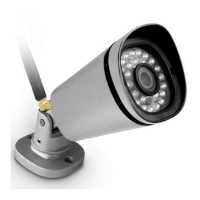
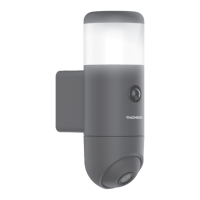
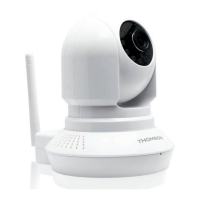
OUTDOOR 1080P IP WIFI CAMERA
EN
16
D - CONFIGURATION AND USE
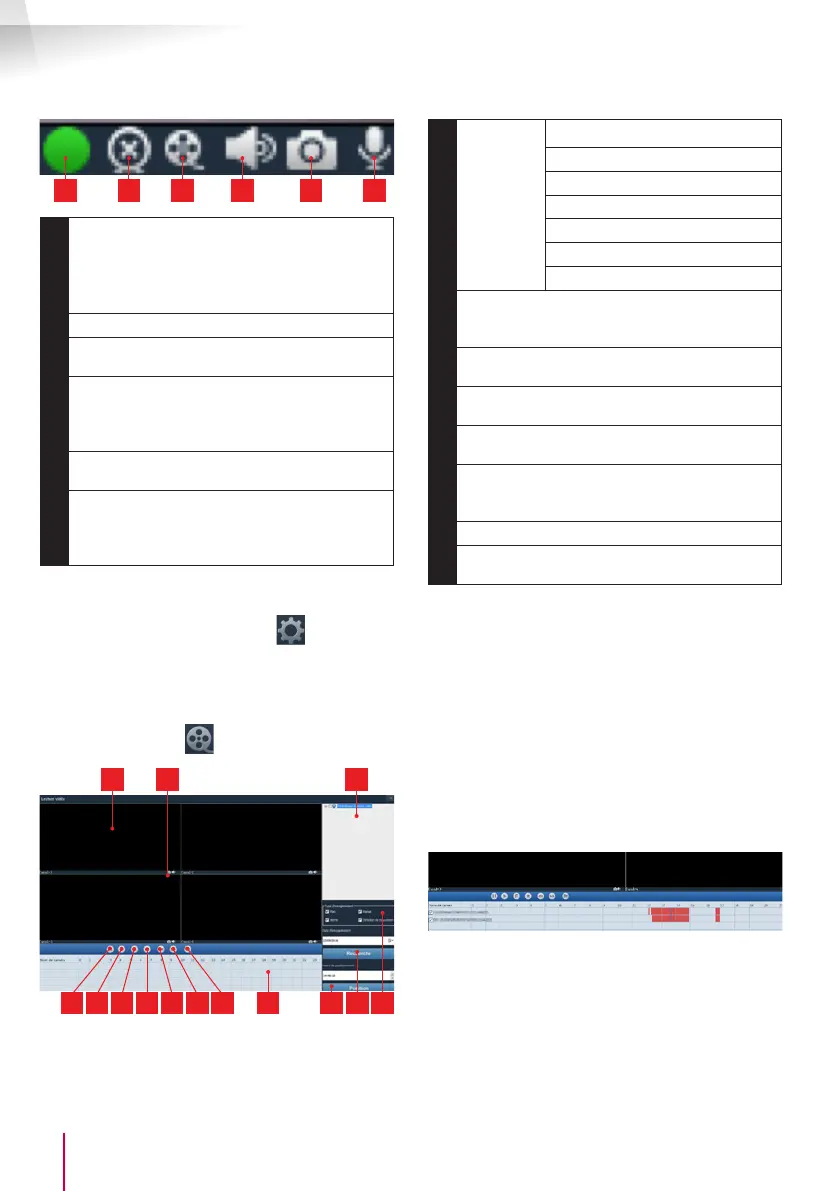
1 2 3 4 5 6
1
This icon shows the presence of records on
the computer used (white when idle, green
when programmed/on detection/manual
records are created)
2
Broadcast stopped and image closed
3
Start a recording on the disk of the
computer used*
4
Activation/deactivation of the camera
microphone (cameras tted with the
microphone only, your computer must provide
the speakers)
5
Take a photo and store on the disk of the
computer used*
6
Activation/deactivation of the camera
speaker (cameras tted with the speaker
only, your computer must provide a
microphone)
* For the save and capture functions to be
accessible, the disk to use must be set beforehand.
Click the System settings icon
to tell the
software where to save the photos and videos on
the computer hard disk.
To view videos saved on the computer, click the
Video playback icon
:
91110
4321 765 14 13 128
1
Playback
controls
Open an external video le
2
Quick scroll forward
3
Quick scroll back
4
Stop playback
5
Progress image by image
6
Start playback
7
Pause
8
Current operating day: the coloured time
intervals indicate the presence of videos and
their approximate start and end times
9
List of cameras to search: tick the cameras
with recordings you wish to view
10
Viewing windows: double-click to display one
or more windows and cameras simultaneously
11
Take a photo from the video in playback and
activate/deactivate sound
12
Type of trigger: tick the type of recordings you
want to search: at (programmed), manual,
upon movement detection, by alert in general
13
Day you want to view
14
Position: enter the precise time from which you
want to view the video
To search for a video and view it:
• Click the list of cameras on the top right of the
screen or on the cameras that you wish to view.
• In the "type d’enregistrements [type of
recording]" area, indicate the type of
recordings that you are searching for
• In the "date d’enregistrement [date of
recording]" area, indicate the day you want to
view
• Click "Recherche [Search]": each camera
is listed at the bottom of the screen. The
coloured areas correspond to the videos in the
computer memory:
• At the bottom of the screen, click the cameras
for which you would like to display the videos
• Use the playback controls to play, fast forward,
rewind or use the "Positionner [Position]" area
to indicate the precise time with the cursor.
To program an alert to be sent when movement is
detected, you need 2 email addresses: the address
of the sender which will be used by the camera,


 To Next Page
 Loading...