EasyManua.ls Logo

THORLABS FW102C - User Manual

THORLABS FW102C
21 pages
Print Icon
To Next Page IconTo Next Page
Loading...
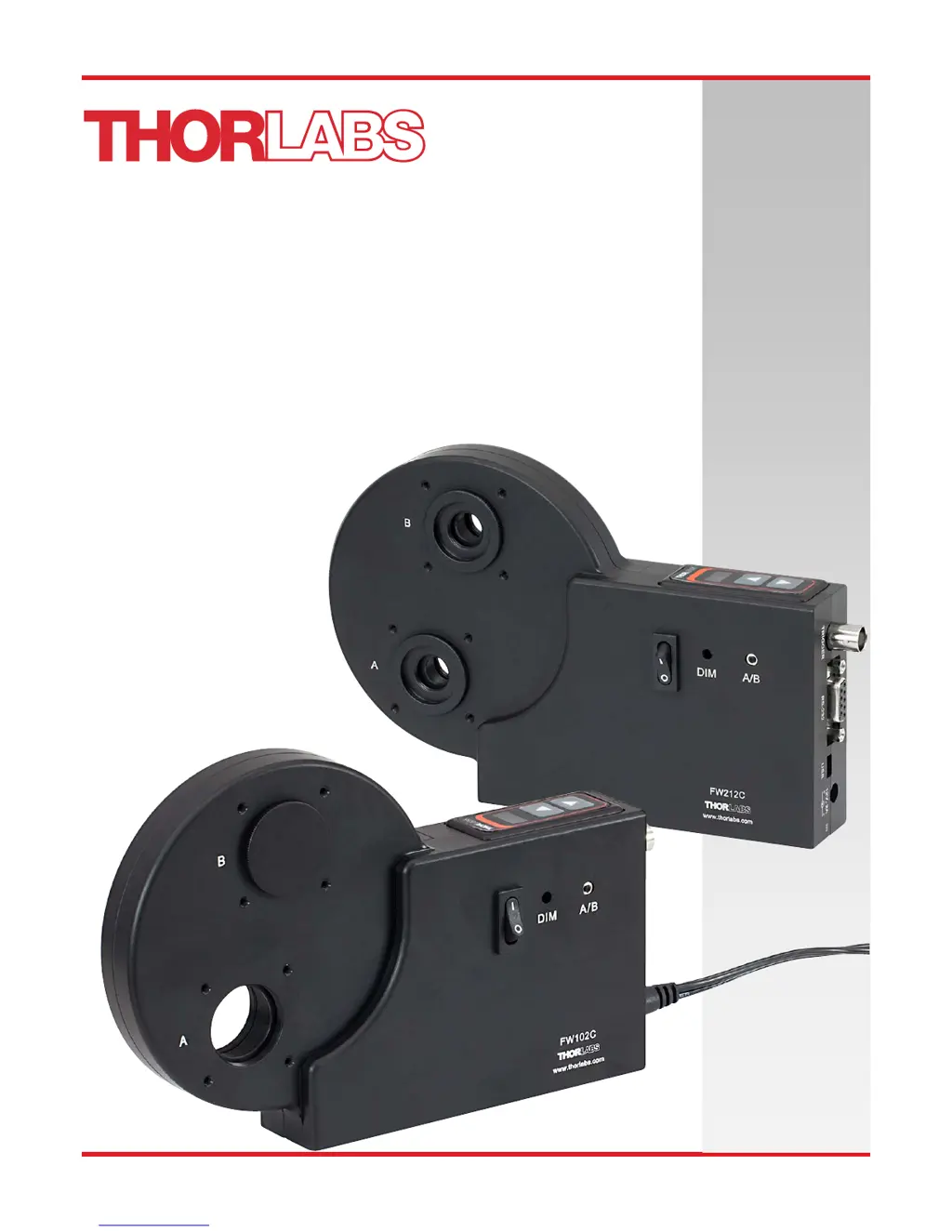
FW102C, FW102CNEB,
FW212C, FW212CNEB
Motorized Filter Wheel
User Guide

Questions and Answers

  • K
    Kathleen CummingsAug 3, 2025
    What to do if I can't connect to THORLABS Tools FW102C/FW212C over USB?
    • C
      curtishughesAug 3, 2025
      If you're having trouble connecting to the THORLABS Tools FW102C/FW212C via USB, here are a few things to try: * First, ensure that the unit is powered on before you plug in the USB cable. * If that doesn't work, power off the unit, disconnect the AC cord and USB cable. Then, reconnect the AC cord, power on the unit, and reattach the USB cable. * Also, verify that the necessary USB drivers are installed on your computer.
  • H
    Hannah HensleyAug 13, 2025
    How to fix error code E# on THORLABS Tools?
    • P
      pamelacarpenterAug 13, 2025
      If you're seeing error code E# on your THORLABS Tools device, it could be due to a few reasons: * Make sure the filter wheel is correctly installed, the housing is properly seated, and the thumbscrew is tightened. * Dust or debris might be blocking the sensors. Remove the housing cover and filter wheel, then use compressed air to clean any dust or debris from inside the housing and the green circuit board. * Inspect the blunt crenulated patterns on the inner rim of the wheel. If any are bent or broken, the wheel will need to be replaced.
  • R
    Richard CarterAug 22, 2025
    Why THORLABS FW102C unit does not turn on?
    • A
      Alexandria MillsAug 22, 2025
      If your THORLABS Tools unit isn't turning on, ensure that the AC power cord is fully plugged into the AC input receptacle on the unit and that it's connected to a working outlet providing 100 to 240 VAC.

Summary

Warning Symbol Definitions

Safety

Description

Features

Lists key features like automated control, wheel size, filter options, and connectivity.

New Design

Describes the new robust design using a stepper motor and worm gear for longevity.

Shipping Inventory

Basic Operation

Changing and Removing the Filters

Explains how to change filters, secure them with retaining rings, and access the filter wheel.

Basic Operation

Mounting

Describes the mounting options using threaded holes for posts, plates, and cage systems.

Power

Details how to power the unit using the AC adapter and the ON/OFF switch.

Basic Operation

Aperture

Explains the two aperture locations (A and B) and how the A/B switch selects them.

Manual Control

Describes using the arrow buttons for filter selection and adjusting display brightness.

External Trigger

Explains how to use the BNC trigger input for advancing to the next position or as an output.

Software Control

Application Software Operation

Mentions the included CD-ROM with application software for controlling the unit via USB/RS232.

Command Line Interface

Details controlling the unit via USB/RS232 using a command line language.

Keywords (Commands and Queries)

ActiveX Control

Troubleshooting and Maintenance

Removing the Filter Holder

Provides instructions on how to remove and reinsert the filter holder, including tips for difficult removal.

Changing Filter Wheel Types

Error Codes & Troubleshooting

Specifications

Performance

Details performance metrics like access time, accuracy, and expected cycles.

Electrical

Specifies electrical parameters for BNC triggers, power input, and operating temperature.

Physical characteristics and Interface

Pin Diagram

Mechanical Drawings

FW102 C, FW102 CNEB

Provides detailed mechanical dimensions and mounting hole information for the FW102C models.

FW212 C, FW212 CNEB

Regulatory

Waste Treatment is Your Own Responsibility

States that users are responsible for proper waste disposal of the unit.

Ecological Background

Briefly explains the WEEE and RoHS directives concerning electronic waste and hazardous substances.

FCC Rules

Details FCC compliance information regarding radio frequency energy and potential interference.

Thorlabs Worldwide Contacts

THORLABS FW102C Specifications

General IconGeneral
BrandTHORLABS
ModelFW102C
CategoryTools
LanguageEnglish

Related product manuals