© 2019 Thorlabs12
PM160x
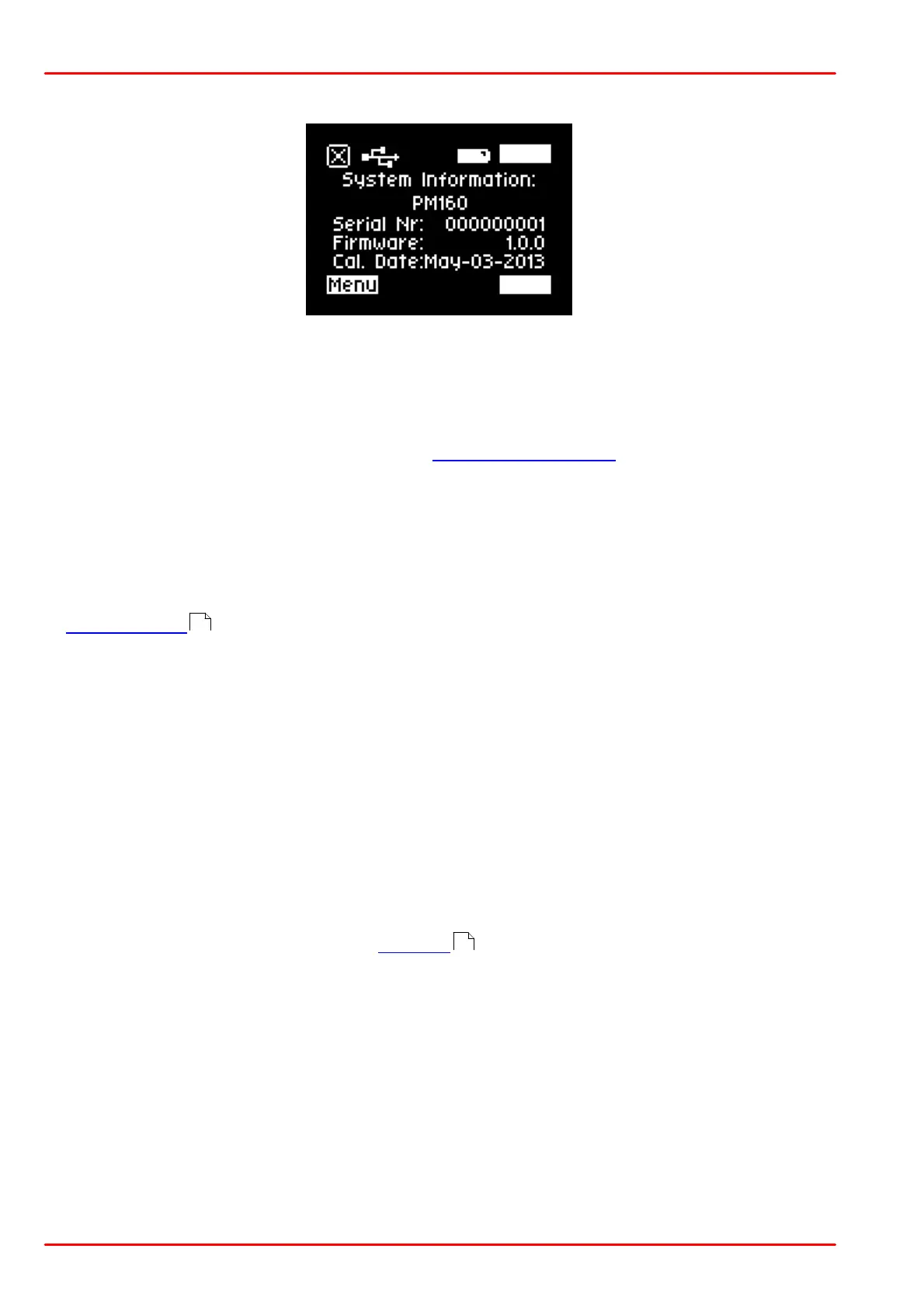
Menu "System Information"
Displays the item name, serial number, firmware version and most recent calibration date.
4.2 Remote Operation (Windows®)
· Install the application software Optical Power Montor (OPM) prior to connecting the PM160x
to a PC, by USB or Bluetooth. The software Optical Power Monitor (OPM) and the respective
manual can be downloaded from the Thorlabs website. Please see the system requirements
for the OPM software on the respective website.
· Turn on the unit by pushing the ON/OFF button (8) on the side of the PM160x.
· If a wireless operation is desired, set the connection mode on the device to Bluetooth. Other-
wise, connect the enclosed USB cable.
· Operate the device by following the instructions in the OPM software manual.
· Energy Saving function when a remote interface (USB or Bluetooth) is enabled:
a. When the USB cable is connected and the USB remote connection is active, the PM160x
will never shut down.
b. When Active Bluetooth remote connection is established and no USB cable is connected,
the PM160x will only shut down when the battery is down. The display will be dimmed to
save battery and the OLED's life time.
4.3 Remote Operation (iOS®)
This description describes the remote operation of a PM160x from an iPad®, representative for
other iOS® devices.
Connecting the PM160x with the iPad®
1. Make sure the PM160x app has been installed properly.
2. Switch the PM160x on and set the interface to Bluetooth.
3. Open the iPad® settings (the icon can be found in the dock bar) and select the Bluetooth
tab.
4. Switch on the iPad® Bluetooth interface, using the slide button on the top right.
5. In the Devices List, an entry “Thorlabs PM160x xxxxxxxxx” should be found, where
xxxxxxxxx stands for PM160x’s serial number. Compare that number with the serial num-
ber printed on the PM160x’s back or in the PM160x’s System Information menu screen.
Click the "Not Paired" or the "Not Connected" text. It should quickly change to "Connec-
ted".
6. Exit the Settings screen by clicking the Home button.
7. Click the PM160x App Icon in the dock bar. The app will start and immediately show mea-
surement values.
17
10


 To Next Page