38
6.4 OSD
6.4.1 OSD
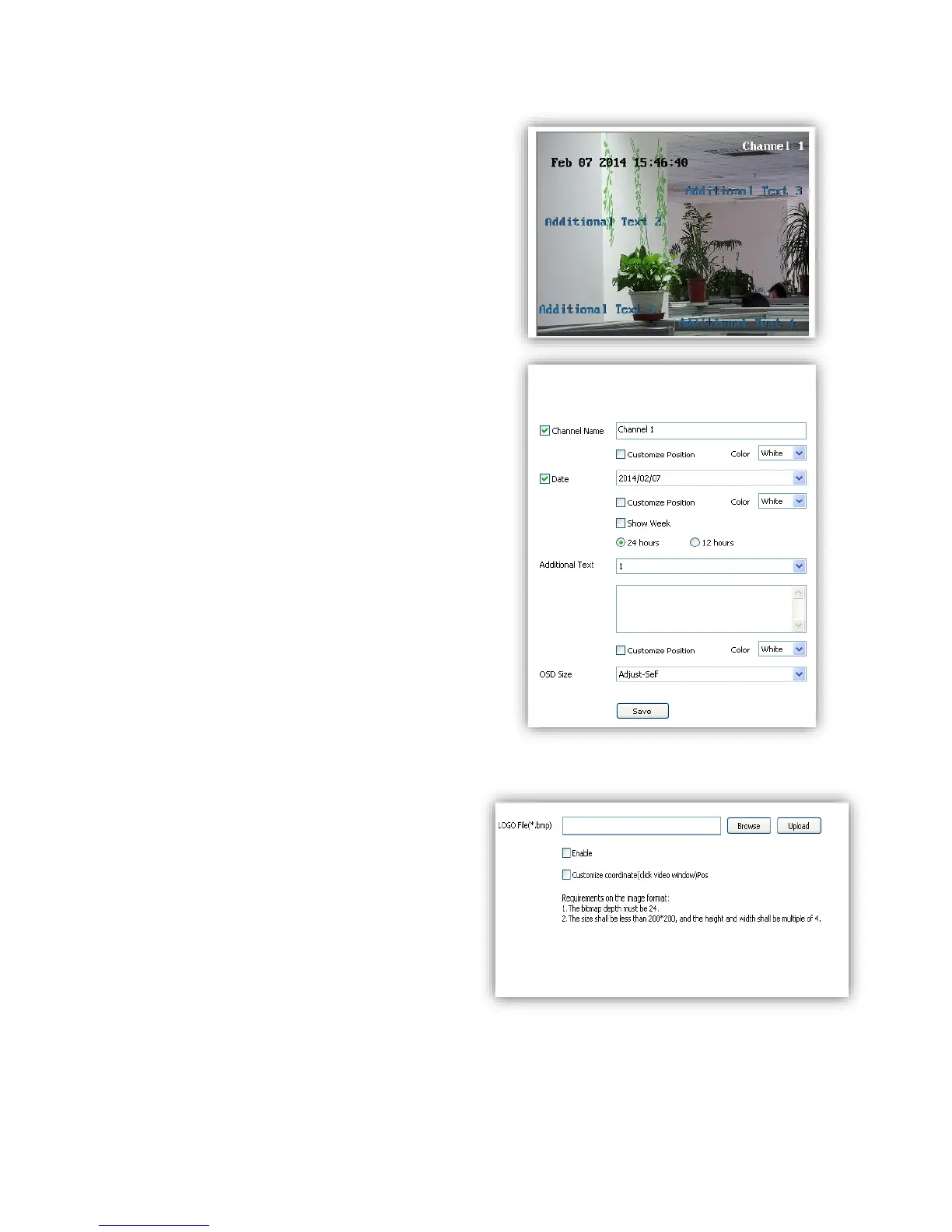
Channel Name
(1)<Channel Name> Input channel name, then it
will show on screen.
(2) <Customize Position> drag <Channel Name>
to the target position on screen.
(3)<Color> Choose your favorite color.
Date
(1) <Date> Display date on screen.
(2) <Show Week> Display week on screen.
(3) <Customize Position> drag <Date> to the
target position on screen.
(4)<Color> Choose your favorite color.
Additional Text
(1)<Additional Text> 5 areas available to put
additional text on the screen.
(2) <Customize Position> drag <Date> to the
target position on screen.
(3)<Color> Choose your favorite color.
OSD Size
<Adjust-Self> Edit OSD size.
<Save> Save all settings.
6.4.2 LOGO
Add LOGO picture on screen.
Notes logo picture format must
be .bmp, and must be follow the size.
<LOGO File>,<Browse> to select logo
picture, and<Upload>
Notice Device will restart after upload
(1)After restart, select<Enable> to show the
logo on screen.
(2)Enable<Customize coordinate Pos> to
put the logo on the target position on screen
where you click.



 To Next Page