25
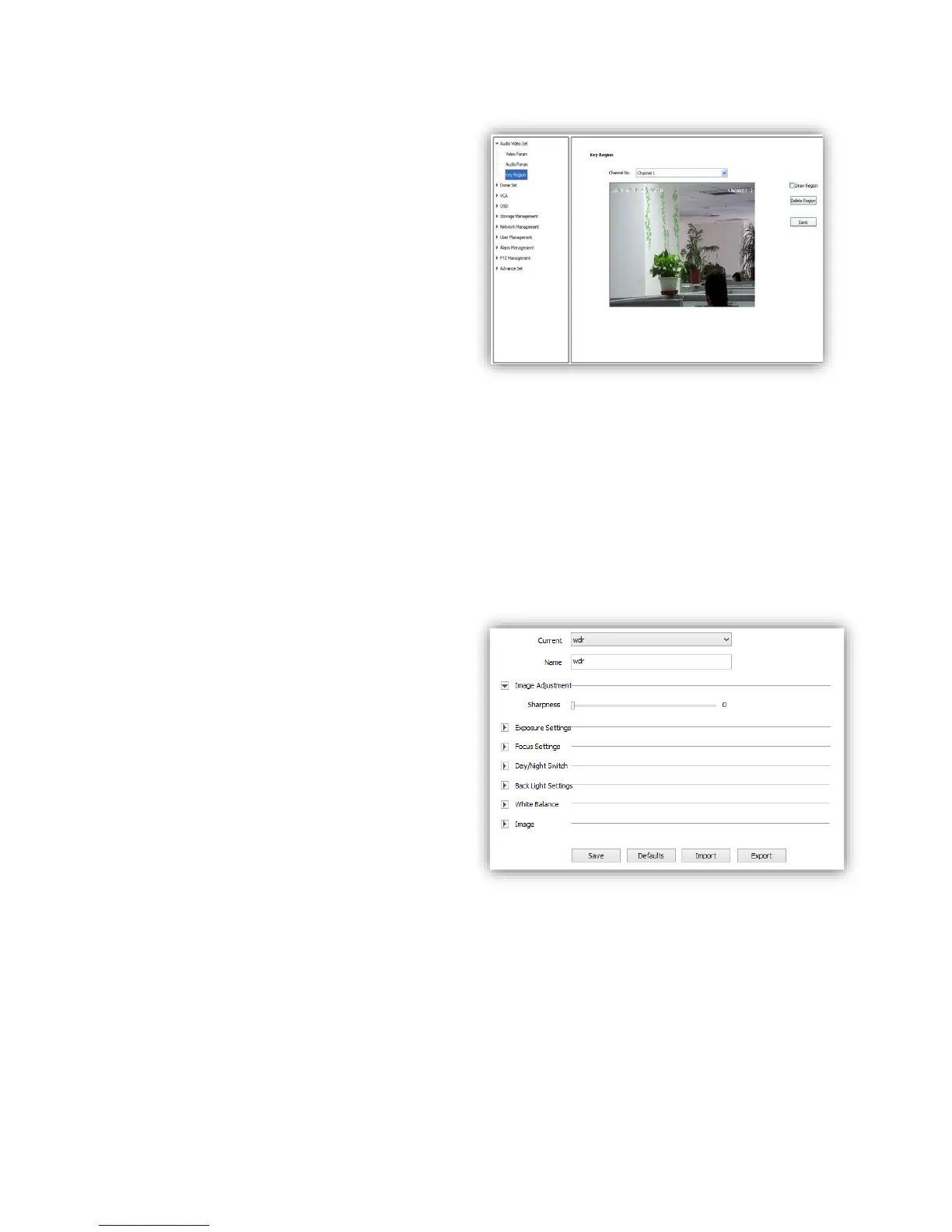
6.1.3 Key Region
<Key Region> To have better image quality
for some regions on the video, there are 4
regions settable for each video.
(1) <Draw Region>
Use the mouse to draw the key region on the
video.
(2)Click<Save> to enable.
(3) <Delete Region>
delete the drawn regions.
6.2 Dome Set
6.2.1 HD Parameter
Set video image parameter in this page.
HD Param-Model
The system provides 8 video templates for
different application, all the video parameter
can only be revised and saved in the template.
(1) <Current> Select current template.
(2)<Name>show the name of the current
template, it can be revised.
HD Param-Parameter
(1)<Image Adjustment>
Sharpness range from 0 to 255.
(2)<Exposure Setting> Auto/Manual.
(3)<Focus Setting> Auto/Manual.
(4)<Day/Night Switch>
<Smart IR> On/Off
<Day/Night> Auto/Night/Day
<Sensitivity> Low/Middle/High
(5)<Backlight Settings>
<Wide Dynamic> On/Off
<Level> Low/Middle/High
(6)<White Balance ><Auto>,<Manual>and<ATW>.When selected<Manual>,there will be 2
sliding blocks to set the white balance, R stand for red gain and B stand for blue gain.
(8)<Image>
<Light Suppression> On/Off
<Defog> On/Off
<Digital Denoise> Close/Ordinary Mode/Expert Mode
<Denoise Level> range from 1~255



 To Next Page