12 13
Final Connections
Cable Routing
When routing cables, adhere to a few guidelines:
• Keep data cables and power cables at least 2” (50mm) apart.
• Keep cables away from dust collection systems.
• Keep cables away from florescent lighting.
• Keep data cables away from any electrical noise generating devices.
• Do not overtighten any zip ties or other cable management restraints.
• Ensure all cables are routed so that they will not become crushed or pinched.
TigerFence Amp and Standard Controller Connections
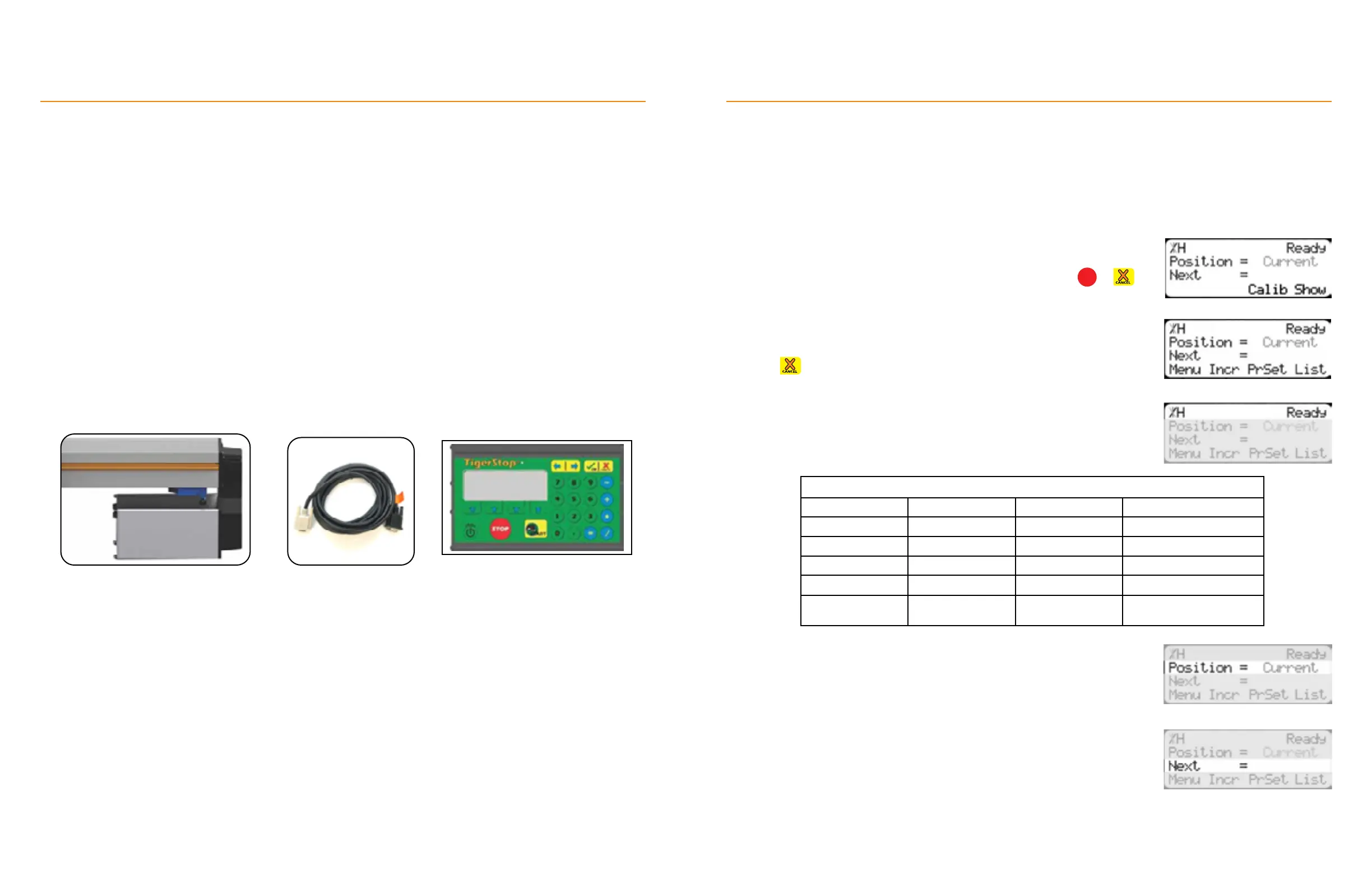
1. Ensure TigerFence is powered o.
2. Plug the Controller Cable’s grey end into the TigerFence Motor Box.
3. Plug the Controller Cable’s black end into the TigerStop
Standard Controller.
TigerFence Motor Box Controller Cable TigerStop
Standard Controller
TigerFence Installation
Setup
Power Up
1. Power up TigerFence by toggling the red switch on the amplifier box.
2. Follow the instructions on screen to run the Home Routine.
Line 1 displays the “heartbeat”. The heartbeat is a line that rotates and
indicates that TigerFence is functioning normally. The letter next to the
heartbeat is the drive indicator. The drive indicator communicates the
motor’s status.
Line 2 shows the current position of TigerFence. The position ends with
either ‘in’ or ‘mm’ depending on measurement system.
Drive Indicator
H
Holding Still
W
Waiting
A
Accelerating
X
Drive Disabled
C
Constant Speed
N
Communication Error
D
Decelerating
S
Stopping
L
Lash
J
Jog
T
Waiting for Text
Entry
--- ---
Ready Screen
Line 3 shows the next position of TigerFence. This is also where user input
appears.
The Ready Screen is the starting point for all TigerFence functions.
The Ready Screen is always accessible by repeatedly pressing
STOP
or .
The Ready Screen has two forms. From the basic Ready Screen, press the
[Show] soft key to display the expanded options.
Press to return to the basic Ready Screen.


 To Next Page