24 25
Entering Part Lists
The list function is TigerFence’s versatile part list handler, letting the user run, view, edit, and clear parts
lists data.
There are 4 types of lists:
• Pusher
A pusher list tells TigerFence to push the stock material into the tool. It treats each length you enter as an
incremental move. Enter as many parts as you like into a pusher list and TigerFence tells you when it needs
another stock material piece.
• Set Point
A set point list tells TigerFence to act as a stop. It treats each length you enter as an absolute value from
your zero point.
• Pattern
A pattern list tells TigerFence to process one stock-length’s worth of parts in a push-feed fashion.
It runs the same pattern of parts on one stock repeatedly until it’s told to stop.
TigerStop
®
Standard Controller Basic Functions
Programming a Pusher or Set Point List
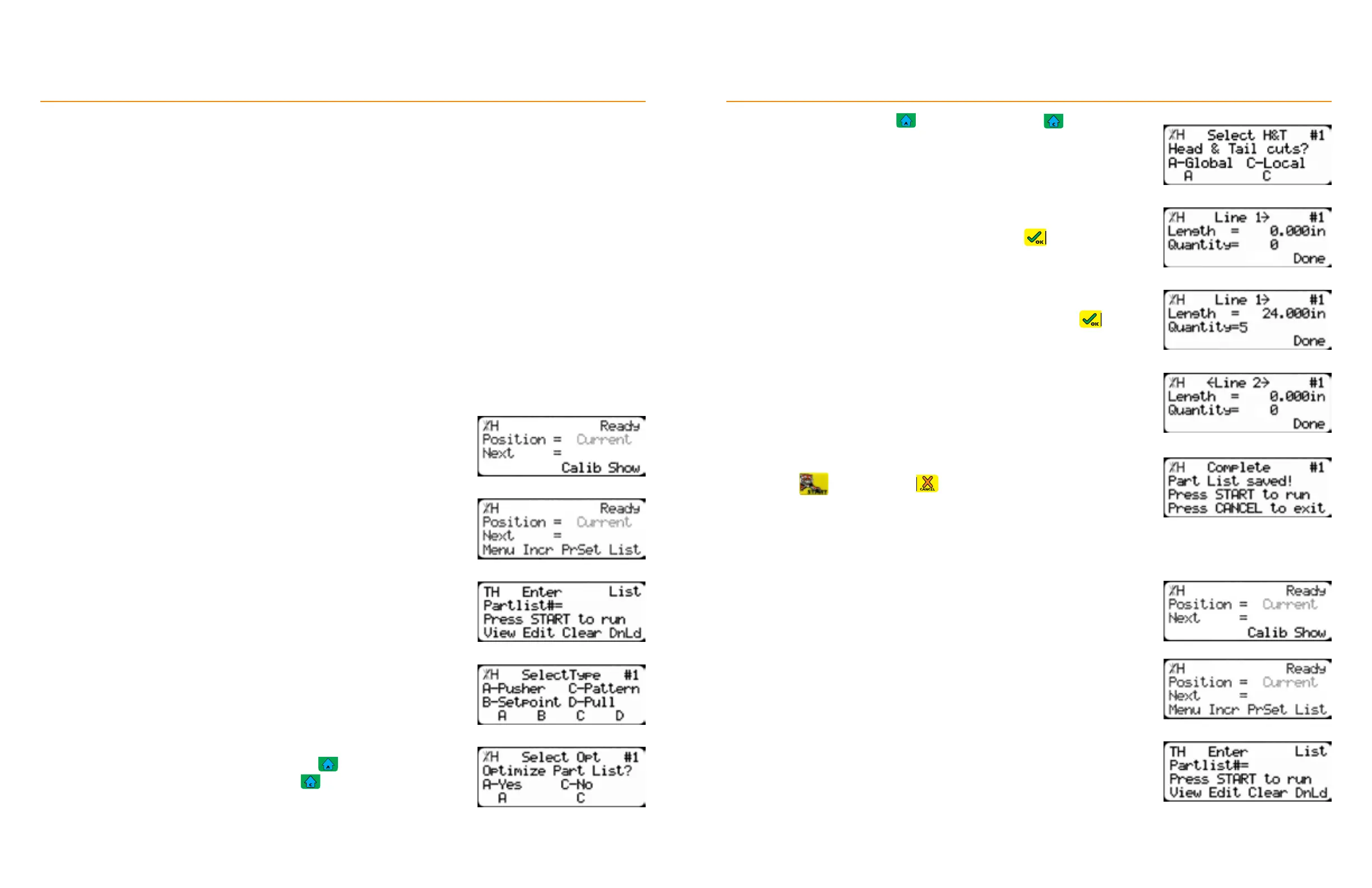
1. From the Ready Screen, press the [Show] soft key.
2. Press the [List] soft key.
3. Enter the list number to program and then press the [Edit] soft key.
• Choose a number between 1 - 100.
4. Select the [Pusher] or [Setpoint] soft keys.
5. Dynamic Optimization upgrade, only: Press to optimize the list for
maximum material yield. Otherwise, press
TigerStop
®
Standard Controller Basic Functions
6. Pusher List, only: Press to use a global or press to use a local
head & tail cut.
Global - Uses the head & tail cut setting from the Part List menu.
Local - Set a head and tail cut that is used for this list, only.
• Head & tail cuts are trim cuts at the ends of the material.
7. Enter the length of the part to process and press
8. Enter how many parts to process at that length, followed by
10. Repeat steps 8 & 9 to enter additional part lengths and quantities.
11. Press the [Done] soft key.
12. Press
to run the list or to exit.
Programming a Pattern List
1. From the Ready Screen, press the [Show] soft key.
2. Press the [List] soft key.
3. Enter the list number to program and then press the [Edit] soft key.
• Choose a number between 1 - 100.


 To Next Page