16 17
Safe Zone
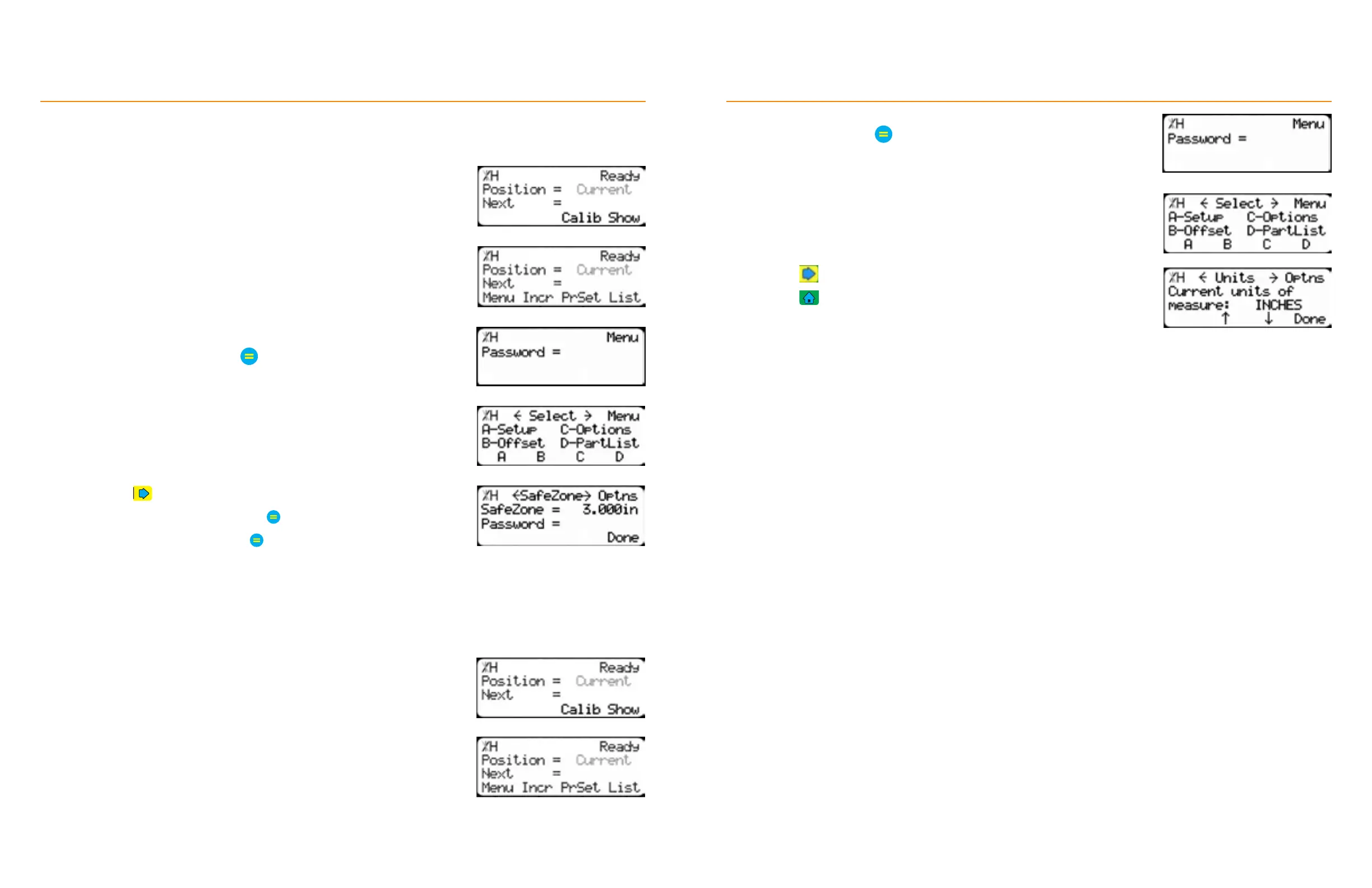
Safe Zone sets the minimum safe distance from the blade.
1. From the Ready Screen, press the [Show] soft key.
Setup
2. Press the [Menu] soft key
3. TigerFence requires a password to access all menu options.
Enter the password and press
• By default, the TigerFence password is the serial number.
4. Press the [Options] soft key.
5. Press the
button until you get to Safe Zone.
6. Enter the password and then press
7. Enter a distance and then press
Set Units
TigerFence can display its position in inches or in metric. To switch between inches and metric:
1. From the Ready Screen, press the [Show] soft key.
2. Press the [Menu] soft key.
Setup
3. TigerFence requires a password to access all menu options. Enter the
password and press
• By default, the TigerFence password is the serial number.
4. At the Menu Select screen, press the [Options] soft key.
5. Press until reaching the Units screen.
6. Press to toggle between inches and metric.
7. Press the [Done] soft key when finished.


 To Next Page