- 15 -
By logging into WAN, the camera can be viewed using the
Ethernet (internet) cable or wirelessly.
If the camera fails to show in LAN, please log into the WAN section using
the details on the back of the camera. These will show the status of the
camera.
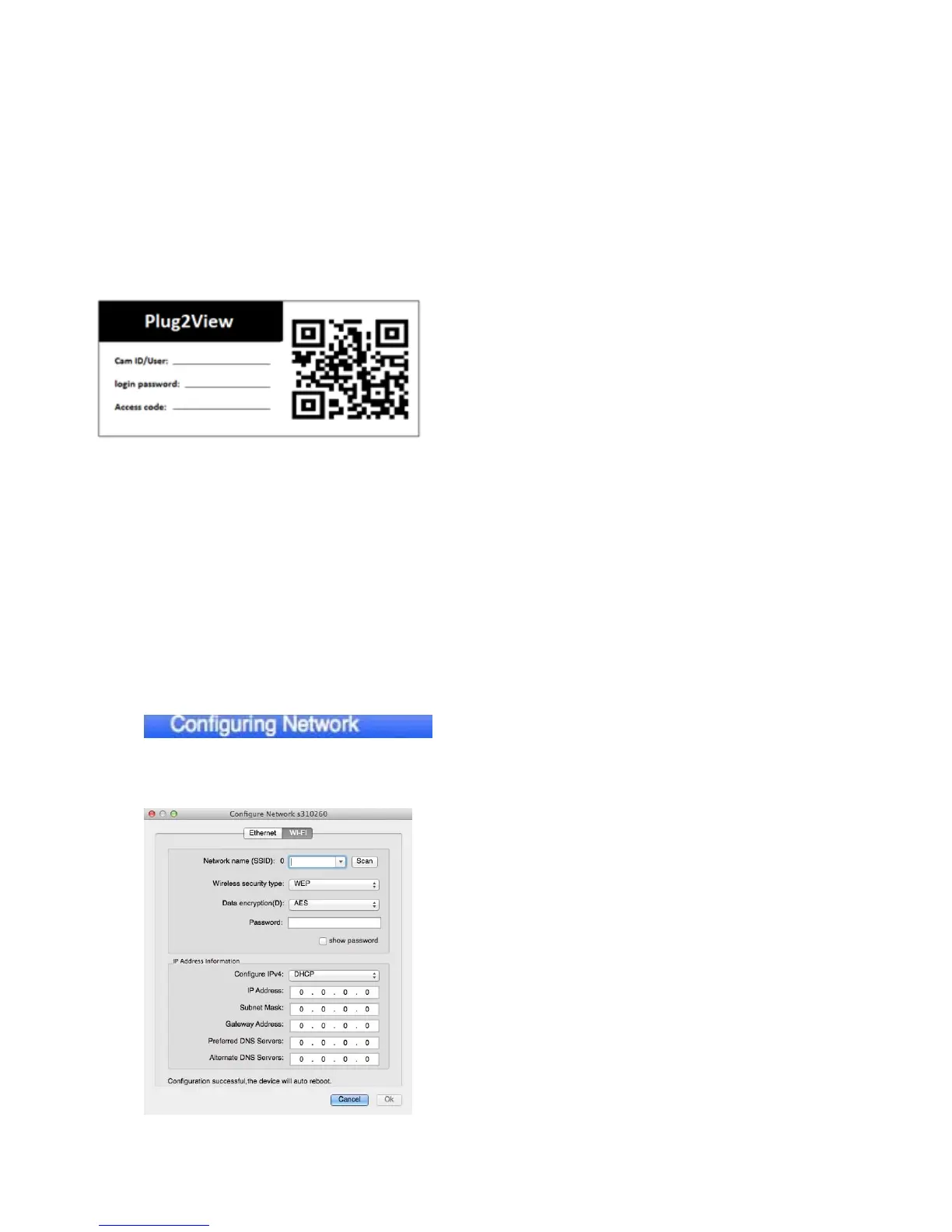
To log into the camera via the WAN
setting, on the back of the camera you
will see a Cam ID/User, Login Password
and access code. When logging in, you
will only need the Camera ID/Username.
Setting the camera up wirelessly.
On the software under the LAN Tab, you will need the camera to be
online.
To set the camera up to your WiFi, right click on the camera name to
bring up a list of options. ‘Configuring Network.’
You will then need to fill in your WiFi Network details.
Click on ‘Start WiFi Setting.
Click on Scan to look for local WiFi
Networks. Select your home WiFi
network from the list.
Enter the Password for your internet
router.
Leave the DHCP selected, this
automatically enters your IP Address into
the settings.


 To Next Page